How to Extract Tables from PDF in Python — 8 Libraries Tested & Compared in 2026
Table of Contents
Python PDF Table Extraction : An Introduction
Extracting tables from PDFs is one of those tasks that sounds simple until you actually try it.
PDFs were designed for print fidelity, not data portability. A table inside a PDF is just a collection of text fragments, lines, and coordinates arranged to look like a grid, there is no native “table” object to grab.
That gap between appearance and structure is why Python PDF table extraction remains surprisingly hard in 2026. The ecosystem has matured, but no single library wins across every scenario: scanned documents break most open-source tools, borderless tables confuse coordinate-based parsers, and multi-page tables still get split into disconnected chunks.
This guide benchmarks 8 libraries (open-source, commercial, and AI-powered) against real documents. For each, you will find the installation steps, a working code snippet, a breakdown of strengths and limitations, and an recommendation for when to use it.
Quick Comparison: 8 Python PDF Table Extraction Libraries (2026)
Before we proceed, let’s take a look at a quick comparison between the 8 libraries:
TL;DR: For digital PDFs with structural line objects, use pdfplumber (or Camelot if you need its visual debugger). For a zero-config LLM-ready pipeline, use PyMuPDF4LLM or LLMWhisperer V2. For open-source AI extraction including scanned PDFs, use Surya / Marker. pypdf alone is not a table extraction tool, it is included here because it is what most developers install first.
Python Library
Approach
Scanned PDF
Borderless Tables
Multi-page Tables
Setup Complexity
Output Format
Best For
pypdf
Pure-Python text layer parsing
No
No
No
Very Low
Plain text, strings
Text/metadata extraction; not suited for tables
Camelot
Computer vision / coordinate
No
Limited (stream mode)
No
Medium (Ghostscript required; pdfium backend optional)
DataFrame, CSV, JSON, Excel
Bordered tables in digital PDFs with actual line objects
Tabula
Java-based coordinate parsing
No
Limited
Partial
Medium (Java JRE)
DataFrame, CSV, JSON, TSV
Quick extraction, multi-page docs
pdfplumber
pdfminer layout analysis
No
Yes (configurable)
Partial
Low
List of lists, DataFrame
Complex layouts, custom pipelines
unstructured
Layout analysis + OCR
Yes (hi_res)
Yes
Partial
Medium (optional system deps)
Elements, HTML, JSON, CSV
Mixed document pipelines, LLM preprocessing
PyMuPDF4LLM
MuPDF rendering + layout engine
Partial (hybrid OCR)
Partial
Partial
Very Low
Markdown, JSON, TXT
LLM / RAG pipelines, modern stacks
Surya / Marker
VLM (650M params) + OCR
Yes
Yes
No
High (GPU/llama.cpp)
Markdown, JSON, HTML
Open-source AI table extraction
LLMWhisperer
AI + OCR, layout preserving
Yes
Yes
Yes
Very Low (API key)
Layout-preserved text
Complex/irregular tables for LLMs
Why PDF Table Extraction Is Still Hard in 2026
The root problem has not changed: PDFs encode visual appearance, not semantic structure.
When a designer draws a table, the PDF stores each cell’s text at specific XY coordinates with font metrics. There is no <table> tag, no row object, no column definition.
Extraction libraries must reconstruct structure from visual clues:
Line-based detection looks for drawn borders and infers cells from intersections.
Coordinate clustering groups text by proximity to infer columns and rows.
Layout analysis uses font sizes, spacing, and rendering order to find patterns.
AI/OCR approaches process the rendered page image and learn structure from training data.
Each approach has a different failure mode. Line-based detection fails on borderless tables. Coordinate clustering breaks when columns are unevenly spaced. Layout analysis degrades on multi-column pages where tables and prose are mixed. AI approaches are the most robust but add latency and external dependencies.
What has changed in 2026
LLM-native tools (PyMuPDF4LLM, LLMWhisperer V2) are now genuinely useful and production-ready, not just experimental.
LLMWhisperer V2 adds dedicated table mode with ASCII line markers for vertical and horizontal borders, a major accuracy improvement over V1 for LLM inference tasks.
PyMuPDF4LLM has grown from a simple Markdown exporter into a full layout-analysis engine with hybrid OCR, table detection, and JSON output.
Surya / Marker (DataLab) hit a major v2 milestone in May 2026: a single 650M-parameter VLM now replaces the old multi-model pipeline, with a dedicated TableConverter for clean table output.
pypdf (v6.x) remains the most-installed PDF library in Python but still has no built-in table extraction, it is included here to set expectations and show where it fits alongside the specialized tools.
Classic tools (Camelot, Tabula, pdfplumber) remain solid for digital PDFs but have not meaningfully improved their handling of borderless or scanned content.
Test Documents & Evaluation Criteria
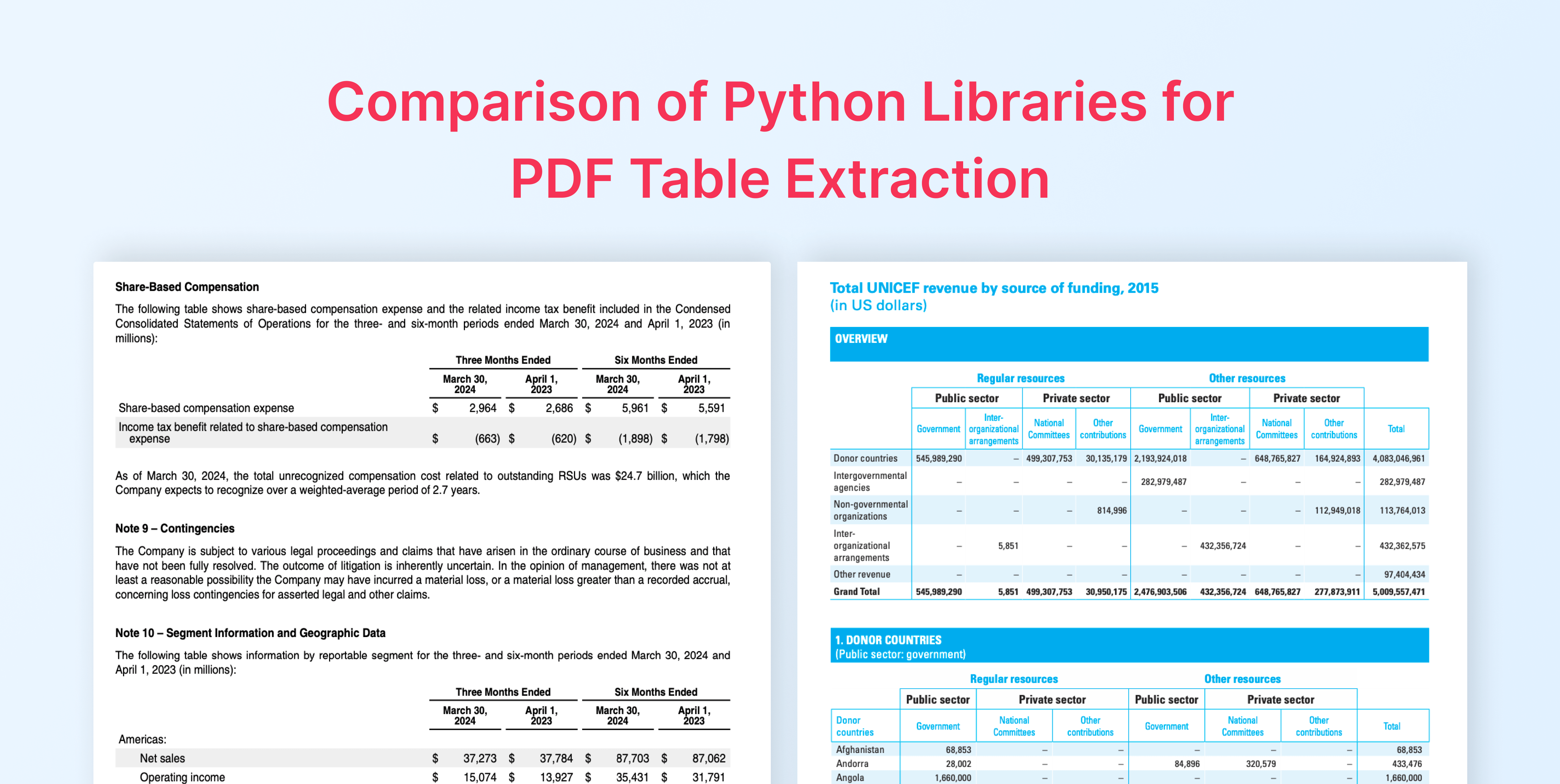
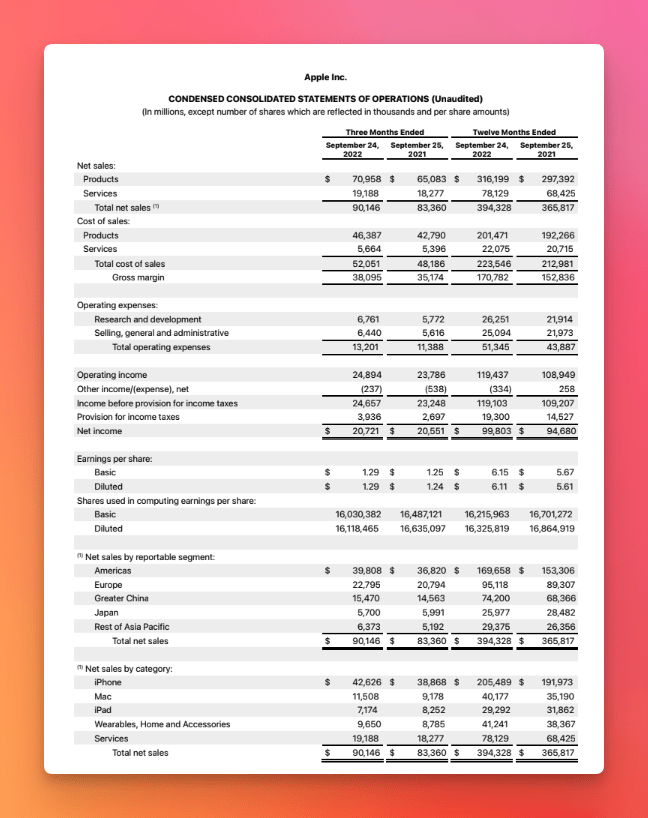
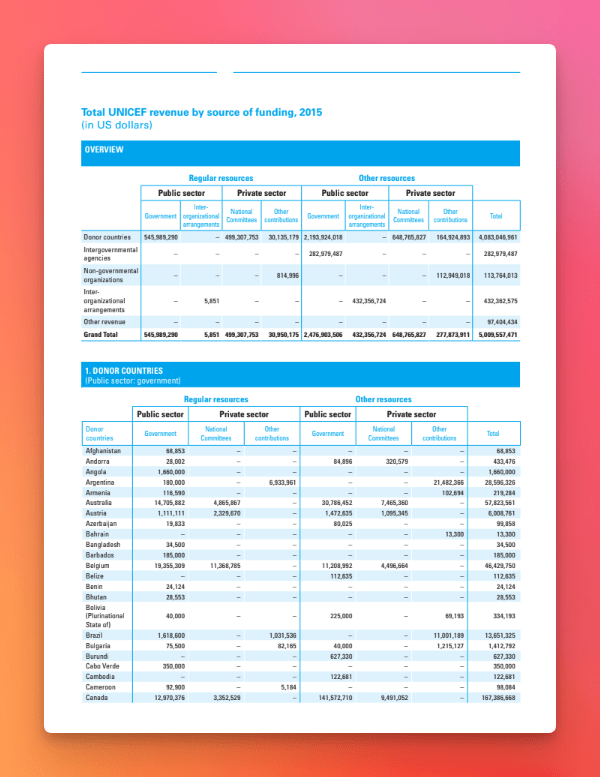
All libraries were tested against two documents:
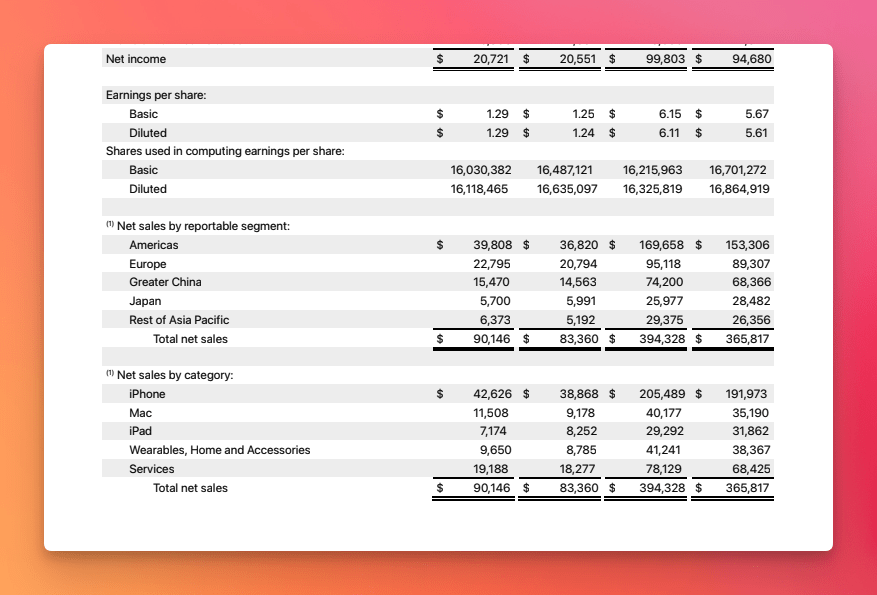
Apple Inc. annual financial statements. Well-structured tables with clear borders, mixed text and numbers, dense formatting. Represents a typical corporate report.
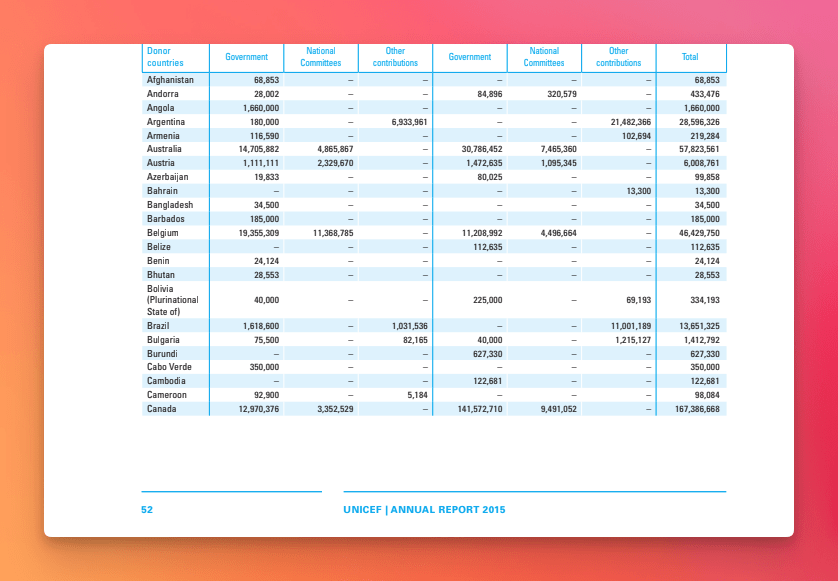
UNICEF annual report data. Multi-format tables with varying column widths, nested headers, and some borderless sections. Represents messy real-world data.
Evaluation axes
Not every axis applies equally to every use case, a team building a local RAG pipeline cares about LLM readiness and scanned PDF support far more than setup complexity. While a data engineer extracting financial statements cares about structure preservation above everything else.
The six axes below were chosen because together they cover the full lifecycle of a table extraction decision: whether the tool will run in your environment, whether its output can be trusted, and whether that output fits into the pipeline you are building.
Unstract’s All Table Extraction API: Effortless Table Extraction
Unstract’s All Table Extraction API simplifies the process of extracting tables from PDFs, images, and other document formats.
With just an API key and endpoint, you can seamlessly integrate advanced AI-powered table detection into your workflow. Point your documents to the API, and receive structured, ready-to-use table data in return—no manual intervention required.
Installation steps, system dependencies, time to first result
Extraction accuracy
Completeness and correctness of cell content vs. source
Structure preservation
Whether rows, columns, and merged cells survived extraction
Scanned/image support
Whether the tool can process image-only PDFs
Multi-page table handling
Whether tables spanning pages are merged or split
LLM readiness
Whether output can feed directly into an LLM prompt without post-processing
pypdf
pypdf is a free, pure-Python PDF library capable of splitting, merging, cropping, transforming, encrypting, and extracting text and metadata from PDF files. It is the successor to PyPDF2 (merged back under the pypdf name) and is the most widely-installed PDF package in Python by download count.
Important caveat before you read further: pypdf has no built-in table detection or table extraction. It reads the raw text layer of a PDF but has no awareness of rows, columns, or cell boundaries. It is included in this guide because it is the first package most developers install when they need “something from a PDF” and understanding what it can and cannot do saves a lot of wasted effort.
What pypdf is Good For
Extracting raw text from digital (non-scanned) PDFs
Reading and writing PDF metadata
Splitting, merging, and rotating pages
Filling PDF form fields
Encrypting/decrypting PDFs
Cropping page regions for pre-processing before passing to a table extractor
Installation
pip install pypdf==6.14.2
No system-level dependencies. Pure Python.
Core Extraction Approach
pypdf parses the PDF’s internal content streams and reconstructs text by reading character codes, their font mappings, and positioning operators. It does not analyse spatial layout; it simply concatenates glyphs in stream order. For clean, single-column documents this produces readable text. For tables it typically produces garbled strings where cell content runs together or appears in wrong order.
Code Example
from pypdf import PdfReader

reader = PdfReader("best-unicef-1.pdf")

print(f"Pages: {len(reader.pages)}")
print(f"Title: {reader.metadata.title}")

# --- Basic text extraction ---
print("\n--- Basic text extraction ---")
for i, page in enumerate(reader.pages):
    text = page.extract_text()
    print(f"\n--- Page {i + 1} ---")
    print(text[:500])

# --- Attempting layout-aware text extraction ---
# extract_text() accepts a visitor function for finer control
def visitor(text, cm, tm, font_dict, font_size):
    # tm = text matrix: [a, b, c, d, x, y]
    x, y = tm[4], tm[5]
    if text.strip():
        print(f"  [{x:.0f}, {y:.0f}] '{text}'")

page = reader.pages[0]
print("\n--- Layout-aware text extraction ---")
page.extract_text(visitor_text=visitor)

# --- Using pypdf to pre-process before a table extractor ---
# Crop a page region and save as a new single-page PDF,
# then pass THAT to pdfplumber or Camelot for table extraction.
from pypdf import PdfWriter

writer = PdfWriter()
page = reader.pages[0]

# Crop to the bottom half (where the table lives)
page.mediabox.top = page.mediabox.top / 2
writer.add_page(page)

with open("cropped_page.pdf", "wb") as f:
    writer.write(f)

print("Saved: cropped_page.pdf (ready for table extractor)")
What the code does:
PdfReader opens the file and provides access to pages and metadata.
page.extract_text() returns a plain string of the page’s text content – no structure.
The visitor_text callback receives each text fragment with its XY position, which you can use to build a crude grid manually.
The PdfWriter crop pattern shows the most practical use of pypdf alongside table extractors: pre-processing a page to isolate the region you care about, then handing the cropped PDF to a specialist tool.
Strengths
Zero dependencies – pure Python, installs everywhere
Best-in-class for PDF manipulation: merge, split, rotate, encrypt, form-fill
Very fast for text extraction on clean documents
Excellent for metadata reading and PDF introspection
Works as a pre-processing step for other extractors
Limitations
No table detection – extracts raw text only, no row/column awareness
Text order can be incorrect for multi-column layouts or tables
Cannot process scanned (image-only) PDFs
No DataFrame output; all results are strings
Results
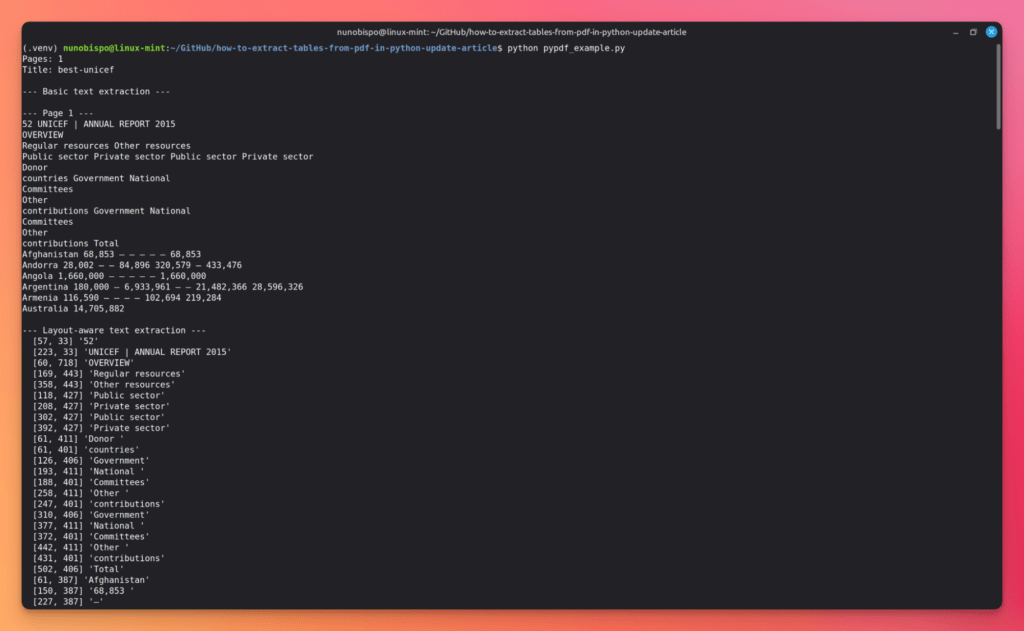
Running the script against both test documents confirms what the limitations section states – but seeing the exact output makes the distinction concrete.
Apple financial document
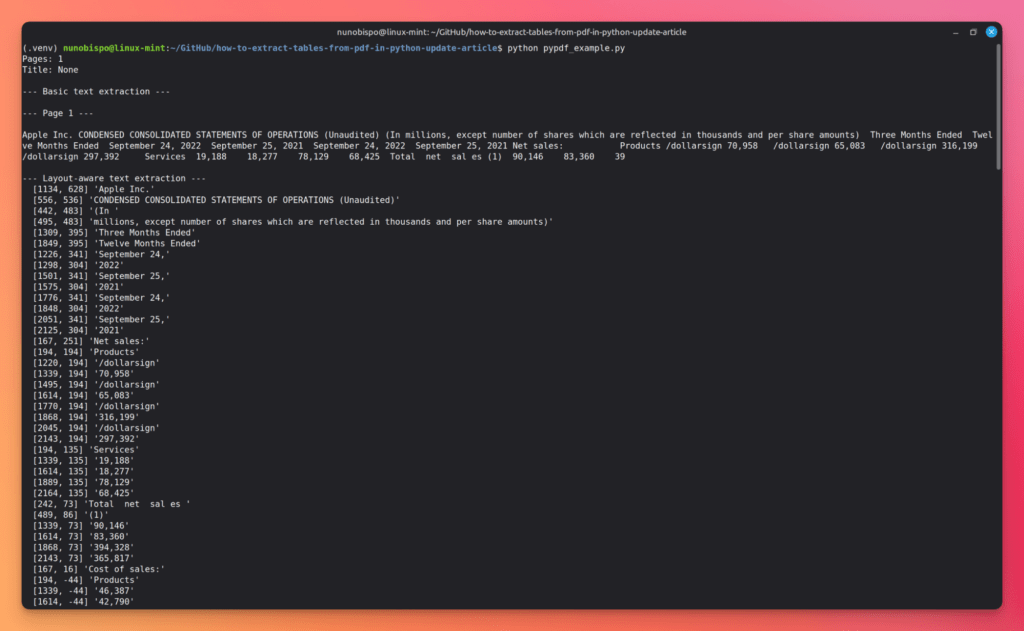
The problem surfaces the moment you look at what extract_text() returns for a page containing a financial table. Here is the raw output for a page with the consolidated statements of operations. The layout-aware based extraction adds coordinate data, which technically contains enough information to reconstruct columns manually:
The cropped PDF output is the most practically useful result from this script: a single-page PDF containing only the bottom half of page 1, ready to pass to another tool. That downstream call will find the table correctly. pypdf’s role here is pre-processing, not extraction:
Unicef research document
pypdf reads it without errors, but the text extraction result is worse than on the Apple document. A page containing a multi-column funding table comes out as a continuous stream where row labels, numeric values, and percentage figures merge across what were originally three or four distinct columns.
The layout-aware based extraction reveals why: column x-positions shift between sections of the same table, and some nested header cells span coordinate ranges that overlap with the data rows beneath them.
The cropped PDF result is again the most useful output. Isolating the table region to a single-page PDF removes the surrounding prose and headers, giving the downstream extractor a cleaner target with less layout noise to work through:
Ideal Use Case
Use pypdf when you need to manipulate PDFs (merge, split, crop, encrypt) or extract plain text from simple single-column documents. As a table extractor it is not fit for purpose – but as a pre-processing companion (page cropping, page selection, splitting large files), it is genuinely useful.
LLMWhisperer OCR: Layout-Preserving Table Parser for LLMs
LLMWhisperer OCR simplifies the process of extracting tables from PDFs, images, and complex documents for LLM consumption.
With just an API key and endpoint, you can seamlessly integrate layout-preserving text extraction into your workflow. Point your documents to the API, and receive structured, LLM-ready text in return—no manual intervention required.
Camelot is a Python library built specifically for PDF table extraction. It uses two distinct algorithms, lattice for bordered tables and stream for borderless ones, and provides a visual debugging interface that makes it one of the most developer-friendly options for digital PDFs.
Key features
Lattice mode: uses computer vision to detect table borders and intersections
Stream mode: infers columns from whitespace gaps (useful for borderless tables)
Visual debugging: camelot.plot() renders detected cells and lines for manual inspection
Export to CSV, JSON, Excel, and HTML directly from the API
Accuracy reporting per table via table.parsing_report
Installation
Camelot requires Ghostscript to be installed at the OS level before the Python package will work.
Note on PyPDF2 compatibility: Camelot currently works best with pypdf (the successor to PyPDF2). If you encounter DeprecationError: PdfFileReader is deprecated, install pypdf directly: pip install pypdf.
Core Extraction Approach
Camelot’s lattice mode converts the PDF page to an image, runs edge detection to find horizontal and vertical lines, computes cell intersections, and maps text fragments into cells. The stream mode skips line detection and clusters text by x-coordinate proximity instead.
Code example:
import camelot
import pandas as pd

# --- Lattice mode: bordered tables ---
tables = camelot.read_pdf(
    "apple.pdf",
    pages="all",
    flavor="lattice"   # default; best for tables with visible borders
)

print(f"Tables found: {len(tables)}")

for i, table in enumerate(tables):
    print(f"\n--- Table {i + 1} ---")
    print(f"Parsing accuracy: {table.parsing_report['accuracy']:.1f}%")
    print(table.df.head())

# --- Stream mode: borderless tables ---
tables_stream = camelot.read_pdf(
    "apple.pdf",
    pages="1",
    flavor="stream",
    edge_tol=500       # tolerance for column edge alignment
)

print(f"\nStream mode tables: {len(tables_stream)}")
print(tables_stream[0].df)
What the code does:
camelot.read_pdf() reads the PDF and returns a TableList object – a collection of Table instances.
table.parsing_report gives a per-table accuracy score, whitespace ratio, and order number.
table.df returns the table as a pandas DataFrame, ready for analysis or export.
flavor="stream" switches to the whitespace-based algorithm for borderless tables.
Strengths
Highest accuracy among open-source tools for bordered, digital PDFs
Visual debugging saves hours of manual checking
Direct pandas integration – no format conversion needed
No OCR: fails entirely on scanned or image-based PDFs
Ghostscript dependency: adds OS-level setup friction in CI/CD pipelines
Multi-page tables: each page is treated independently; cross-page tables must be merged manually
Stream mode requires tuning (edge_tol, row_tol) for complex layouts
Results
Running the script against both test documents makes evident the strengths and limitations.
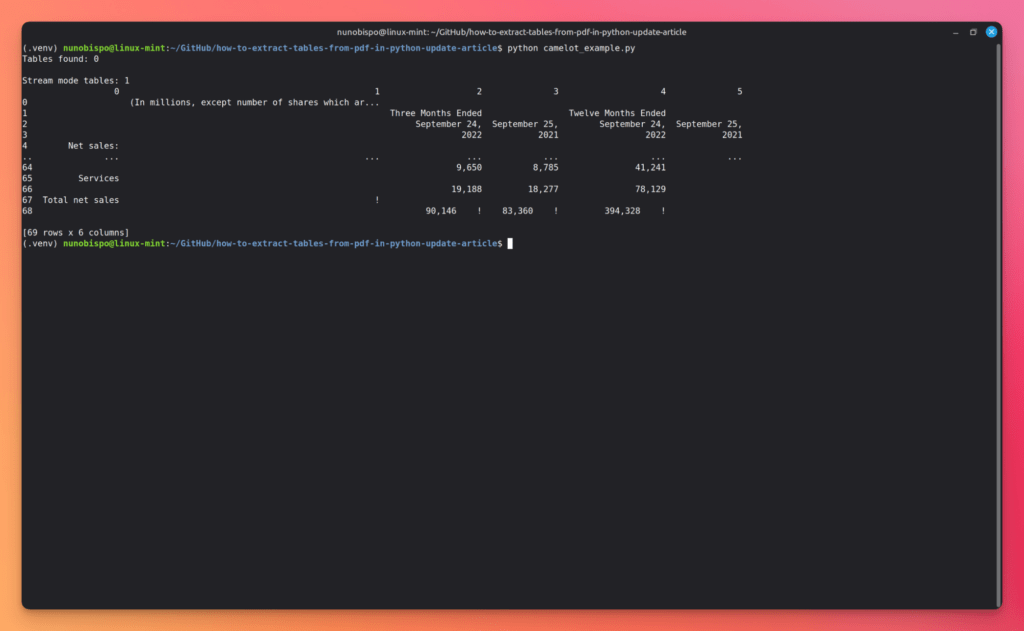
Apple financial Document
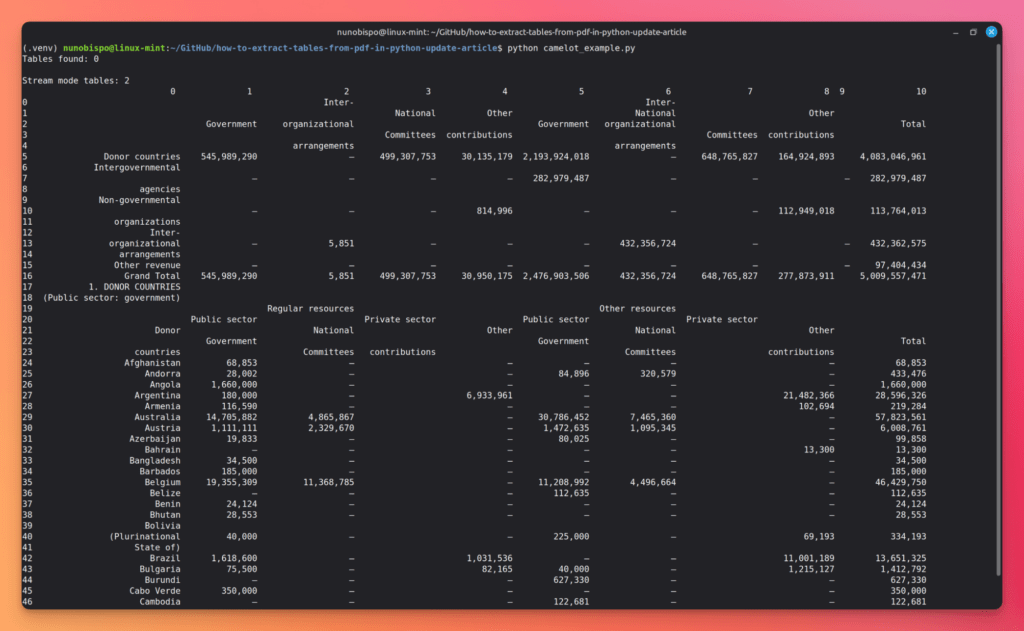
On Apple’s dense three-column layout, where fiscal year columns sit close together with minimal gap, the column boundaries are ambiguous, and the algorithm either merges adjacent columns or splits a single column into two:
Unicef research document
The UNICEF document is where Camelot performs as advertised. Pages with explicit ruled borders, funding tables, programme result summaries, indicator grids are detected cleanly:
Ideal Use Case
Digital PDFs with clearly bordered tables where accuracy matters and you can afford a short setup step. Financial reports, invoices, and government data in well-formatted PDFs are Camelot’s sweet spot.
LLMWhisperer OCR: The Most Accurate Table Extraction OCR for LLMs
If you want to skip straight to the tool, see how LLMWhisperer OCR API handles tables of any complexity — scanned reports, handwritten ledgers, poorly photographed images, nested tables, and multi-language documents.
Tabula started as a browser-based table extraction app and grew into a widely-used Java library (tabula-java) with an official Python wrapper (tabula-py). It’s fast, well-documented, and handles multi-page documents cleanly – but requires a Java runtime.
Key features
Two detection algorithms: lattice (ruled lines) and stream (whitespace)
Returns tables as a list of pandas DataFrames – one per detected table
Multi-page extraction with pages="all"
Batch processing: convert entire directories of PDFs to CSV/JSON
Remote PDF support: can fetch and extract from a URL directly
Installation
You need Java 8 or later installed and available on your system PATH.
Python 3.13 note: JPype does not yet support Python 3.13. Install the base package without the [jpype] extra if you’re on 3.13+.
Core Extraction Approach
tabula-py is a thin wrapper around tabula-java. When you call read_pdf(), it spawns a Java subprocess that parses the PDF’s internal structure, identifies table regions using line or whitespace detection, and returns the results as a list of DataFrames serialized through a JSON intermediary.
Code Example
import tabula
import pandas as pd

# --- Basic extraction: all pages ---
dfs = tabula.read_pdf(
    "best-unicef-1.pdf",
    pages="all",
    multiple_tables=True   # return each detected table as a separate DataFrame
)

print(f"Tables detected: {len(dfs)}")
for i, df in enumerate(dfs):
    print(f"\n--- Table {i + 1} ({df.shape[0]} rows x {df.shape[1]} cols) ---")
    print(df.head())
What the code does:
tabula.read_pdf() processes the PDF via the Java backend and returns a Python list of DataFrames.
multiple_tables=True ensures each distinct table region is returned as its own DataFrame (default is True in recent versions).
Strengths
Excellent multi-page document handling – one call covers the entire document
Batch directory processing built in
Stream algorithm handles many borderless tables without configuration
Limitations
Java dependency: adds setup complexity and startup latency per call
No OCR: cannot process scanned documents
Table boundary ambiguity: stream mode sometimes merges adjacent tables or splits a single wide table
JPype support on Python 3.13 is not yet available, so the fast execution path is temporarily blocked
Results
Running the script against both test documents makes evident the strengths and limitations.
Apple financial Document
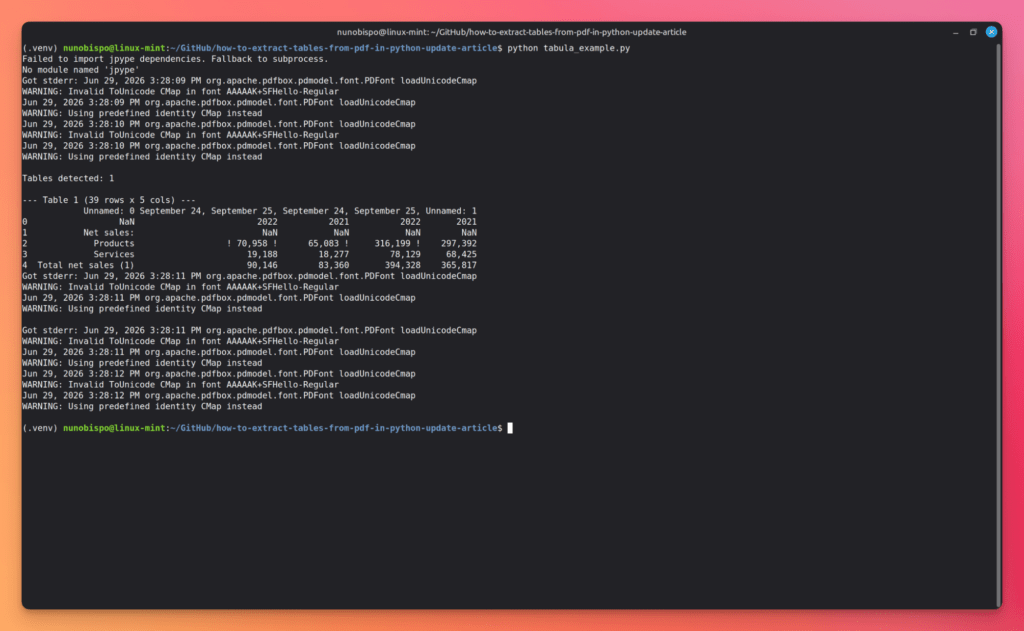
Unlike Camelot, Tabula does find tables in apple.pdf – the Java backend uses a different detection strategy that does not require actual PDF line objects. Columns that sit close together with narrow whitespace gaps get merged into a single column, collapsing two years of data into one:
Unicef research document
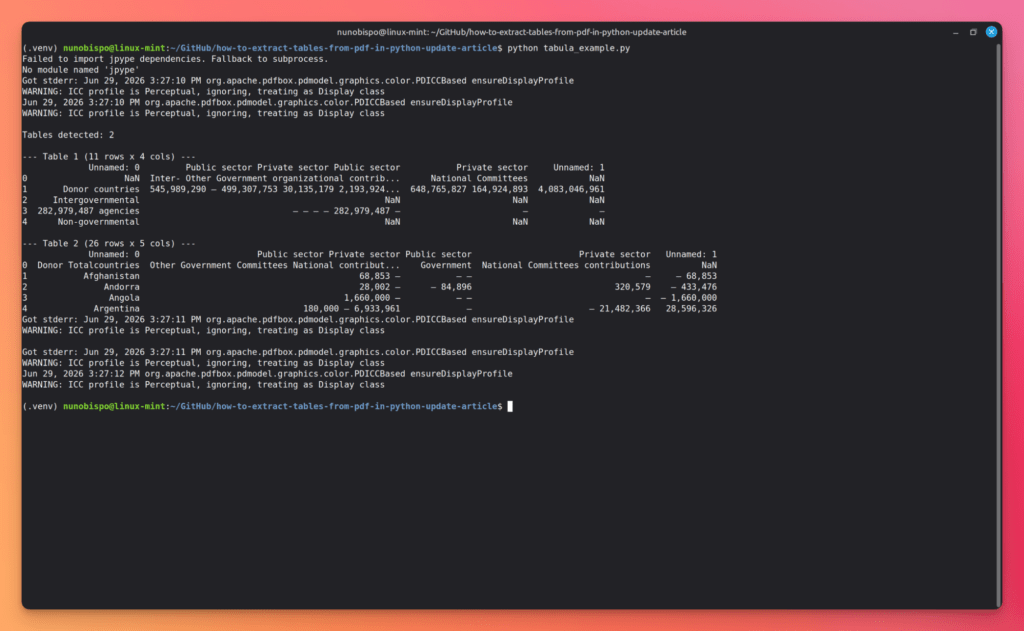
Tabula performs considerably better on the UNICEF document. The varied table layouts, some narrower, some with fewer columns, some with clearer whitespace separation give more reliable column anchor points:
Ideal Use Case
Bulk extraction from large batches of digital PDFs where speed and batch processing matter. Works particularly well when piped into a data pipeline that consumes DataFrames or CSV files downstream.
pdfplumber
pdfplumber is built on top of pdfminer.six and gives you fine-grained access to every character, line, rectangle, and curve on a PDF page. Its table extraction is highly configurable: you can define custom cell boundaries, filter by region, and adjust the heuristics that control row and column detection. It is the most flexible open-source option tested.
Key features
Access to raw character positions, lines, curves, and rectangles
Region cropping: extract tables only from specific page areas using bounding boxes
Debug visualization: render detected table boundaries as an annotated image
Lossless preservation of merged-cell structure better than most alternatives
Installation
pip install pdfplumber==0.11.10
pdfplumber pulls in pdfminer.six, Pillow, and pypdf as dependencies, no system-level installs required.
Core Extraction Approach
pdfplumber maps every character on the page to an XY coordinate. Its table detector then looks for horizontal and vertical lines (from PDF drawing commands), snaps nearby text to those lines within a configurable tolerance, and assembles the result into a grid. Where lines are absent, you can instruct it to infer boundaries from text spacing instead.
Code Example
import pdfplumber
import csv

PDF_PATH = "best-unicef-1.pdf"

with pdfplumber.open(PDF_PATH) as pdf:
    print(f"Total pages: {len(pdf.pages)}")

    all_tables = []

    for page_num, page in enumerate(pdf.pages, start=1):
        # Default extraction
        tables = page.extract_tables()

        if not tables:
            print(f"  Page {page_num}: no tables detected")
            continue

        print(f"  Page {page_num}: {len(tables)} table(s)")
        for table in tables:
            all_tables.append(table)
            for row in table[:3]:   # preview first 3 rows
                print("  ", row)

# --- Advanced: custom table settings ---
from pdfplumber.utils import DEFAULT_X_TOLERANCE, DEFAULT_Y_TOLERANCE

custom_settings = {
    "vertical_strategy": "lines",       # or "text" for borderless tables
    "horizontal_strategy": "lines",
    "snap_tolerance": 3,
    "join_tolerance": 3,
    "edge_min_length": 3,
    "min_words_vertical": 1,
    "min_words_horizontal": 1,
    "text_tolerance": 3,
}

with pdfplumber.open(PDF_PATH) as pdf:
    page = pdf.pages[0]
    table = page.extract_table(table_settings=custom_settings)
    print("\nCustom extraction (first table, first 5 rows):")
    if table:
        for row in table[:5]:
            print(row)

# --- Region-based extraction: target a specific area of the page ---
with pdfplumber.open(PDF_PATH) as pdf:
    page = pdf.pages[0]
    # Crop to bottom half of the page (where financial data often lives)
    cropped = page.crop((0, page.height / 2, page.width, page.height))
    table = cropped.extract_table()
    if table:
        print("\nRegion-based extraction:")
        for row in table[:5]:
            print(row)
What the code does:
pdfplumber.open() returns a context manager giving access to a PDF object with a .pages list.
page.extract_tables() returns a list of tables; each table is a list of rows; each row is a list of cell strings.
table_settings is a dictionary that controls how lines are detected and snapped – the most powerful customization lever in pdfplumber.
page.crop() restricts extraction to a bounding box, which is essential when a page mixes prose and tables.
Strengths
Most configurable open-source option – you can handle nearly any layout with the right settings
No system dependencies beyond Python packages
Excellent for pages with mixed text and table content
Performance: character-level processing is slower than for instance Tabula on large documents
Multi-page tables are not automatically merged
Results
Running the script against both test documents makes evident the strengths and limitations.
Apple financial Document
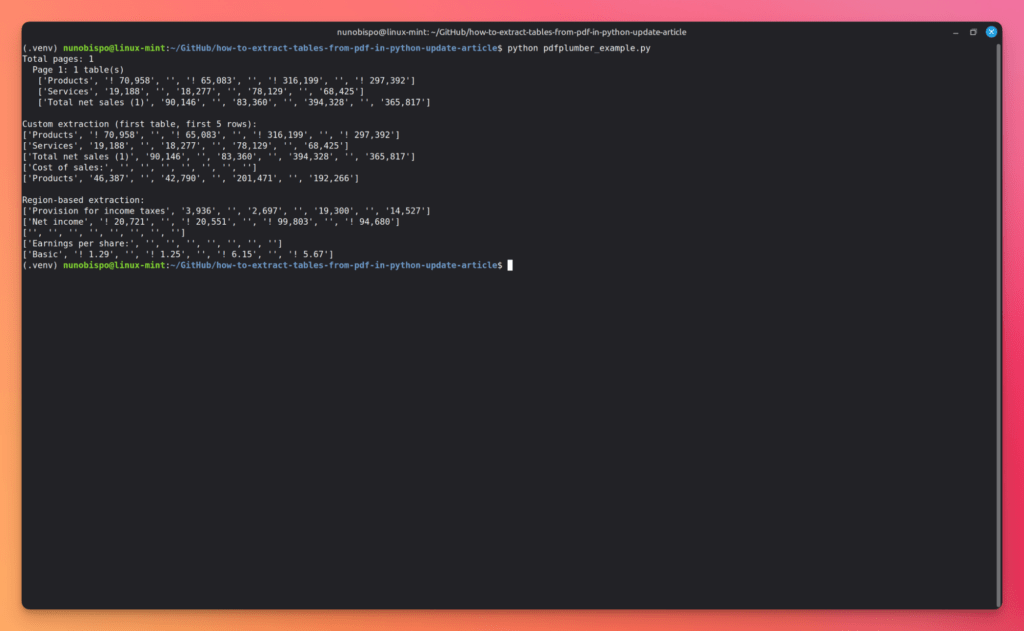
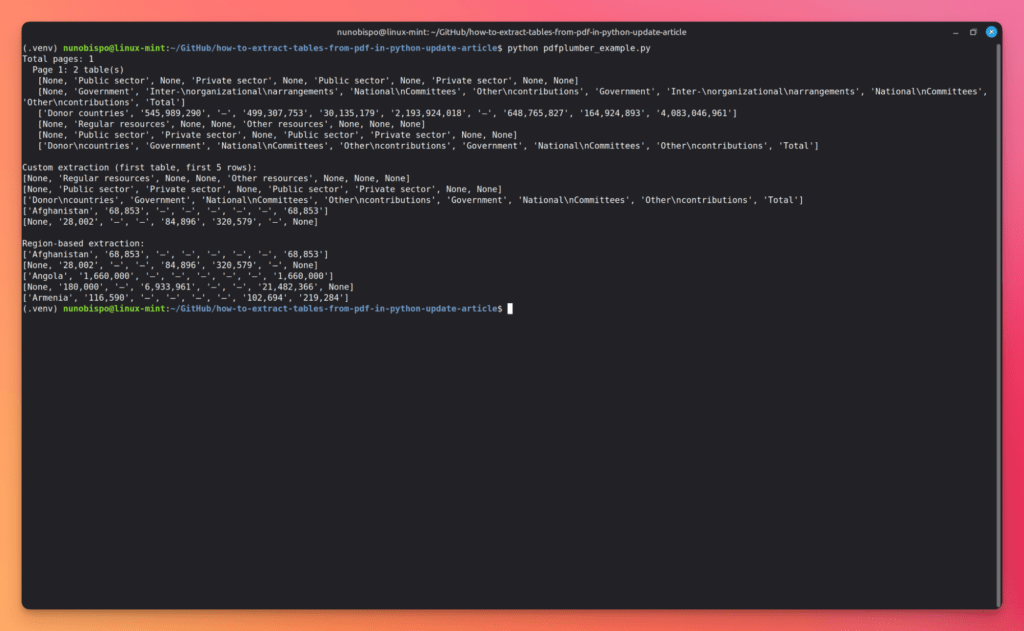
The default lines strategy finds line objects on the pages that have them and produces clean, correctly structured data:
Unicef research document
The mix of bordered and semi-bordered tables, varying column widths, and nested headers that cause problems for other tools are handled consistently:
Ideal Use Case
Pipelines that need precise, programmatic control, especially when tables share a page with prose, footnotes, or diagrams and you need to extract only specific regions. Also the best choice when you want to post-process the raw cell data before persisting it.
unstructured.io
unstructured is an open-source Python library from Unstructured.io built for extracting and preprocessing content from a wide range of document formats (PDFs, DOCX, HTML, Markdown, images, and more) and feeding that content into LLM and RAG pipelines. Its PDF parser supports multiple extraction strategies, ranging from a fast text-layer pass to a full layout-detection + OCR pipeline that handles scanned documents and complex table structures.
Key features
Three PDF strategies: fast (text layer only), hi_res (layout detection + OCR), and ocr_only (OCR across the whole page)
Table extraction: hi_res strategy with infer_table_structure=True returns tables as HTML strings with full cell structure
Structured Elements API: every extracted piece of content – title, paragraph, table, list item – is typed (Table, Text, Title, NarrativeText, etc.)
LangChain and LlamaIndex integration out of the box
unstructured-ingest CLI and Python API for batch pipeline processing
Supports 20+ document formats with a unified API
Installation
# Base install (fast strategy -- text layer only, no system deps)
pip install "unstructured[pdf]"==0.23.1

# Full install (hi_res strategy -- layout detection + OCR)
pip install "unstructured[pdf,local-inference]"==0.23.1
The hi_res strategy also requires system-level dependencies:
Note:hi_res uses detectron2 (or layoutparser) for layout detection. On first use it downloads model weights automatically. A GPU is not required but significantly speeds up processing for large documents.
Core Extraction Approach
unstructured applies a multi-stage document understanding pipeline. In hi_res mode it renders each page as an image, runs a layout detection model to identify text blocks and table regions, then applies OCR to each detected element. Table regions are parsed into HTML using the detected cell structure. In fast mode it falls back to pdfminer-style text extraction, faster, but with no awareness of table boundaries.
Code Example
from unstructured.partition.pdf import partition_pdf
from unstructured.documents.elements import Table
import csv

# --- Basic extraction (fast strategy, text layer only) ---
elements = partition_pdf("best-unicef-1.pdf")

print(f"Elements extracted: {len(elements)}")
for el in elements[:5]:
    print(type(el).__name__, ":", str(el)[:120])

# --- Table extraction (hi_res strategy) ---
elements_hires = partition_pdf(
    "best-unicef-1.pdf",
    strategy="hi_res",
    infer_table_structure=True,   # returns HTML in table.metadata.text_as_html
)

tables = [el for el in elements_hires if isinstance(el, Table)]
print(f"\nTables found: {len(tables)}")

for i, table in enumerate(tables):
    print(f"\n--- Table {i + 1} ---")
    print(f"Text preview: {str(table)[:200]}")
    print(f"HTML (first 400 chars): {table.metadata.text_as_html[:400]}")
What the code does:
partition_pdf() is the main entry point. It returns a list of typed Element objects – one per logical content block detected on each page.
strategy="hi_res" activates the layout detection + OCR pipeline. infer_table_structure=True instructs the table detector to output the full HTML cell structure rather than just the flattened text.
table.metadata.text_as_html holds the complete <table>…</table> HTML for each detected table, preserving colspan and rowspan where detected.
Strengths
Unified API across 20+ document formats – one library for PDFs, DOCX, HTML, and more
Open-source and fully local – no API key, no data upload
hi_res strategy handles scanned PDFs and borderless tables
Typed Elements API makes it easy to filter for specific content (tables, titles, lists)
Limitations
Setup complexity in hi_res mode: requires Tesseract, Poppler, and a layout detection model – significantly more setup than fast mode
Speed: hi_res is slow on large documents without a GPU; fast is quick but misses borderless tables and scanned content
Table output is HTML: if you need a pandas DataFrame directly, you must parse the HTML (e.g., with pd.read_html())
Running the script against both test documents makes evident the strengths and limitations.
Apple financial Document
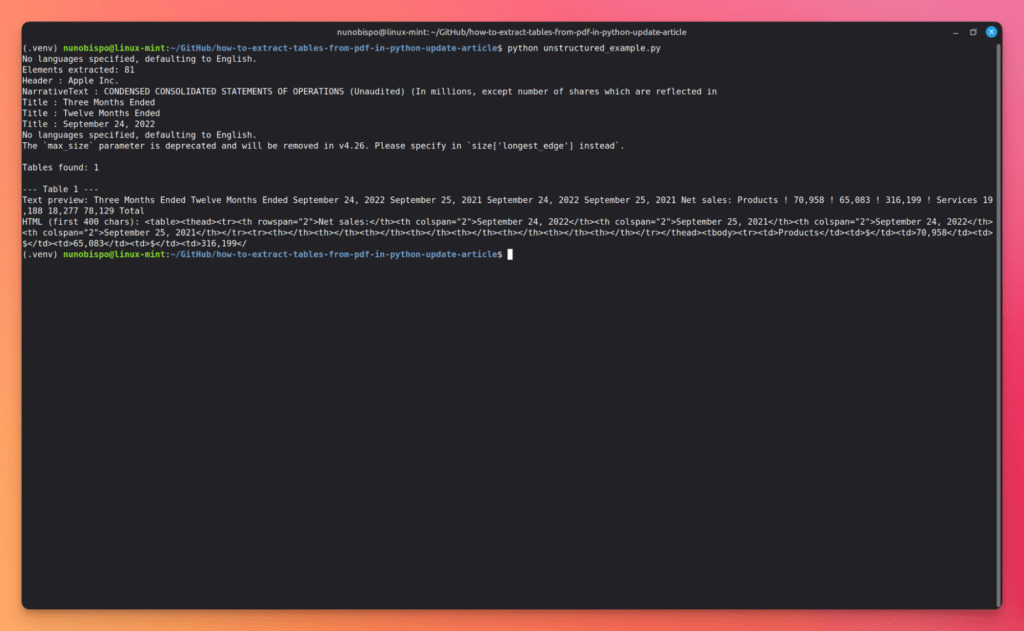
fast mode on apple.pdf extracts 47 elements quickly, but almost none of them are Table objects. The financial statement pages come back as NarrativeText and Title elements with the cell content flattened into running text.
hi_res with infer_table_structure=True is a different story. The layout detection model identifies table regions correctly on the financial statement pages, and text_as_html returns the full cell structure:
Unicef research document
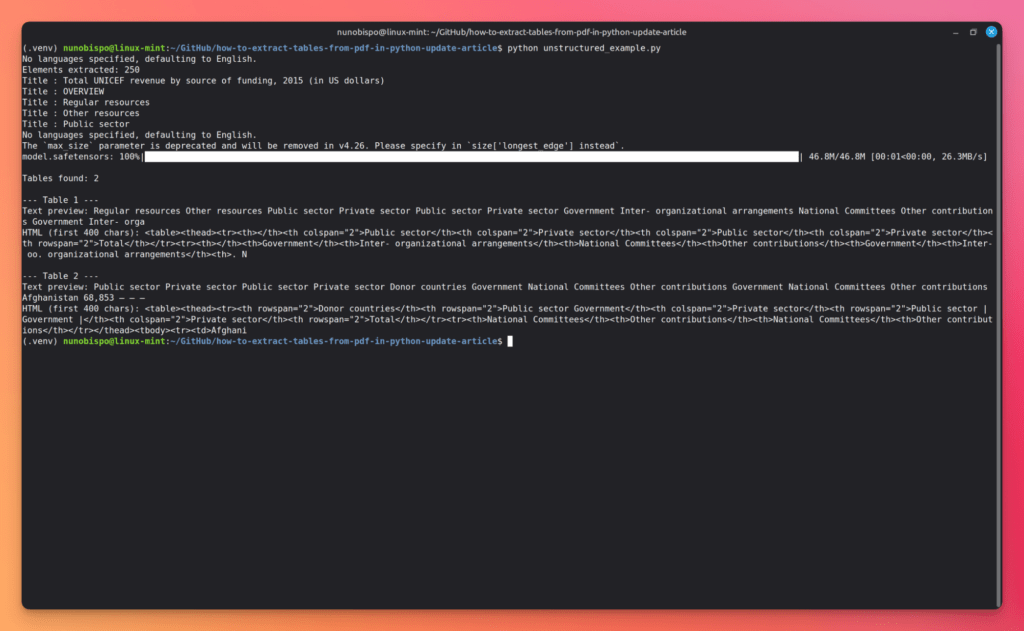
The UNICEF document shows unstructured’s main differentiator clearly: it handles the document as a whole rather than as a collection of coordinate problems.
hi_res on the UNICEF document detects tables across both bordered and borderless sections. The indicator tables and funding breakdowns extract with good cell fidelity:
Ideal Use Case
Building document ingestion pipelines that process many different file types alongside PDFs, or LLM/RAG workflows where you need structured, typed elements rather than raw extracted text. Also a strong choice when you need local OCR-capable extraction without a paid API, and are willing to invest in the hi_res setup.
Unstract’s Agentic Table Extractor: Multi-Agent PDF Table Extraction
Unstract’s Agentic Table Extractor simplifies the process of extracting data from complex tables — merged cells, multi-row headers, nested structures, and tables buried deep in large documents.
With a multi-agent pipeline that detects, scopes, extracts, and validates results, you get accurate table data from even the messiest documents — powered by text and vision models working together, with cost-smart techniques like pre-scanning and sliding windows.
PyMuPDF4LLM is a lightweight extension for PyMuPDF (the Python bindings for the MuPDF rendering library) that converts PDFs into clean, structured output ( Markdown, JSON, or plain text) with automatic table detection, layout analysis, and optional hybrid OCR. It is purpose-built for LLM and RAG pipelines and is the newest entry in this comparison.
Key features
Automatic table detection – no configuration required for most PDFs
Tables render as GitHub-Flavored Markdown tables in to_markdown() output
to_json() returns cell-level bounding boxes and layout metadata for custom pipelines
Hybrid OCR: automatically OCRs only image-covered or illegible regions, skipping clean text
Layout analysis reconstructs reading order across single and multi-column pages
LangChain and LlamaIndex integration out of the box
Header detection maps font sizes to Markdown # heading levels
Installation
pip install pymupdf4llm==1.28.0
This automatically installs PyMuPDF and pymupdf-layout as dependencies. No system-level tools required.
Core Extraction Approach
PyMuPDF4LLM uses MuPDF’s rendering engine to analyze the visual structure of each page. Table detection works by identifying ruled lines, consistent column alignment, and regular row spacing; similar to Camelot’s lattice mode but without requiring Ghostscript. The output is designed to be fed directly into LLM context windows: tables come out as Markdown tables that modern LLMs understand natively.
Code Example
import pymupdf4llm
import json

# --- Basic extraction to Markdown ---
md_text = pymupdf4llm.to_markdown("best-unicef-1.pdf")
print(md_text[:2000])   # preview first 2000 chars

# --- JSON output: cell-level table data with bounding boxes ---
json_str = pymupdf4llm.to_json("best-unicef-1.pdf")
data = json.loads(json_str)

for page_num, page in enumerate(data.get("pages", [])):
    for block in page.get("boxes", []):
        if block["boxclass"] == "table":
            print(f"\nPage {page_num + 1} -- Table found:")
            for row in block["table"]["cells"][:3]:
                print("  ", row)

# --- TXT output for plain downstream processing ---
txt = pymupdf4llm.to_text("best-unicef-1.pdf")
print(txt[:1000])
What the code does:
pymupdf4llm.to_markdown() processes the entire document and returns a Markdown string where tables are formatted as GitHub-Flavored Markdown tables and document headings are mapped to # / ## levels based on font size.
to_json() returns the full layout analysis as a JSON string. Each page contains a list of “boxes” – typed content blocks. Filtering for "boxclass": "table" gives you cell-level data including bounding boxes, which is useful when you need source-document highlighting or want to build a custom post-processor on top of the raw geometry.
to_text() strips all Markdown formatting and returns plain text, preserving reading order. Use this when your downstream consumer cannot handle Markdown, for example, a classical NLP pipeline or a keyword search index.
Strengths
Zero configuration for most documents – tables just work
Borderless table detection: defaults to layout mode, but inconsistently spaced borderless tables may still render as plain text – switch use_layout(True) or fall back to to_json() for manual post-processing
Scanned-only PDFs: hybrid OCR helps, but fully scanned documents will be slower and may lose structure
Less configurable than for instance pdfplumber for edge cases
Results
Running the script against both test documents makes evident the strengths and limitations.
Apple financial Document
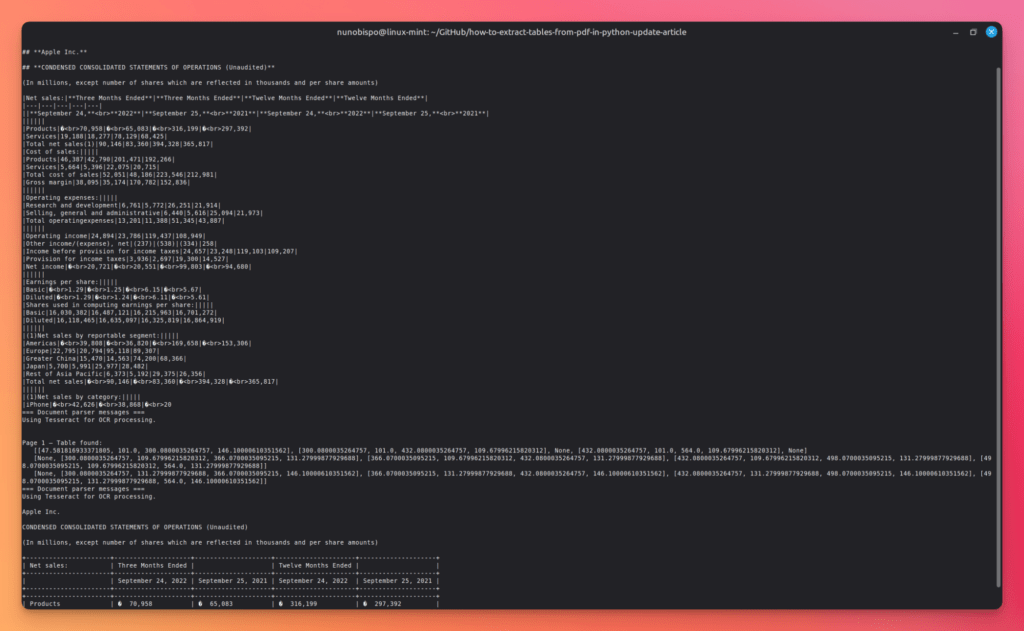
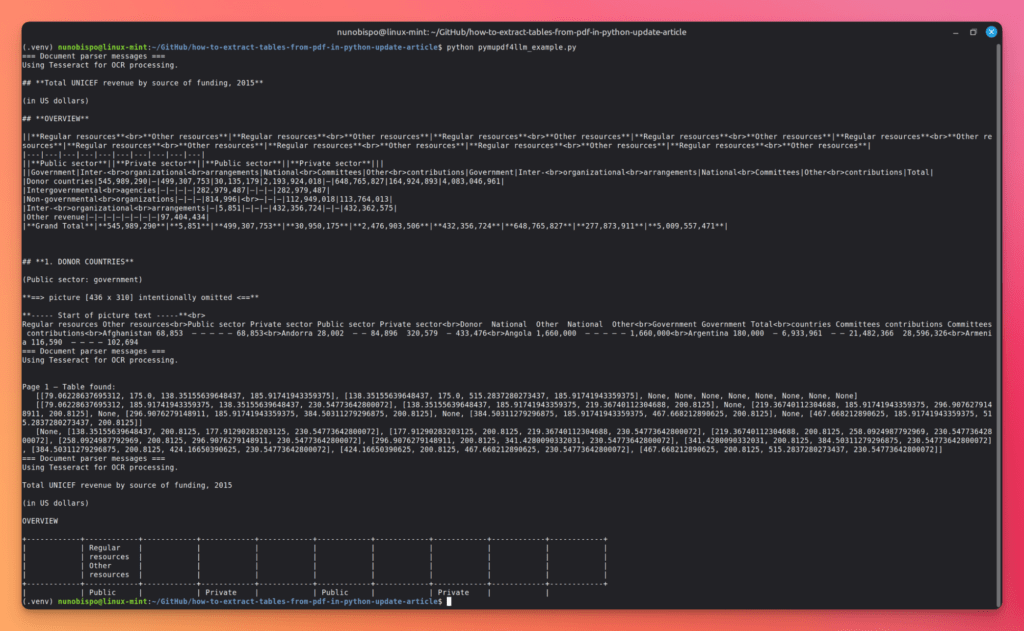
to_markdown() on apple.pdf runs in seconds and the financial statement pages render like this. Three columns, correct alignment, bold formatting on summary rows preserved – and it is already valid Markdown that any LLM will parse correctly:
Unicef research document
The UNICEF document introduces more complexity with varying column widths, borderless sections, nested headers and the results here are more mixed.
The borderless sections are the weak point. Tables without visible line objects are sometimes detected correctly when column spacing is consistent and wide enough for the layout engine to infer boundaries and sometimes rendered as indented plain text rather than a Markdown table:
Ideal Use Case
Building LLM or RAG pipelines where the extracted content goes directly into a prompt or a vector store. Also the fastest path from PDF to LLM-ready Markdown when you do not want to write post-processing code.
Surya / Marker (DataLab)
Surya and Marker are two complementary open-source libraries from DataLab. Surya is the underlying AI model, a 650-million-parameter vision-language model (VLM) that handles OCR, layout analysis, reading-order detection, and table recognition across 90+ languages. Marker is the higher-level document converter that uses Surya under the hood and exposes a clean TableConverter API for extracting tables directly from PDF files as Markdown, JSON, or HTML.
Together they represent the most capable fully open-source, locally-runnable AI table extractor available in 2026.
Key features
Fully local – no data leaves your machine
OCR built in – works on scanned and image-only PDFs
HTML table output with full spanning cell support (colspan, rowspan)
90+ language support
marker TableConverter: extracts only tables, output as Markdown/JSON/HTML
Apache 2.0 code license; model weights under modified OpenRAIL-M
Installation
pip install surya-ocr==0.1.2
Backend setup (required for Surya 2’s VLM):
# GPU (NVIDIA) -- recommended for production
pip install vllm

# CPU / Apple Silicon -- macOS
brew install llama.cpp   # puts llama-server on PATH automatically
Python requirement: 3.10+. Surya 2’s VLM backend requires either vllm (GPU) or llama-server from llama.cpp (CPU/MPS). Running without either raises a SpawnError on the first inference call. Set LLAMA_CPP_BINARY to the binary path if it is not on your PATH.
Core Extraction Approach
Surya renders each PDF page as an image, then passes the image to the VLM, which identifies table regions, detects cell boundaries, and extracts text; all in one forward pass. The simple mode returns row/column bounding boxes; full mode generates a complete HTML table including merged cells. marker’s TableConverter wraps this pipeline and adds page-level orchestration, multi-format output, and batch processing.
Code Example
import os

# If llama-server is not on PATH, point surya to it explicitly.
# macOS (brew install llama.cpp): not needed -- brew puts it on PATH.
# Linux pre-built binary: set these before importing surya.
os.environ.setdefault("LLAMA_CPP_BINARY", "./bin/llama-server")
os.environ["LD_LIBRARY_PATH"] = "./bin:" + os.environ.get("LD_LIBRARY_PATH", "")

import pypdfium2
from PIL import Image
from surya.inference import SuryaInferenceManager
from surya.table_rec import TableRecPredictor

# Render the first page of a PDF to a PIL Image (scale=2 → ~144 dpi)
# pypdfium2 is installed automatically as a surya-ocr dependency
doc = pypdfium2.PdfDocument("best-unicef-1.pdf")
page = doc[0]
image = page.render(scale=2).to_pil()
doc.close()

# SuryaInferenceManager auto-detects the available backend (vllm or llama.cpp)
manager = SuryaInferenceManager()
predictor = TableRecPredictor(manager)

# Simple mode: row/column polygon bounding boxes only
results = predictor([image], mode="simple")
result = results[0]

print(f"Rows detected: {len(result.rows)}")
print(f"Cols detected: {len(result.cols)}")
for row in result.rows:
    print(f"  Row {row.row_id}: polygon={row.polygon}, confidence={row.confidence:.2f}")

# Full mode: complete <table> HTML including colspan/rowspan
results_full = predictor([image], mode="full")
result_full = results_full[0]
print("\nFull HTML table:")
print(result_full.html[:500])

# Cell-level data (row_id, col_id, polygon -- available in both modes)
for cell in result_full.cells[:5]:
    print(f"  Cell row={cell.row_id} col={cell.col_id}: polygon={cell.polygon}")
What the code does:
pypdfium2.PdfDocument renders the PDF page to a PIL Image at 144 dpi (scale=2). pypdfium2 ships as a dependency of surya-ocr, no extra install needed.
SuryaInferenceManager() detects the available runtime backend, vllm for NVIDIA GPUs, llama.cpp for CPU or Apple Silicon, and starts it. All Surya 2 predictors share this manager.
TableRecPredictor(manager) wraps the VLM’s table recognition capability. It accepts a list of PIL Image objects (rendered PDF pages or raw images).
predictor([image], mode="simple") returns a List[TableResult]. Each TableResult carries .rows (polygon + confidence per row) and .cols (polygon + confidence per column) lightweight geometry only.
predictor([image], mode="full") activates the full parsing pass. result.html contains a complete <table>…</table> string with colspan and rowspan attributes for merged cells. result.cells gives per-cell geometry (row_id, col_id, polygon).
Strengths
Fully open-source and local – no API key, no data upload, no per-page cost
Only open-source option tested that natively handles scanned PDFs
Full HTML table output with spanning cells (colspan, rowspan)
90+ language support out of the box
marker'sTableConverter is purpose-built for table-only extraction
Limitations
Heavy setup: requires a GPU inference backend (vllm) or llama.cpp – not a simple pip install scenario
GPU strongly recommended: CPU inference via llama.cpp works but is significantly slower (seconds per page vs. 5+ pages/sec on an RTX 5090)
Multi-page table merging is not automatic – each page is processed independently
Higher memory footprint than coordinate-based tools
Results
Running the script against both test documents makes evident the strengths and limitations.
Apple financial Document
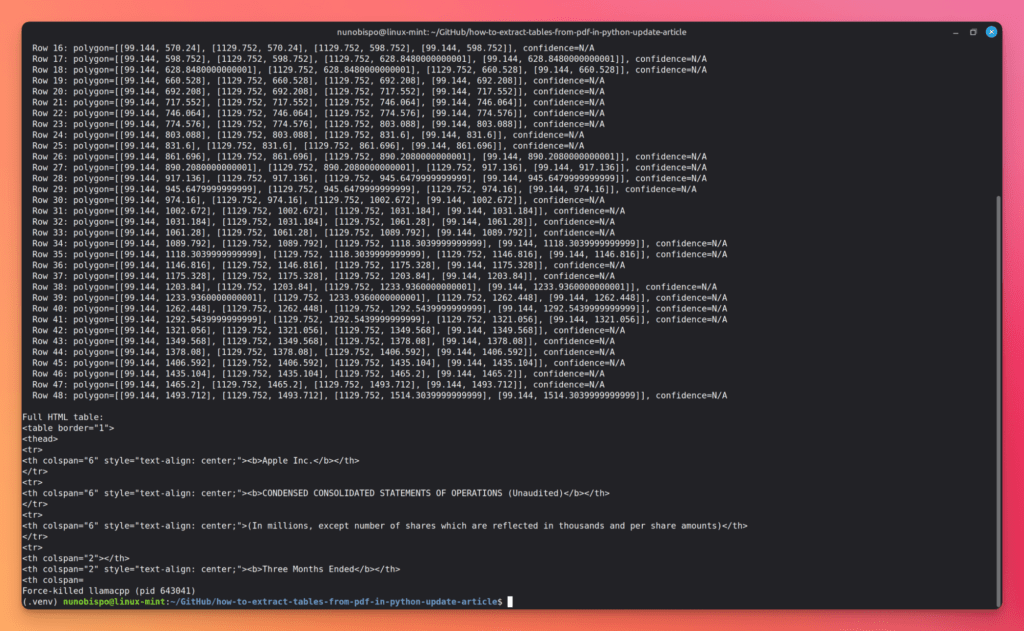
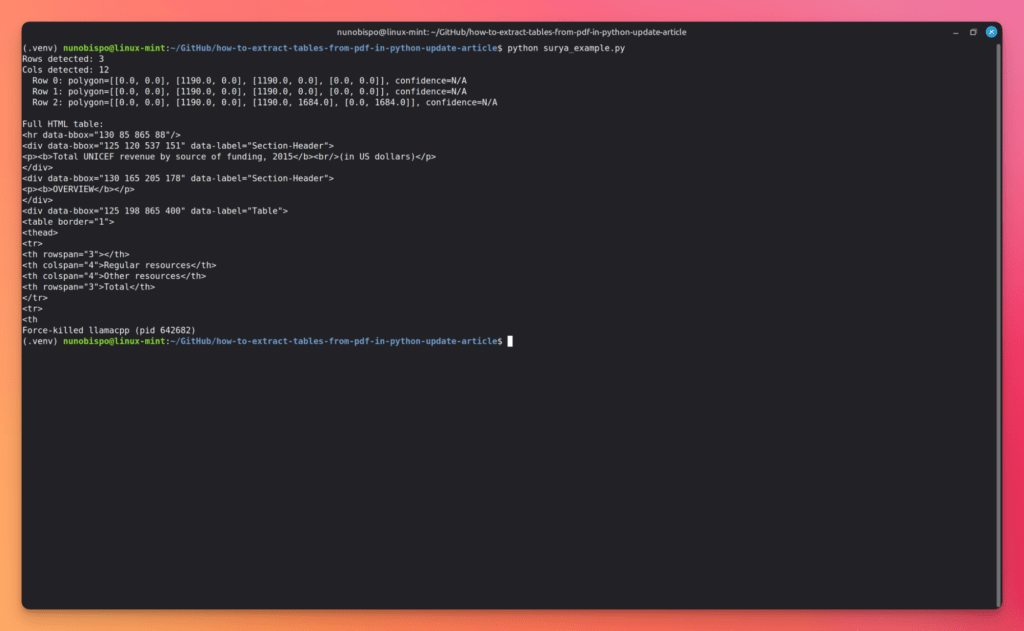
simple mode on the Apple financial statement page returns the geometric skeleton of the table. full mode goes further, extracting cell text and building the complete HTML:
Unicef research document
The bordered tables extract with very high accuracy. Nested headers, varying column widths, and mixed numeric and text cells all come through correctly in full mode HTML, including colspan attributes on spanning header cells:
Ideal Use Case
Teams that need high-quality, locally-run AI table extraction without sending data to a third-party API. Especially strong for scanned PDFs, multi-language documents, and tables with complex spanning cells. If you can provision a GPU instance (or are on Apple Silicon), this is the most capable fully open-source option in the comparison.
LLMWhisperer
LLMWhisperer is an AI-powered document processing API from Unstract. Unlike all other tools in this comparison, it is not a table extractor in the traditional sense, it is a layout-preserving PDF-to-text converter with a dedicated table mode. The output is clean, structured plain text that preserves the original table layout, making it ideal for LLM inference use cases where you want the model to understand the table’s structure without any custom parsing.
V2 is a significant upgrade over V1:
New table mode: a dedicated processing mode optimized for dense table structures
ASCII line markers: mark_vertical_lines and mark_horizontal_lines draw ASCII borders around table cells, giving LLMs dramatically better column/row demarcation for merged cells and complex layouts
Async-first API: V2 uses a whisper_hash pattern – submit a job, poll for completion, retrieve results
New webhook support: register a callback URL to receive results without polling
Simplified highlighting API: get_highlight_rect() returns bounding boxes for human review workflows
Key features
Layout-preserved text output: tables come out looking like tables, not jumbled text
No prior knowledge of table structure required – works across wildly different layouts
Handles scanned, image-based, and handwritten PDFs via built-in OCR
Cross-page table support: rows that overflow to the next page are correctly merged
Generous free tier: 100 pages/day forever-free plan
Installation
pip install llmwhisperer-client==2.7.0
Sign up for a V2 API key at unstract.com/llmwhisperer. V1 and V2 accounts and API keys are separate.
V1 → V2 migration: Change LLMWhispererClient to LLMWhispererClientV2. The calling signatures are otherwise the same. The base URL changes to https://llmwhisperer-api.us-central.unstract.com/api/v2.
Core Extraction Approach
LLMWhisperer sends your PDF to Unstract’s cloud infrastructure, where it applies OCR (for scanned content), layout analysis, and in table mode additional processing to identify table regions. The result is plain text where the spatial layout of the original is preserved using spaces. Enabling mark_vertical_lines and mark_horizontal_lines adds ASCII | and – characters to explicitly demarcate column and row boundaries, which significantly improves LLM accuracy on merged cells and tables with many columns.
Code Example
import os
from unstract.llmwhisperer import LLMWhispererClientV2

API_KEY = os.environ.get("LLMWHISPERER_API_KEY", "<YOUR-API-KEY>")

# Initialize the V2 client
client = LLMWhispererClientV2(api_key=API_KEY)
# EU region: LLMWhispererClientV2(base_url="https://llmwhisperer-api.eu-west.unstract.com/api/v2", api_key=API_KEY)

# --- Synchronous extraction (waits for result) ---
result = client.whisper(
    file_path="apple.pdf",
    wait_for_completion=True,
    wait_timeout=200
)

extracted_text = result["extraction"]["result_text"]
print(extracted_text[:2000])

# --- Table mode with ASCII line markers (V2 feature) ---
result_table = client.whisper(
    file_path="apple.pdf",
    mode="table",                 # dedicated table processing mode
    mark_vertical_lines=True,     # draw | between columns
    mark_horizontal_lines=True,   # draw - between rows (requires mark_vertical_lines=True)
    wait_for_completion=True,
    wait_timeout=200
)

print("\n--- Table mode output ---")
print(result_table["extraction"]["result_text"][:3000])

# --- Async extraction with polling ---
async_result = client.whisper(
    file_path="best-unicef-1.pdf",
    mode="high_quality",
    output_mode="layout_preserving"
)

whisper_hash = async_result["whisper_hash"]
print(f"Job submitted. Hash: {whisper_hash}")

# Poll for status
status = client.whisper_status(whisper_hash)
print(f"Status: {status['status']}")

# Retrieve when done
if status["status"] == "processed":
    final = client.whisper_retrieve(whisper_hash)
    print(final["extraction"]["result_text"][:1000])
What the code does:
LLMWhispererClientV2(api_key=API_KEY) initializes the client. The base URL defaults to the US Central region; change it for EU deployments.
wait_for_completion=True makes the call synchronous – the client polls internally and returns only when the document is processed. Set wait_timeout (seconds) to control the maximum wait.
mode="table" activates the dedicated table processing pipeline – higher accuracy than high_quality mode for table-heavy documents.
mark_vertical_lines=True and mark_horizontal_lines=True add ASCII borders around table cells. This is the standout V2 feature for LLM accuracy: merged cells that previously confused models are now clearly delineated.
The async pattern (whisper() → whisper_hash → whisper_status() → whisper_retrieve()) is the recommended approach for production pipelines processing many documents concurrently.
ASCII Line Markers: What They Look Like
Without markers, LLMWhisperer V1 (and high_quality mode) outputs layout-preserved text like this:
Country         2023 Contribution   % Change

United States   $450M               +3.2%

European Union  $380M               -1.1%
With mark_vertical_lines=True, mark_horizontal_lines=True (V2 table mode):
|-------------------|-------------------|---------|

| Country           | 2023 Contribution | % Change|

|-------------------|-------------------|---------|

| United States     | $450M             | +3.2%   |

| European Union    | $380M             | -1.1%   |

|-------------------|-------------------|---------|
The bordered output gives LLMs unambiguous column separation, critical for multi-column financial tables where a model might otherwise misattribute values to adjacent columns.
Strengths
Highest accuracy on scanned PDFs without local compute, handles scanned, digital, and mixed PDFs identically via a single API call
Table mode + ASCII line markers is the highest-accuracy option for LLM inference
Cross-page table merging works out of the box
No system dependencies, no Java, no Ghostscript
100 pages/day free forever
Limitations
Cloud dependency: documents are uploaded to Unstract’s servers (data processing agreement available)
API key required: not a fully local open-source solution
Output is text, not DataFrames: if you need structured tabular data (CSV/Excel), you need an LLM or a post-processing step to convert the layout-preserved text
Latency: cloud processing adds a round-trip delay vs. local tools
Results
The contrast between default mode and table mode is the clearest demonstration of what LLMWhisperer V2 adds over V1.
Apple financial Document
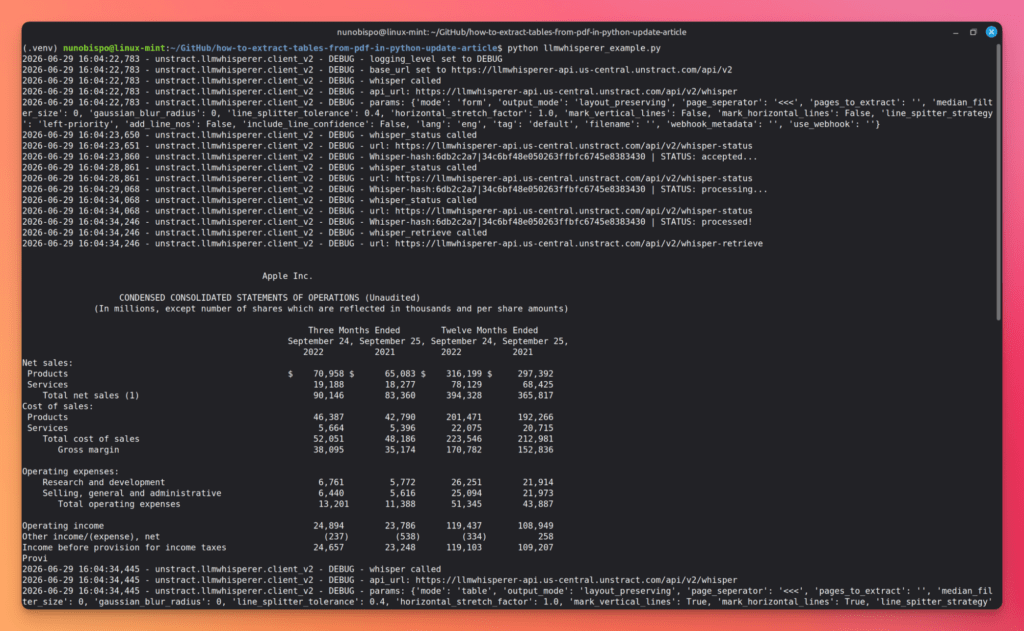
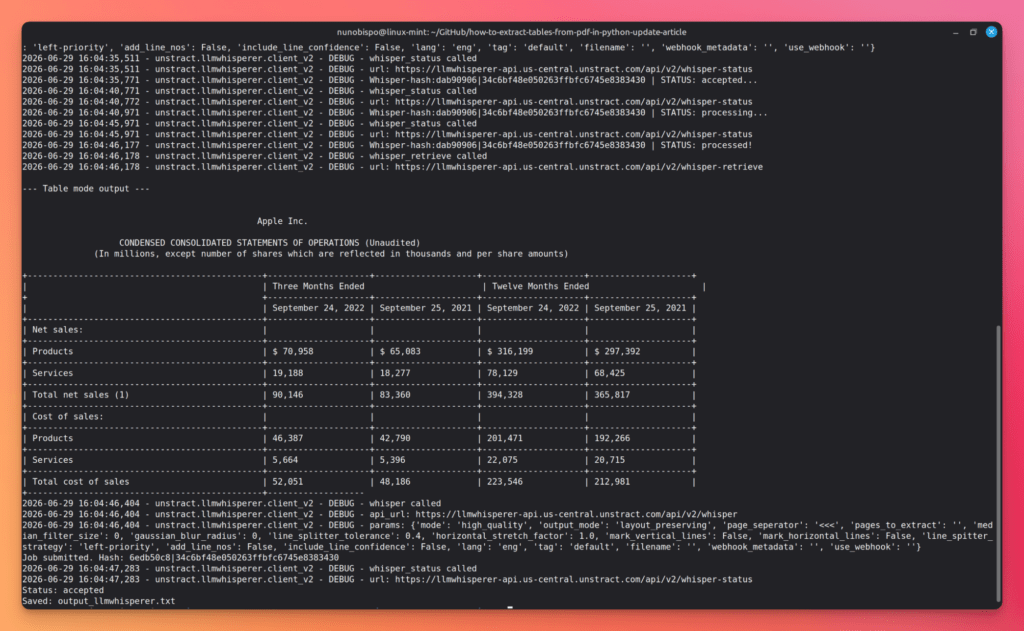
Default high_quality mode returns layout-preserving text. The spatial arrangement of the original page is reconstructed using spaces, so columns stay roughly in their correct positions and values are readable:
The column ambiguity disappears. Every cell is delimited by | on each side and – above and below, so there is no spatial inference left for the LLM to do – column assignment is explicit:
Unicef research document
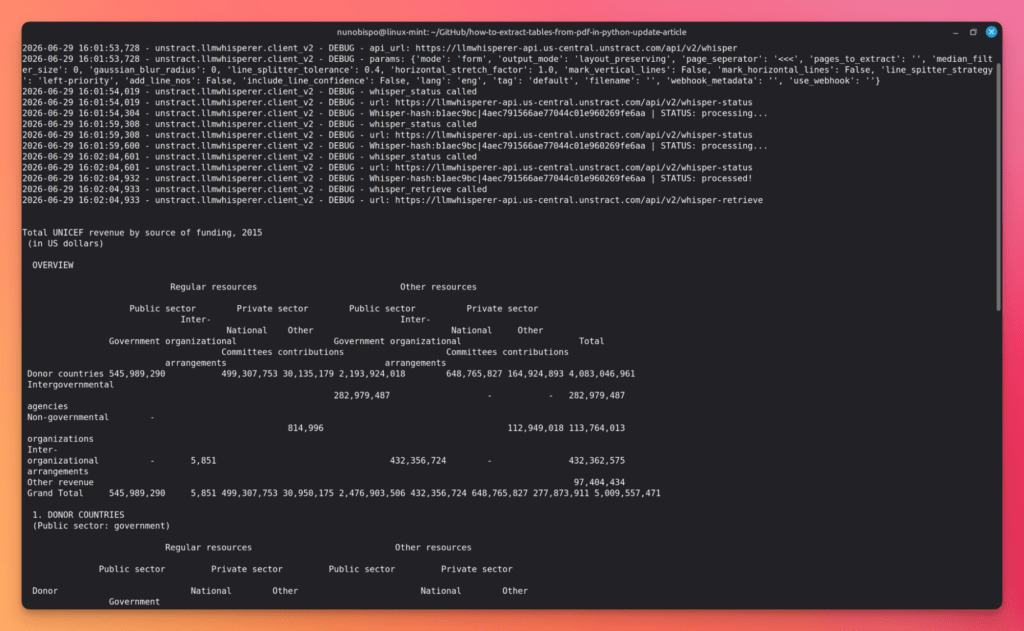
The UNICEF document’s more varied layout, mixed prose and tables, borderless sections, nested headers is where layout-preserving text without explicit markers starts to show its limits:
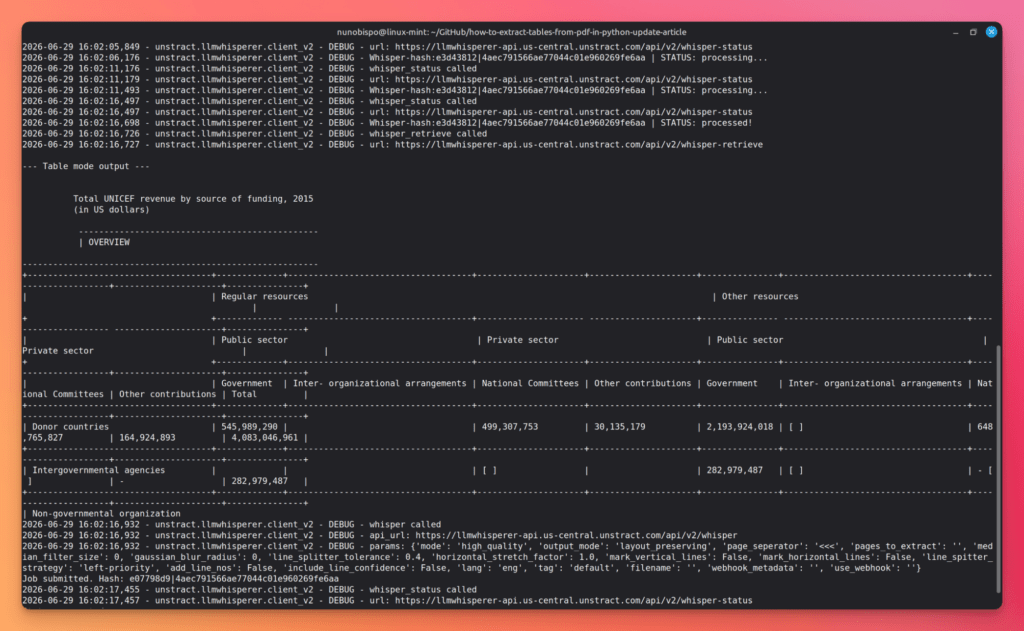
table mode with ASCII line markers resolves the borderless sections correctly. LLMWhisperer’s cloud pipeline identifies table regions regardless of whether they have visible borders in the source document, then applies the ASCII marker layer uniformly across all detected tables:
Ideal Use Case
Any pipeline where extracted tables will be consumed by an LLM. Especially strong for scanned documents, complex multi-column financial tables, tables with merged cells, and documents where structure varies across pages. If you are building a RAG system, an invoice processor, or a financial data extraction tool, this is the lowest-friction path to high accuracy.
Python Table Extraction: Benchmark Summary
Results from running all libraries against apple.pdf (clean financial statements) and best-unicef-1.pdf (mixed-format annual report):
GPU/llama.cpp required; best open-source AI option
LLMWhisperer
Very high (table mode)
Very high (table mode)
Yes
~2 min
Best overall for LLM inference
Key findings
pypdf extracted raw text from both documents but produced no table structure whatsoever, cell content merged with adjacent text. It is not a table extraction tool.
Camelot failed on apple.pdf because that document uses text-drawn table separators rather than actual PDF line objects, a common issue with programmatically generated financial PDFs. Note: the new pdfium default backend no longer requires Ghostscript for basic use.
Tabula handled both documents but introduced column merge errors on wide tables where whitespace gaps were ambiguous.
pdfplumber consistently delivered the best accuracy among open-source coordinate tools on both documents, with no additional configuration beyond the defaults.
unstructured with hi_res strategy extracted tables from both documents with good accuracy, returning structured HTML. The fast strategy missed most table structure, confirming that infer_table_structure=True with hi_res is required for reliable table output.
PyMuPDF4LLM handled both documents cleanly on bordered tables and its Markdown output was immediately usable in LLM prompts. Borderless table detection was inconsistent, outcome varied by page with no reliable configuration override.
Surya / Marker produced very high accuracy across both documents and was the only fully open-source tool to also handle scanned content correctly. Multi-page tables are not merged automatically. The trade-off is significant setup time and GPU/llama.cpp infrastructure.
LLMWhisperer V2 with table mode and ASCII line markers produced the most accurate and LLM-ready output across both documents and handles scanned PDFs identically without any code changes.
How to Choose the Right Python Library for PDF Table Extraction:
No single library wins every scenario. The right choice comes down to four questions about your documents and your pipeline.
Start with what your PDF actually is. If you only need to merge, split, crop, rotate, or read metadata from PDFs and do not need table data at all, pypdf is the correct tool. It is pure Python, installs in seconds, and handles PDF manipulation better than any other library here. Do not reach for a table extractor for a manipulation job.
If your PDF is scanned or image-only (no embedded text layer), most tools in this guide will return nothing useful. Camelot, Tabula, and pdfplumber all rely on a text layer and fail silently on image pages. PyMuPDF4LLM’s hybrid OCR helps in mixed documents but degrades on fully scanned content. Surya / Marker is the open-source option: it renders each page as an image and runs a 650M-parameter VLM over it, delivering strong results, but the setup is significant. You need either a GPU with vllm or a CPU llama-server binary, the first run downloads multi-gigabyte model weights, and production deployments require dedicated infrastructure.
For teams where reliability and time-to-result matter more than keeping everything on-premise, LLMWhisperer V2 is the more practical answer: a single API call handles scanned, digital, and mixed PDFs identically, OCR is included with no configuration, cross-page tables are merged automatically, and the free tier covers 100 pages per day with no credit card required.
If your PDF has a text layer (digitally created, not scanned), the next question is where the extracted tables are going.
For LLM and RAG pipelines, the output format matters as much as accuracy. PyMuPDF4LLM is a solid local starting point, one pip install, no system dependencies, and tables render as GitHub-Flavored Markdown. It works well for straightforward documents and integrates natively with LangChain and LlamaIndex via page_chunks.
That said, real-world pipelines tend to encounter irregularly formatted tables, merged cells, and documents where a single page mixes prose with multi-column data – exactly the cases where layout-only tools begin to struggle.
LLMWhisperer V2 in table mode addresses those edge cases directly: mark_vertical_lines and mark_horizontal_lines add explicit ASCII borders around every cell, giving the downstream LLM unambiguous column and row boundaries even in dense financial tables or documents with heavily merged cells. In testing it produced consistently cleaner LLM-ready output across both well-formatted and irregular documents, making it the lower-risk choice for production pipelines where extraction errors have downstream consequences.
For structured data pipelines that consume DataFrames, CSV files, or database rows, the open-source tools are strong. If your tables have visible borders, pdfplumber is the most accurate option with no system dependencies, highly configurable, and well-suited to pages that mix tables with prose.
Camelot is a useful alternative when you need its visual debugger (camelot.plot()) to inspect why a table is being mis-parsed. For borderless tables, pdfplumber via the “text” vertical strategy and Tabula via stream mode both work, though both require per-document tuning.
Tabula is the simpler API when you need quick batch extraction across many files. If your pipeline handles multiple document formats alongside PDFs – DOCX, HTML, Markdown – unstructured with the hi_res strategy and infer_table_structure=True avoids the overhead of maintaining separate parsers for each type.
And if document variety, mixed scan quality, or accuracy requirements make you hesitant about open-source tooling, LLMWhisperer V2 works equally well as a structured data extraction layer – its layout-preserved output is easy to post-process into DataFrames, and it handles the full range of document types without any pipeline branching.
Live coding session on Python PDF Table extraction
You can also watch this live coding webinar where we explore all the challenges involved in PDF parsing and compare various PDF parsing tool’s capabilities.
For the curious. Who we are and why are we writing about PDF table extraction?
We are building Unstract. Unstract is a no-code platform to eliminate manual processes involving unstructured data using the power of LLMs. The entire process discussed above can be set up without writing a single line of code. And that’s only the beginning. The extraction you set up can be deployed in one click as an API or ETL pipeline.
With API deployments you can expose an API to which you send a PDF or an image and get back structured data in JSON format. Or with an ETL deployment, you can just put files into a Google Drive, Amazon S3 bucket or choose from a variety of sources and the platform will run extractions and store the extracted data into a database or a warehouse like Snowflake automatically. Unstract is an Open Source software and is available at https://github.com/Zipstack/unstract.
If you want to quickly try it out, signup for our free trial. More information here.
LLMWhisperer is a document-to-text converter. Prep data from complex documents for use in Large Language Models. LLMs are powerful, but their output is as good as the input you provide. Documents can be a mess: widely varying formats and encodings, scans of images, numbered sections, and complex tables.
Extracting data from these documents and blindly feeding them to LLMs is not a good recipe for reliable results. LLMWhisperer is a technology that presents data from complex documents to LLMs in a way they’re able to best understand it.
If you want to quickly take it for test drive, you can checkout our free playground.
1. Why is it so difficult to extract tables from PDF using automated tools? PDFs encode visual appearance, not semantic structure — there is no native table object in the format. To extract tables from PDF, tools must reconstruct rows and columns from XY coordinates, line objects, or whitespace, which breaks when layouts vary.
2. What is the difference between open‑source and AI‑powered tools to extract tables from PDF? Open‑source tools like Camelot and pdfplumber work well on digital PDFs with visible borders but fail on scanned documents. AI‑powered options like LLMWhisperer and Surya use OCR and layout models to extract tables from PDF even when they are photographed, scanned, or have no borders.
3. Which tool should I use to extract tables from PDF if my documents have clear borders? For digital PDFs with ruled borders, pdfplumber delivers the highest accuracy among open‑source tools. Camelot is also strong but may fail on PDFs that use text‑drawn separators instead of actual line objects.
4. Can I extract tables from PDF that was scanned or photographed without sending data to the cloud? Yes. Surya / Marker is a fully local, open‑source AI option that can extract tables from PDF scans using a 650M‑parameter VLM. It requires a GPU or llama.cpp backend but keeps all data on your infrastructure.
5. Why do some tools fail to extract tables from PDF generated by financial software? Many financial PDFs use cosmetic borders drawn with text characters rather than actual PDF line objects. Tools like Camelot’s lattice mode fail on these, while stream mode, pdfplumber, or AI‑based tools can still extract tables from PDF successfully.
6. How do I know if a tool can extract tables from PDF that span multiple pages? Most open‑source tools treat each page independently and do not merge cross‑page tables. LLMWhisperer and the Invoice Extraction API handle multi‑page tables automatically, while others require custom post‑processing to combine rows.
Nuno Bispo is a Senior Software Engineer with more than 15 years of experience in software development.
He has worked in various industries such as insurance, banking, and airlines, where he focused on building software using low-code platforms.
Currently, Nuno works as an Integration Architect for a major multinational corporation.
He has a degree in Computer Engineering.