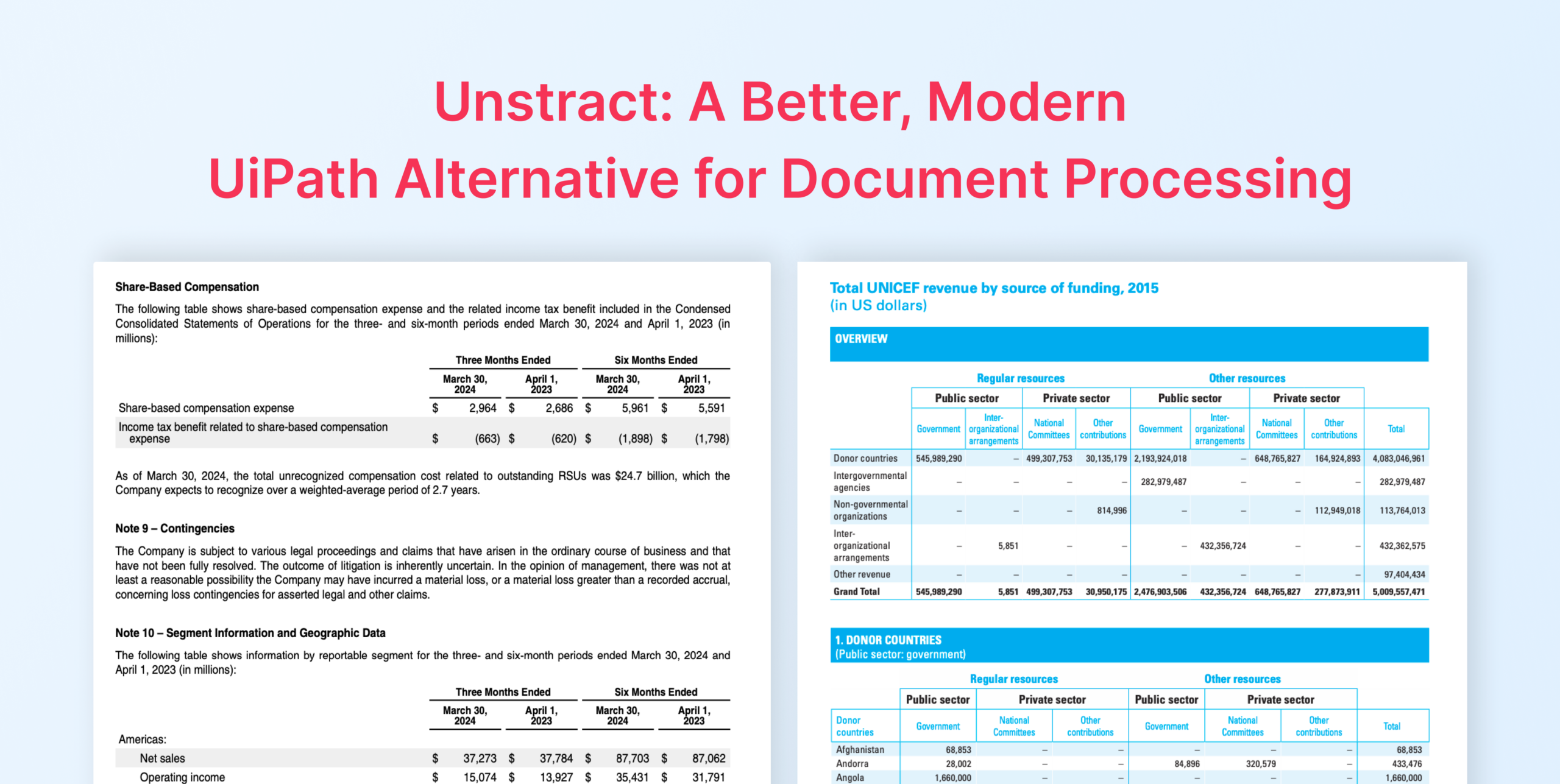
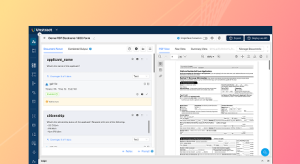
Unstract a better UiPath Document Understanding alternative for LLM-native document automation
Table of Contents
Looking for a UiPath Document Understanding Alternative?
Document processing has changed significantly over the last few years.
Traditional OCR systems focused mainly on recognizing text. Modern document understanding platforms are expected to do much more: classify documents, understand layouts, extract fields and tables, validate results, and return structured data that can be used directly in business workflows.
UiPath Document Understanding is one of the established platforms in this space. It sits within the broader UiPath automation ecosystem and provides capabilities for document digitization, classification, extraction, validation, and downstream automation.
That makes UiPath a natural option for organizations already using UiPath for robotic process automation.
But the market is also moving toward more LLM-native approaches.
Instead of relying mainly on predefined models, field configuration, or document-specific training, newer platforms are using LLMs and agents to understand document variations, generate schemas, create extraction prompts, and return structured outputs.
This is where Unstract takes a different approach.
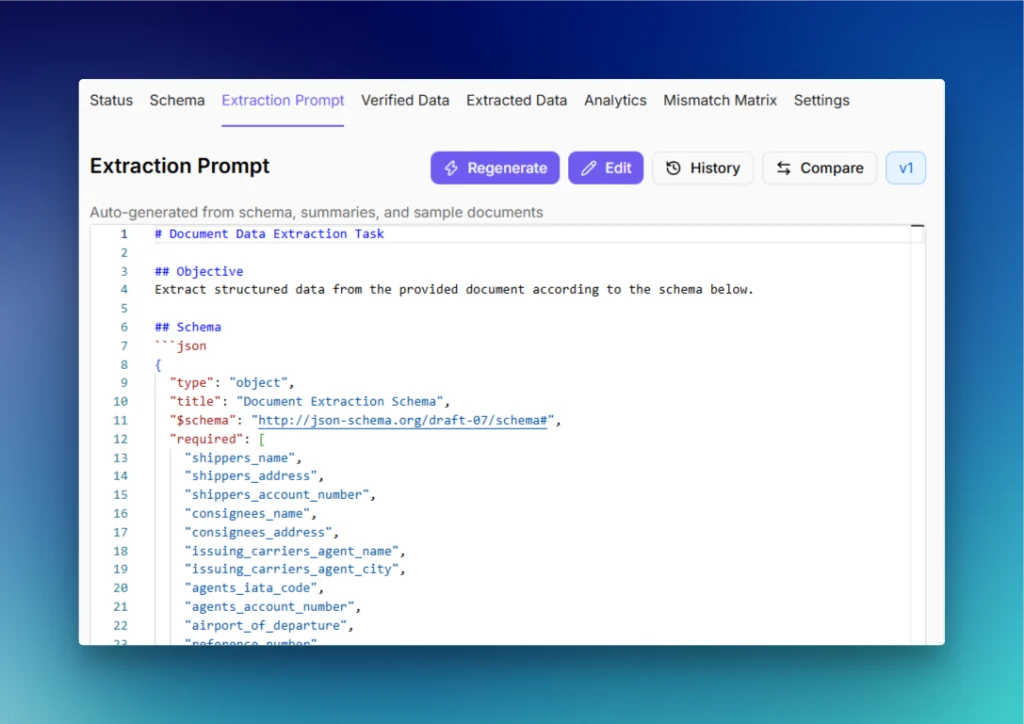
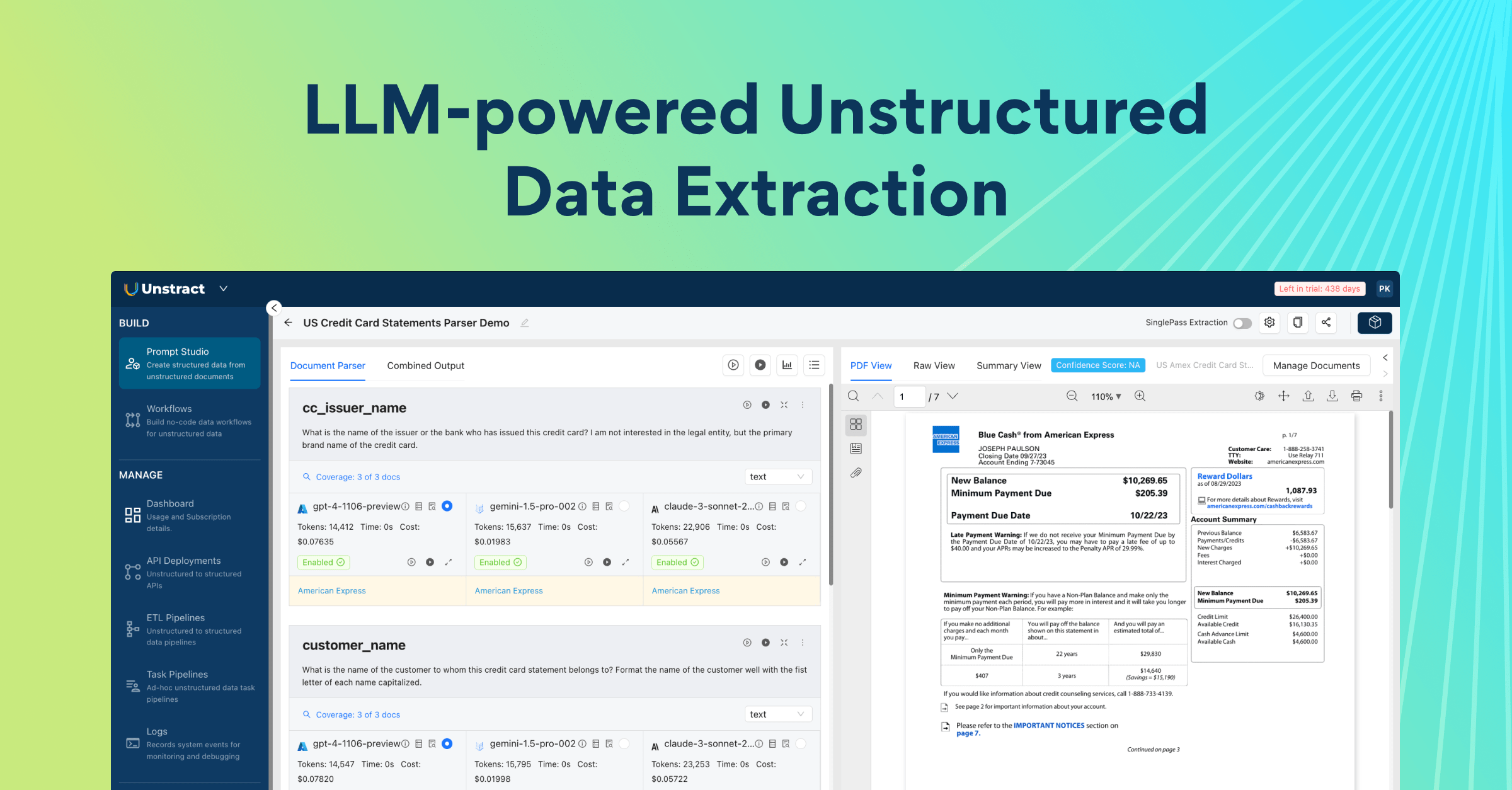
Unstract is built around LLM-powered document extraction. Its Agentic Prompt Studio can analyze sample documents, generate a JSON schema, create an extraction prompt, run structured extraction, and evaluate the results. LLMWhisperer provides the document-parsing layer needed for complex layouts and downstream extraction.
So the useful question is not whether UiPath can process documents. It clearly can.
The real question is:
How does UiPath Document Understanding compare with an LLM-native platform like Unstract when both are given the same difficult documents?
That is what this UiPath Document Understanding comparison sets out to test.
Rather than comparing feature pages, I used the same source documents in both platforms and focused on the practical areas that matter when choosing a UiPath Document Understanding alternative:
setup effort
extraction accuracy
handling of tables and layouts
configuration and correction effort
validation
final structured output
deployment and API options
UiPath Document Understanding pricing and accessibility
This is important because modern UiPath Document Understanding should not be treated as a simple legacy OCR or template-based product. Its current workflow includes model building, annotation, measurement, publishing, monitoring, APIs, and newer generative and multimodal capabilities.
Unstract approaches the same problem differently through agent-assisted schema creation, prompt generation, structured extraction, and evaluation.
Those differences sound significant on paper.
What matters more is how they affect the person actually trying to extract usable data.
That is why this comparison is deliberately hands-on. If UiPath Document Understanding performs better in an area, I will call it out. If Unstract produces a cleaner result or requires less configuration, I will show that as well.
The goal is not to force a winner.
The goal is to understand what each platform is actually like to use, where friction appears, how trustworthy the extraction results are, and which type of document-processing workflow each approach suits best.
Area
UiPath Document Understanding
Unstract
Setup experience
More involved; ~40–45 minutes in this test
More extraction-focused; ~7–10 minutes
Extraction accuracy
Produced usable results on both documents; Air Waybill required more verification
Produced usable structured results on both; Statement output preserved all nine transaction rows
Complex layouts
Short Document Complex Layout Extractor handled the photographed Air Waybill reasonably well
LLMWhisperer + LLM extraction designed around layout-preserved document understanding
Tables/forms
Tables supported, but table columns were manually defined in this workflow
Table structure inferred through the generated schema
Configuration effort
Higher; fields, instructions, workflow variables, output, and storage configured manually
Lower; schema and extraction prompt generated automatically
Customization
Strong explicit field-level and workflow control
Strong schema/prompt/LLM-level customization
Validation
Mature Validation Station and Action Center ecosystem
Verified data, accuracy analytics, mismatch analysis; paid editions also include Human Quality Review
API integration
Supports RPA and Document Understanding APIs
Workflows can be deployed as document-processing APIs returning structured JSON
Deployment options
Automation Cloud and self-hosted Automation Suite; capability availability varies
Cloud, On-Premise, and Open Source editions
Pricing accessibility
Standard pricing requires sales contact; usage is unit-metered
Published Starter/Growth pricing with page allowances; Enterprise custom
Best suited for
Organizations building document processing inside a wider UiPath automation estate
Teams primarily solving LLM-native document extraction and structured-data problems
How I Tested UiPath and Unstract
A useful UiPath Document Understanding vs Unstract comparison needs more than a clean invoice with a few obvious fields.
Most document-processing systems can perform well on simple inputs. The more meaningful test is what happens when the document contains the kinds of structures that usually make extraction difficult.
For that reason, this comparison uses two complex documents from the same provided test set, with both platforms processing exactly the same files.
The first is a dense financial or invoice-style document with tabular and layout-dependent information. This tests whether the platform can preserve rows, columns, labels, totals, and related values rather than simply recognizing isolated text.
The second is a structured form with more difficult visual elements, such as handwriting, checkboxes, mixed sections, or an irregular scanned layout.
Together, the documents test two important questions:
Can the system understand dense structured information?
And:
Can it still extract useful data when the document is visually messy or irregular?
Using the Same Documents in Both Platforms
The most important rule for the test was consistency.
Each platform receives the same source document, and both are evaluated against the same information.
That matters because extraction quality depends heavily on the source file. A system may perform well on a digitally generated PDF but behave very differently on a scan or complex table.
Using identical inputs makes it easier to separate actual platform differences from document differences.
Stop wrestling with complex documents — See how LLMWhisperer parses them
The layout-preserved text that feeds our agent pipeline comes from LLMWhisperer. Try it on your own messy PDFs — bank statements, rent rolls, multi-header tables, cross-page rows — No signup required.
Try LLMWhisperer for free on the Playground. No signup required.
I evaluated both platforms across the same core criteria.
Setup experience was the first.
I looked at what happens between signing in and reaching the first usable extraction: creating the project, configuring the relevant services, defining what should be extracted, processing the document, and reaching structured output.
For UiPath, that includes the relevant Document Understanding workflow around document types, fields, annotations, extraction models, publishing, and consumption.
For Unstract, I looked at the corresponding Agentic Prompt Studio flow: document upload, raw-text generation, schema generation, extraction-prompt generation, structured extraction, and evaluation.
The point is not simply to count clicks.
A platform can have more steps and still provide a clearer experience. So I also recorded where documentation was needed, configuration had to be changed, or a step had to be repeated.
Extraction Quality
The second major criterion is the output itself.
For both documents, I looked at whether the platform extracted the information that mattered, including:
key fields
tables
rows and columns
dates and numeric values
layout-sensitive information
handwriting where present
checkboxes or form elements where present
missing or incorrect values
This distinction matters because OCR accuracy and document understanding accuracy are not the same thing.
A system can recognize the text correctly and still produce an unusable result if table relationships, labels, or selected options are lost.
Configuration and Manual Effort
I also tracked how much manual work each platform required.
That includes:
defining fields
creating or modifying schemas
annotating documents
configuring extractors
generating or editing prompts
correcting output
retraining or refining where necessary
publishing or deploying the final extraction
This is one of the most interesting parts of the UiPath Document Understanding alternative comparison because the two platforms take noticeably different approaches to setup and refinement.
Errors, Friction, and Final Output
I recorded problems instead of hiding them.
If something failed, a setting was difficult to find, or an output required correction, that forms part of the comparison for both platforms.
Finally, I compared what each system produces after extraction is complete:
how clearly fields are represented
whether nested or repeating data stays structured
how usable the table output is
how easy the result is to validate
how readily the output can move into APIs, automations, databases, or downstream systems
Screenshots from both platforms will be included throughout the following sections so the comparison shows not only what UiPath Document Understanding and Unstract claim to do, but what actually happens when both are asked to solve the same document-understanding problem.
UiPath Document Understanding: Setup and First Impressions
To test UiPath Document Understanding, I used UiPath Studio Web and built the extraction workflow from scratch rather than relying on a ready-made document-processing template.
The first step was to visit the UiPath Studio product page and select Start in Web. UiPath also offers a desktop version of Studio, but Studio Web was sufficient for this test. After signing in, the workspace provides a selection of existing automation templates, or you can create a new workflow from scratch.
For this comparison, I chose the second option.
The goal was straightforward: upload either of the two test PDFs, extract a common structured schema, convert the results into JSON, and save the final output so it could be reviewed outside UiPath.
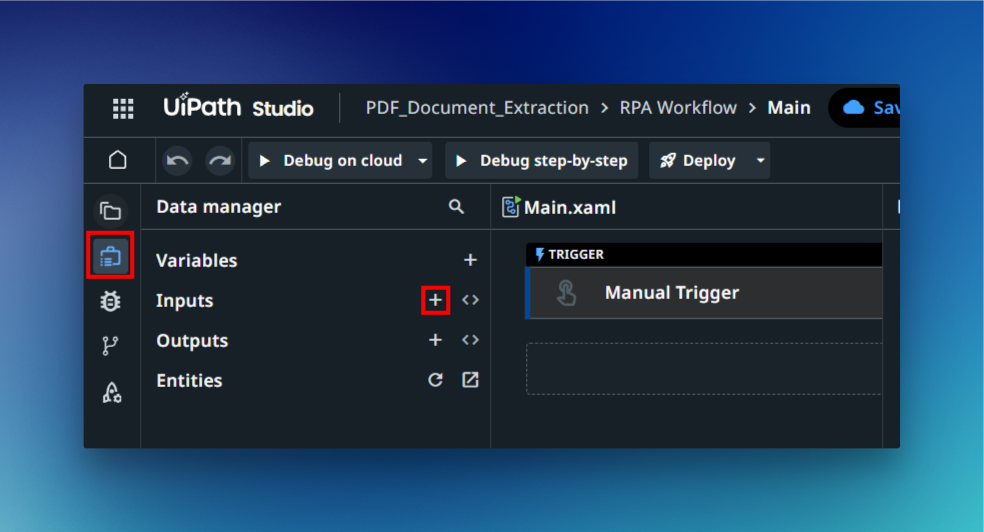
UiPath Studio Web supports RPA workflows built from sequences of activities, and manual workflows begin with a Manual Trigger.
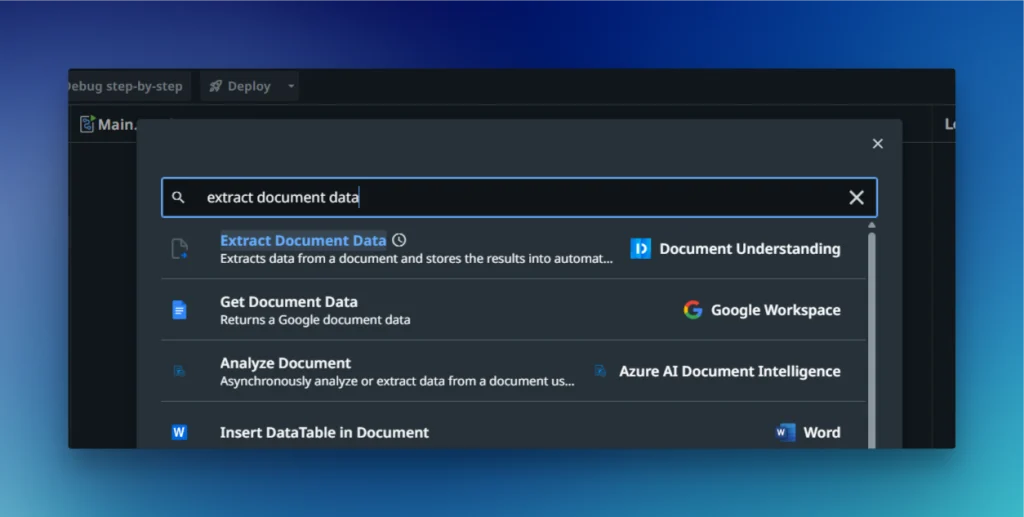
Step 1 — Enable Document Understanding
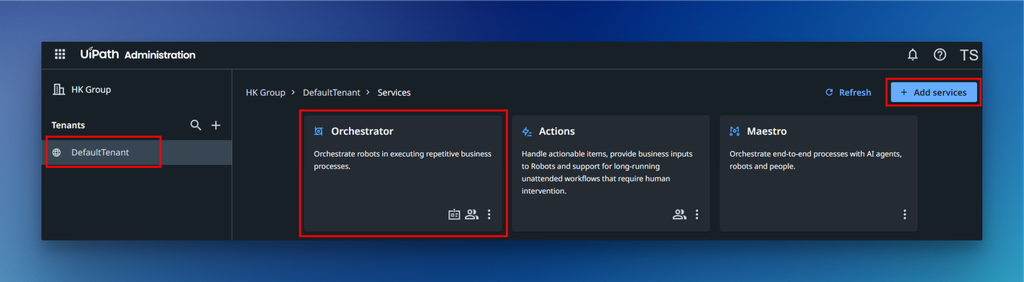
Before creating the workflow, I enabled Document Understanding for the tenant.
From Automation Cloud, I went to:
Admin
Tenant
Add Services
Enabled Document Understanding
Reloaded UiPath Studio Web
This makes the Document Understanding activities available for the extraction workflow.
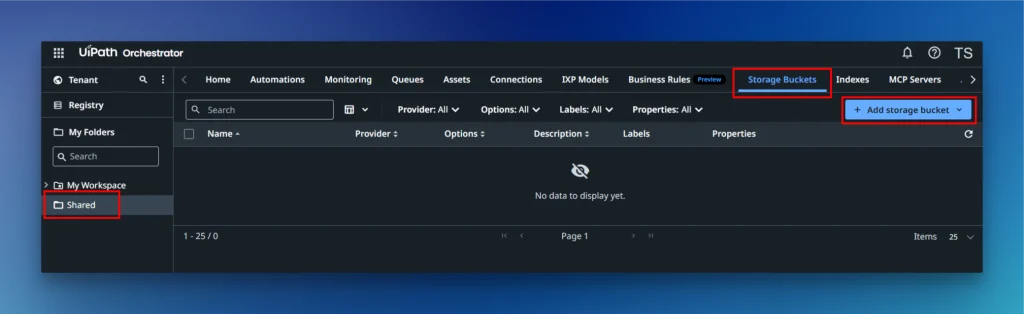
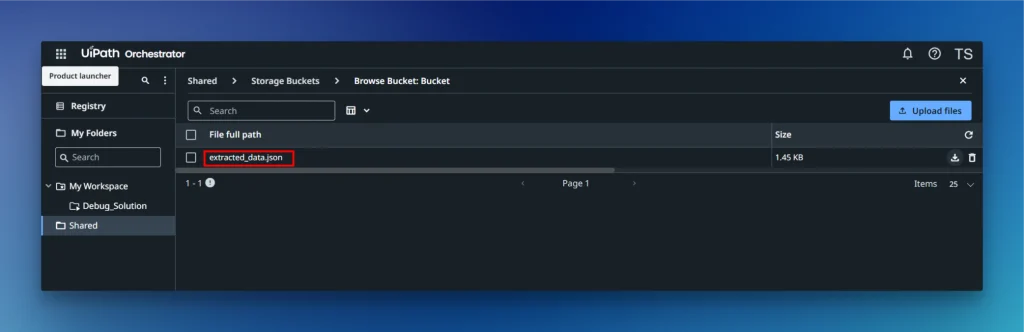
Step 2 — Create the Storage Bucket
Open UiPath Automation Cloud.
Go to Orchestrator.
Open Storage Buckets.
Click Add Storage Bucket.
Enter the bucket name: Bucket
Keep the default storage settings unless a specific provider is required.
Click Create.
This bucket will later store: extracted_data.json
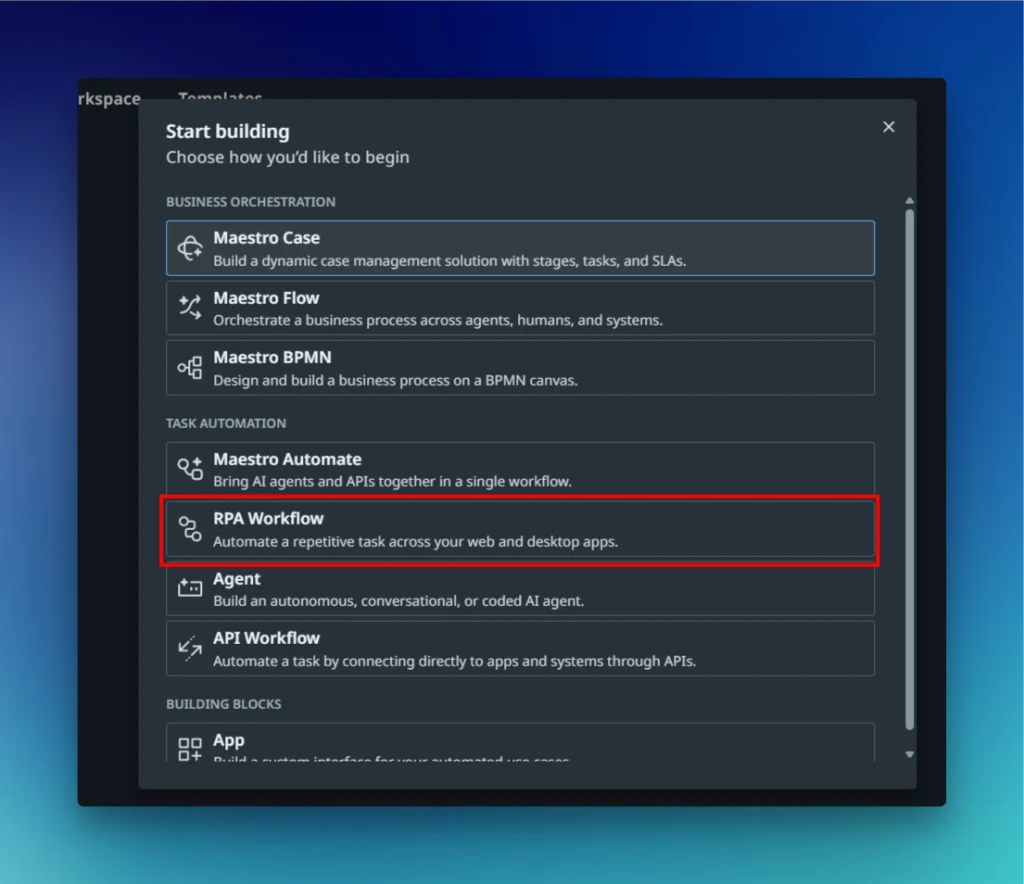
Step 3 — Create a New RPA Workflow
In Studio Web, I opened:
Cloud Workspace → Create New → RPA Workflow
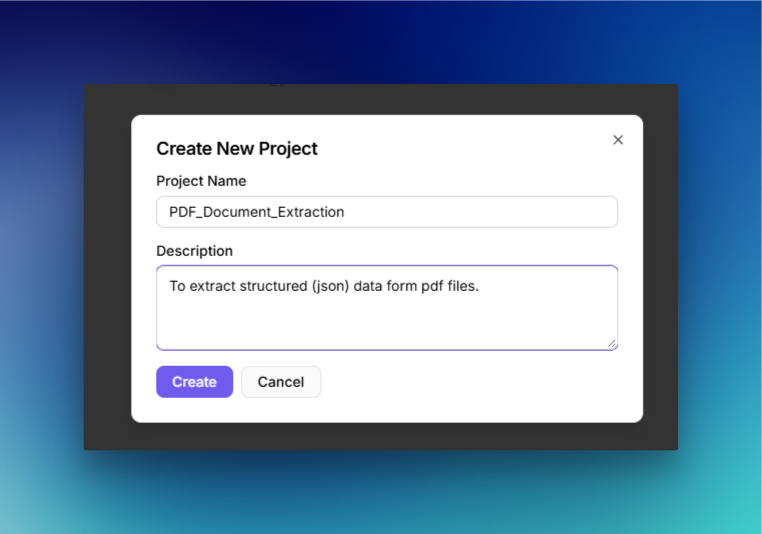
I named the project:
PDF_Document_Extraction
For the trigger, I selected:
Manual Trigger
This meant the workflow would run only when I explicitly started it during testing.
How to turn complex document tables into usable data with AI
Catch the recorded webinar to dive into Unstract’s advanced table extraction capabilities. We walk through the All Table Extractor API—a ready-to-use, semantic + layout-aware solution that ensures precision, consistency, and context, even across the most complex document tables.
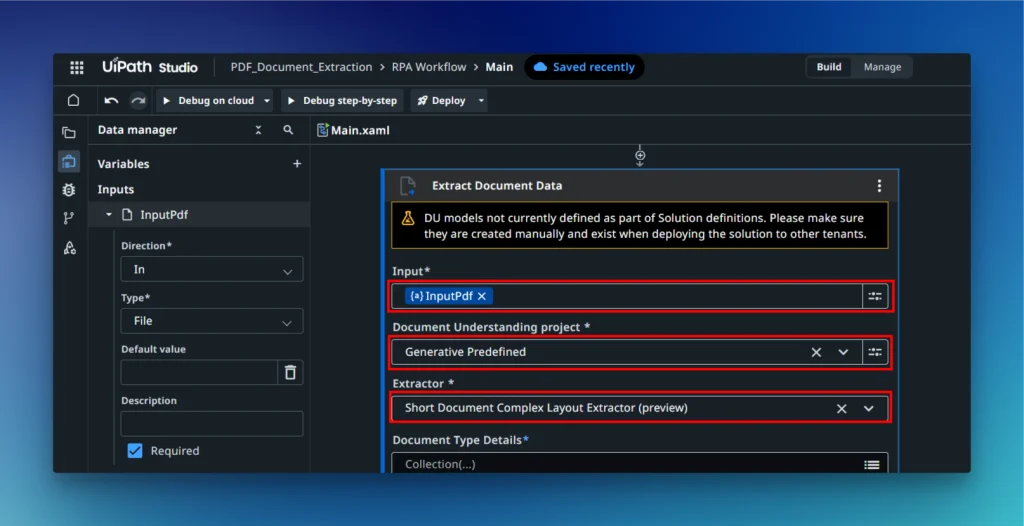
Extractor: Short Document Complex Layout Extractor (Preview)
I chose the Short Document Complex Layout Extractor because the two test files are relatively short but contain the exact elements this extractor is designed for: tables, complex formatting, scanned content, form-like structures, and, in the Air Waybill, handwriting.
UiPath currently recommends this extractor for documents of maximum 20 pages containing complex layouts, images, handwriting, and form elements. It is multimodal, meaning both textual and visual information can be considered during extraction.
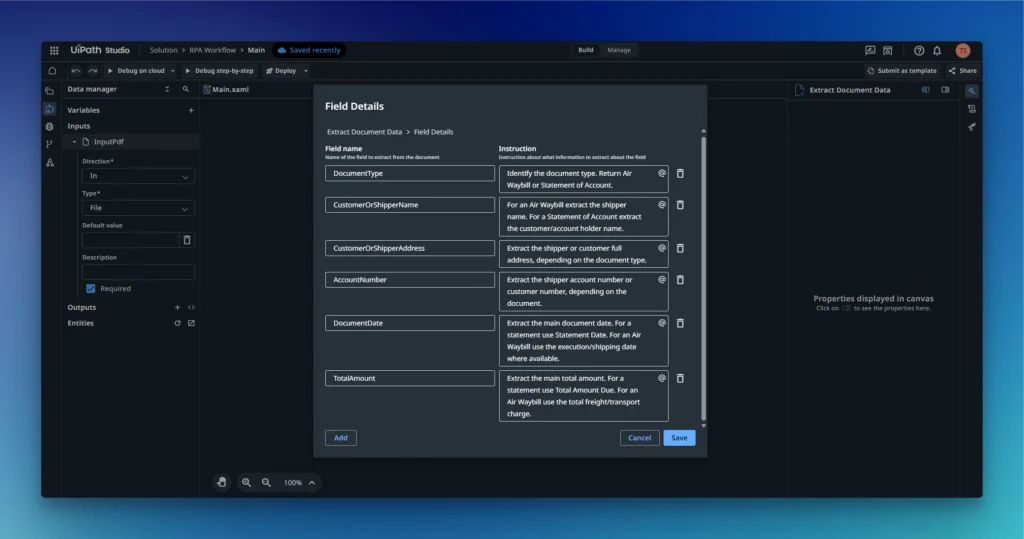
Step 6 — Define the Extraction Fields
This was one of the more important parts of the UiPath setup.
Inside Document Type Details, I initially had to decide how the final extraction should be represented. Rather than asking UiPath to return one large generic Extracted_data field, I created individual fields with explicit instructions.
UiPath’s generative extraction configuration uses field names paired with descriptions that tell the extractor what value it should identify.
For every field, I followed the same general instruction:
Extract the requested value exactly as shown in the document. If the field is not present or is not applicable to this document type, return null. Do not infer or invent information.
This mattered because the same workflow was being used for both document types. Air Waybill-specific fields should therefore remain empty when processing the Statement of Account, and vice versa.
Common Fields
Field Name
Extraction Instruction
DocumentType
Identify the document type. Return exactly Air Waybill or Statement of Account.
DocumentDate
Extract the main document date. For Statement of Account use Statement Date. For Air Waybill use the execution/shipping date.
AccountNumber
Extract the primary account/customer number. For Air Waybill use Shipper’s Account Number. For Statement of Account use Customer Number.
Air Waybill Fields
The first document contains shipper and consignee information, carrier details, routing information, declared values, handwritten content, cargo rows, and shipment charges.
I added the following fields individually:
Field Name
Extraction Instruction
ShipperName
Extract the shipper’s full name from the Air Waybill.
ShipperAddress
Extract the shipper’s complete address.
ShipperAccountNumber
Extract the shipper’s account number.
ConsigneeName
Extract the consignee’s full name.
ConsigneeAddress
Extract the consignee’s complete address.
ConsigneeAccountNumber
Extract the consignee’s account number if available.
CarrierAgentName
Extract the issuing carrier’s agent name.
CarrierAgentCity
Extract the city of the issuing carrier’s agent.
AgentIATACode
Extract the agent’s IATA code.
For the transaction table, I created another table field:
Transactions
The columns were:
TransactionDate
Description
Amount
The instruction was:
Extract every transaction row from the Statement of Account. Return one row for every transaction. Preserve transaction date, description and amount exactly as written.
This gave the extractor an explicit schema for both document types rather than asking it to decide the final output structure by itself.
Step 7 — Enable the Generated Data Type
Inside Extract Document Data, I opened Show additional properties and kept:
Generate Data Type: On
Under Output → Document data, I created the variable:
documentData
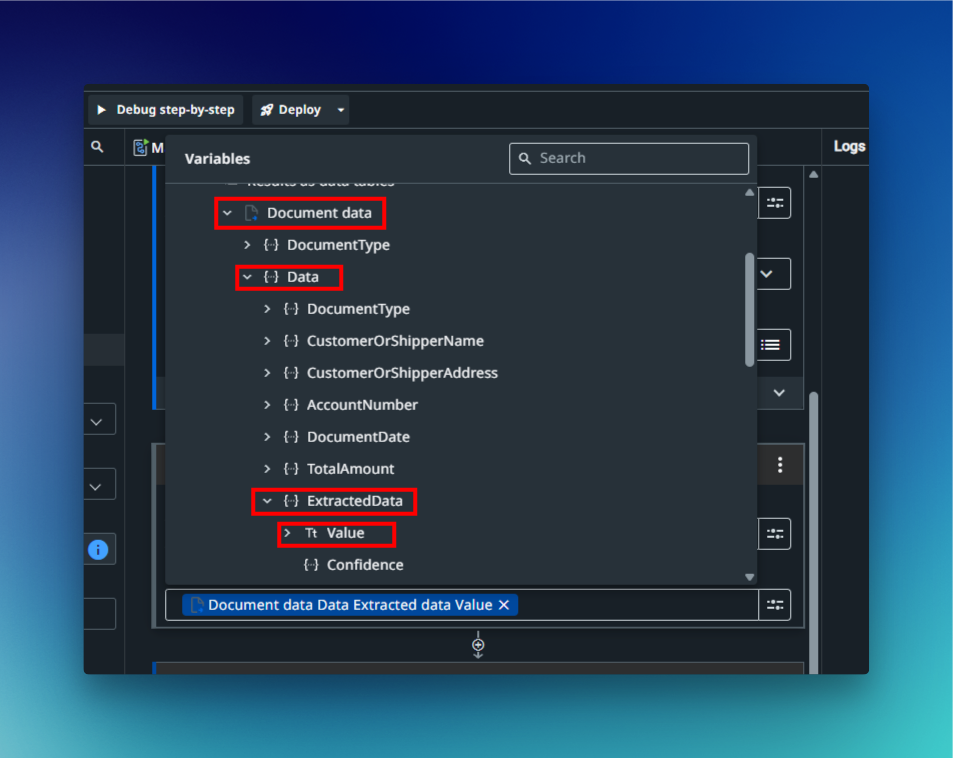
With generated data enabled, UiPath creates a typed Document Data output based on the fields configured in the extractor. UiPath’s documentation confirms that enabling this setting produces an IDocumentData<ExtractorType> object whose structure follows the extractor configuration.
The individual values could then be referenced through the generated data structure, for example:
documentData.Data.DocumentType.Value
documentData.Data.ShipperName.Value
documentData.Data.CustomerName.Value
This is powerful once configured, but it was also one of the areas where the workflow started to feel more technical than a simple upload-and-extract product.
Step 8 — Create the Final JSON Output Variable
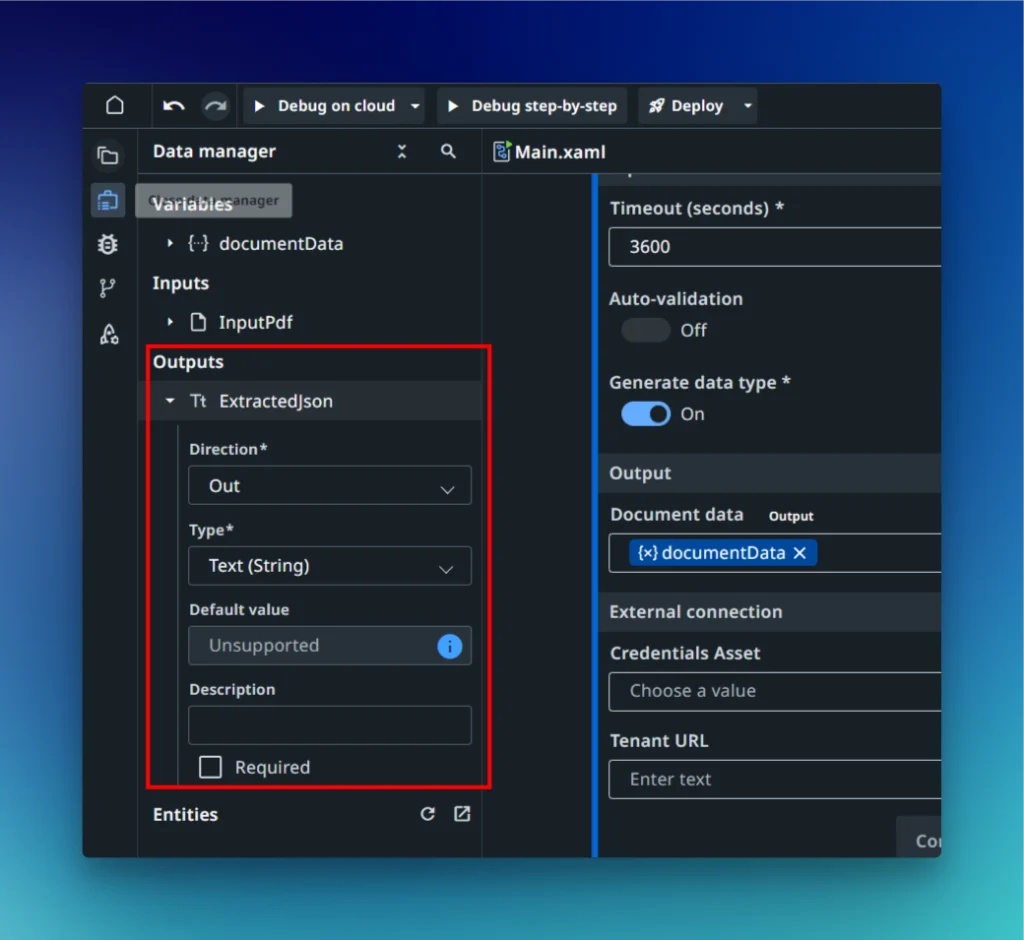
From Data Manager → Outputs, I created:
Name: ExtractedJson
Direction: Out
Type: Text / String
This variable would hold the final JSON representation of the extracted document.
Turn your complex PDF tables into structured data with Unstract
Unstract uses LLMs to extract clean, structured JSON from any document — PDFs, scans, images, tables of any layout. Define what you want using natural language, deploy as an API or ETL pipeline, and get data your systems can actually use.
Try Unstract for free on the Playground. No signup required.
Because the fields were being extracted separately, the next step was to combine them into one consistent JSON structure.
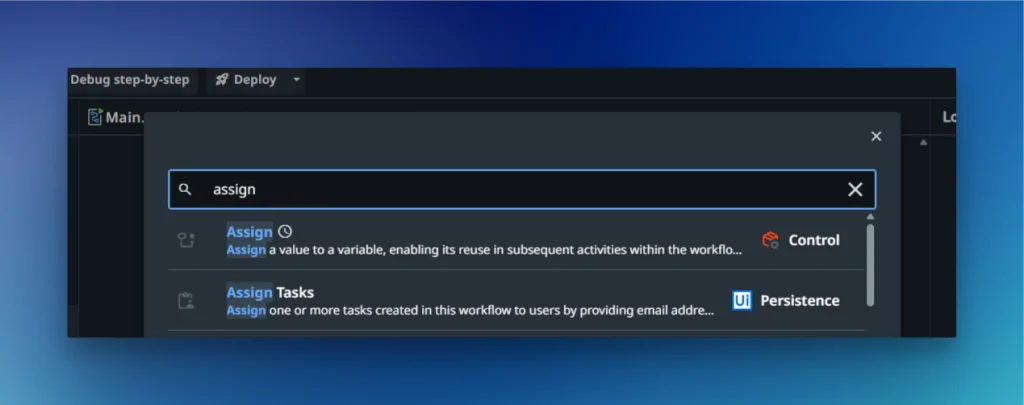
I added an Assign activity after Extract Document Data and assigned the generated JSON to: ExtractedJson
For Set value, open Expression Editor and serialize the individually extracted Document_data.Data.<Field>.Value fields into a JSON object
Fields belonging to the other document type could remain null.
Step 10 — Write the JSON to Storage
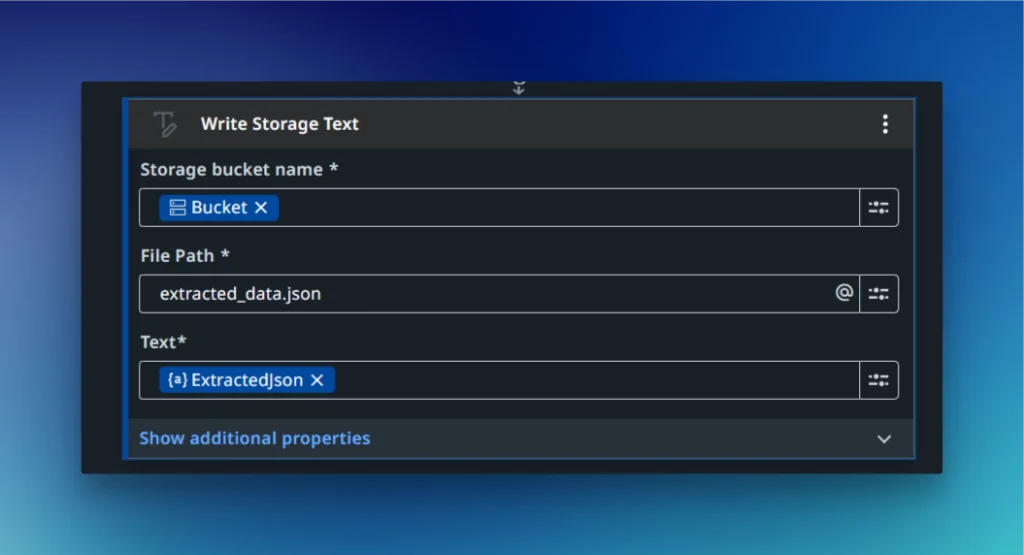
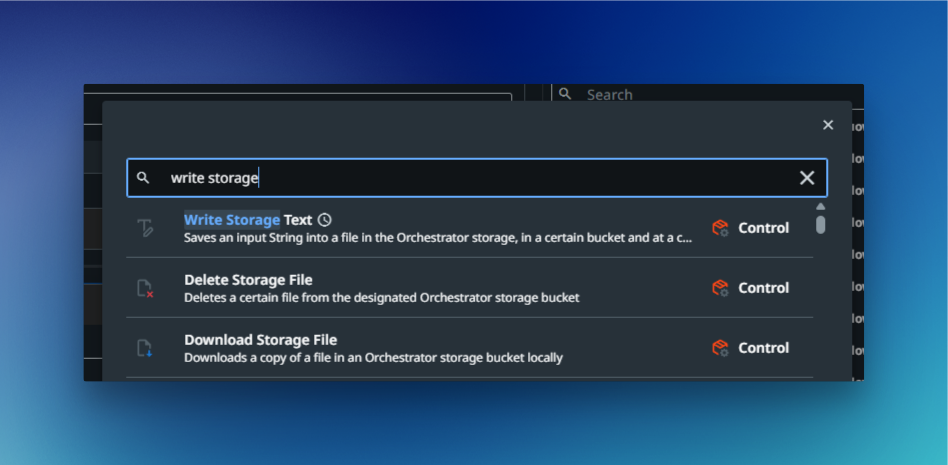
After the Assign activity, I added: Write Storage Text
I configured it as:
Storage Bucket Name: Bucket
File Path: extracted_data.json
Text: ExtractedJson
UiPath’s Write Storage Text activity uploads a string directly into a specified Orchestrator Storage Bucket, which made it a convenient way to persist the extraction result after each run.
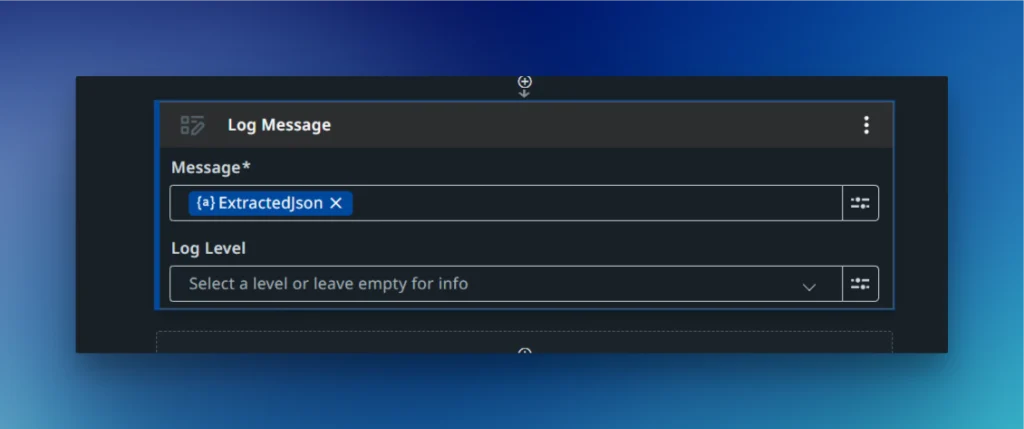
Step 11 — Add a Log Message
Next, I added a Log Message activity.
The message was: ExtractedJson
The log level can be left at its default or set to: Info
This gave me a faster way to inspect the extracted JSON without downloading the file after every test.
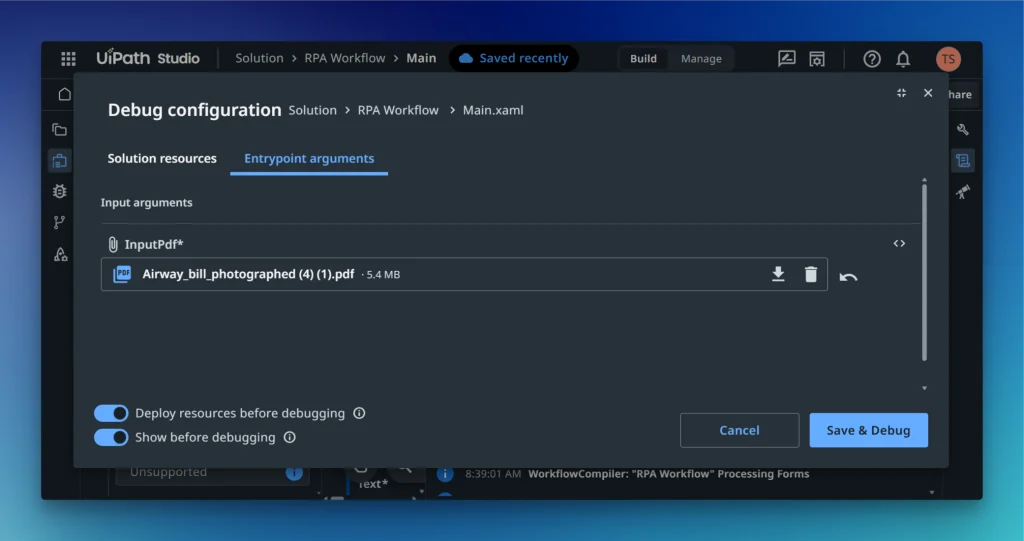
Step 12 — Supply the Test PDF
To test the workflow, I opened:
Debug on cloud → Debug configuration → Entrypoint arguments
Under InputPdf, I uploaded either:
Airway_bill_photographed (4) (1).pdf
or:
7458893d.pdf
and saved the configuration.
Step 13 — Run the Workflow
I then clicked:
Debug on cloud
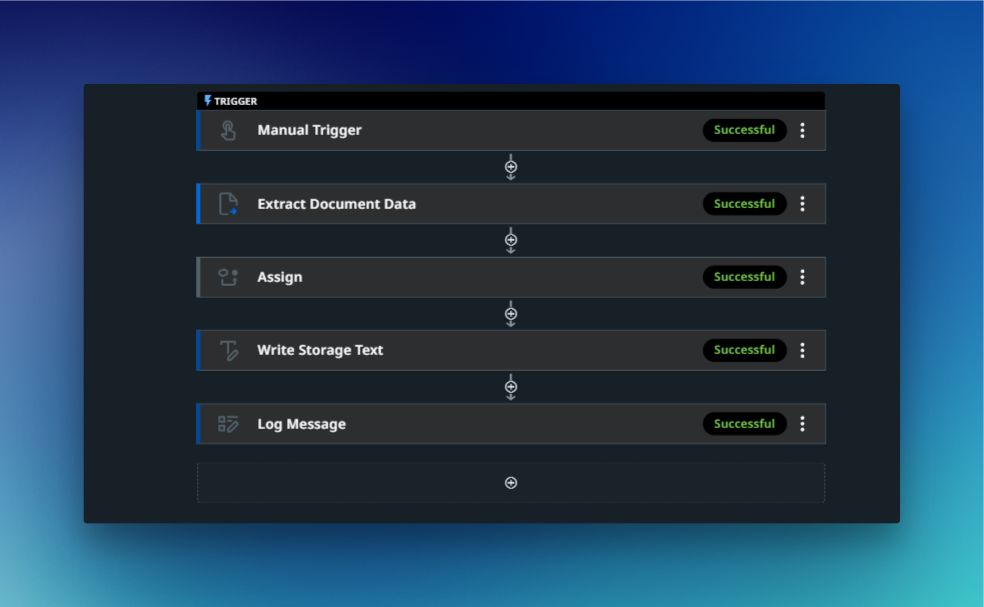
The complete flow was:
Once the workflow completed, the activities showed a successful execution.
Step 14 — Verify the JSON in the Logs
Because ExtractedJson was passed into the Log Message activity, I could inspect the generated JSON directly in the Logs panel.
This was useful for checking whether fields and tables had been extracted correctly before retrieving the final file.
I could then download the file and inspect the structured result independently of Studio Web.
First Impressions of UiPath Document Understanding
The complete initial setup took me approximately 40–45 minutes.
That includes setting up the RPA workflow, creating the input, choosing the generative extractor, defining all extraction fields, configuring the generated data type, constructing the output, setting up storage, and testing the workflow.
The experience was capable, but it was not particularly lightweight.
UiPath exposes a lot of control, which is useful once you understand how its different pieces fit together. At the same time, getting from a blank Studio Web project to a downloadable structured JSON file required understanding several UiPath concepts:
workflow triggers
inputs and outputs
Document Understanding extractors
field descriptions
table fields
generated data types
variables
Assign expressions
Storage Buckets
logging
I also found parts of the initial configuration somewhat buggy or unclear. The interface does not always make the relationship between Document Understanding, Studio activities, generated data types, and downstream output immediately obvious.
That observation is not entirely isolated. UiPath Community discussions show developers asking about differences between Modern and Classic Document Understanding activities, package/version compatibility, and cases where updated fields or extractor versions did not immediately appear in Studio until projects were republished or dependencies refreshed.
These forum reports should not be treated as universal product limitations, but they do show that configuration and versioning can introduce additional friction for some implementations.
Once the workflow was configured correctly, however, the experience improved substantially.
From that point onward, processing another compatible document was much simpler:
upload PDF → run workflow → extract fields and tables → generate JSON → save output
That distinction became important during the actual document tests.
Testing UiPath With the Two Documents
With the UiPath workflow configured, I tested the same setup against both documents. The goal here was not to revisit the schema or field configuration, but to see how well UiPath Document Understanding handled two very different document layouts in practice.
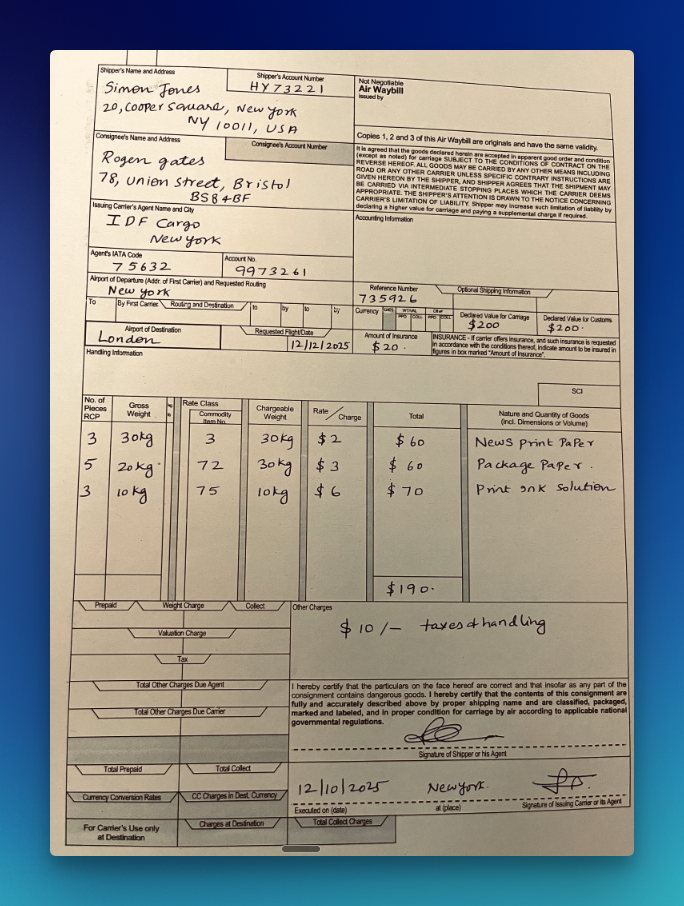
Document 1 — Photographed Air Waybill
The first test document was the more challenging of the two.
It is a photographed Air Waybill containing printed text, handwritten entries, dense form sections, routing information, shipment charges, and a multi-column cargo table.
This makes it difficult for document extraction because several values depend heavily on their position on the page, while the shipment table requires row and column relationships to remain intact.
Running the Extraction
I uploaded: Airway_bill_photographed.pdf
through the InputPdf workflow input and ran the automation using Debug on cloud.
UiPath successfully identified the document and extracted the main structured information, including:
shipper and consignee details
carrier information
departure and destination details
declared values
shipment charges
execution details
shipment table rows
The overall structure was captured reasonably well.
The most difficult areas were the handwritten values and densely packed table cells. These are the parts I would verify most carefully before using the data automatically in a downstream workflow.
The shipment table was particularly important because each row needed to preserve the relationship between pieces, weight, rate, charge, and goods description. A value can be recognized correctly but still become inaccurate if it is assigned to the wrong row or column.
Some fields therefore required closer validation, but the final output was usable after the extraction configuration had been set up correctly.
Extracted JSON
The final structured result was saved as extracted_data.json.
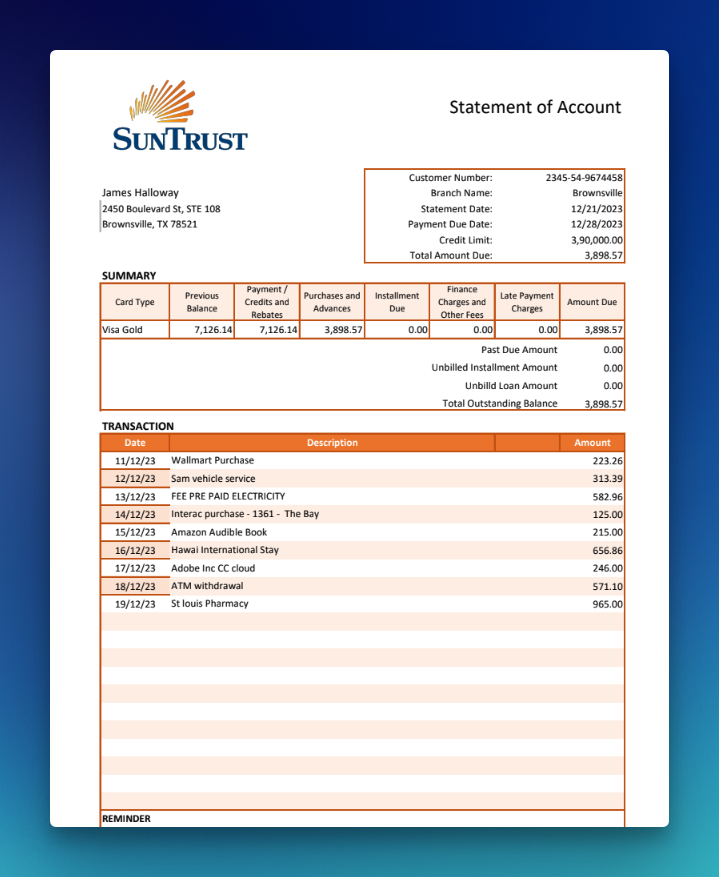
Compared with the Air Waybill, this document was cleaner and more structured. It contains customer details, account information, balances, payment information, and a transaction table with clearly separated rows.
For this test, I uploaded: statement_of_account.pdf
and ran the same workflow without creating a separate extraction process.
UiPath handled this document more easily than the photographed Air Waybill.
Customer information, statement-level fields, balance values, and other structured data were easier to identify because the document has clearer labels and more consistent alignment.
The main area that still required verification was the transaction table.
Each transaction needed to preserve the relationship between:
transaction date
description
amount
This is important because a financial statement can appear correct at the text level while still being wrong if an amount is associated with the wrong transaction row.
In this test, the Statement of Account required noticeably less manual review than the Air Waybill. Its cleaner structure and regular table layout made it a better fit for automated extraction.
Overall UiPath Document Understanding Experience
After testing both documents, UiPath Document Understanding showed that it can handle substantially different document layouts within the same workflow.
The Statement of Account was the easier case, while the photographed Air Waybill pushed the extractor harder with handwriting, irregular alignment, and dense table structures.
The extraction quality itself was useful, but the overall experience still depended heavily on the setup completed earlier. Reaching the first working result took roughly 40–45 minutes, largely because UiPath required configuring the workflow, extraction fields, generated data, JSON output, and Storage Bucket before the results could be used outside Studio.
Once that setup was complete, however, reuse became straightforward:
upload document → run workflow → extract structured data → review JSON
This makes UiPath especially interesting for teams already working inside the broader UiPath automation ecosystem. The next question is whether Unstract can produce comparable or better results from the same two documents with less setup and configuration.
Unstract: Setup and First Impressions
I then tested the same two documents in Unstract, using Agentic Prompt Studio for the extraction workflow.
The overall process was different from UiPath. Instead of manually creating every extraction field and then building the JSON output around those fields, Agentic Prompt Studio analyzes the uploaded documents and generates both the schema and extraction prompt automatically.
Step 1 — Create an Agentic Prompt Studio Project
From the Unstract dashboard, I opened Agentic Prompt Studio and created a new project for the comparison.
The same two documents used in UiPath were uploaded:
photographed Air Waybill
Statement of Account
Using the same source documents ensured that the extraction comparison remained consistent.
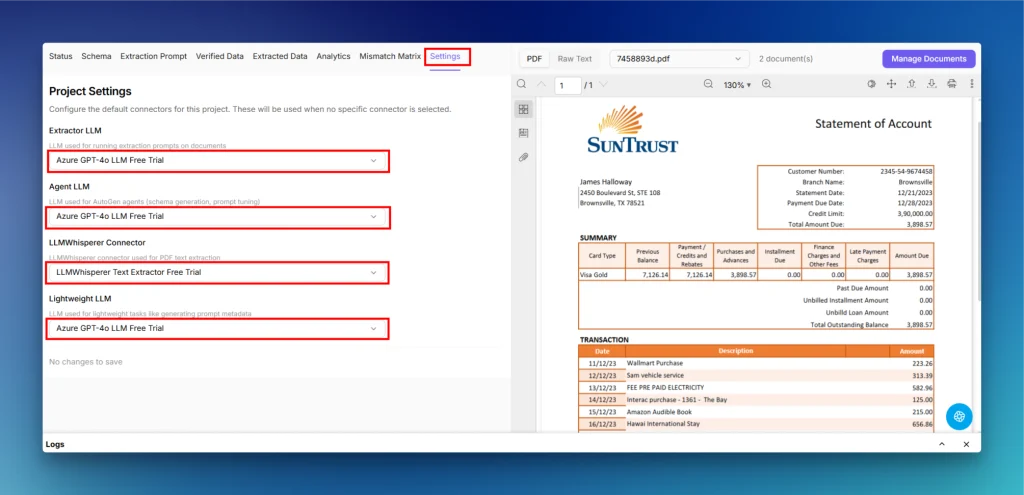
Step 2 — Configure the Required Connectors
From the Settings tab, I configured the required components:
Extractor LLM
Agent LLM
LLMWhisperer Connector
Lightweight LLM
The Extractor LLM handles structured extraction, while the Agent LLM powers schema and prompt generation. LLMWhisperer provides the document text used by the downstream extraction pipeline.
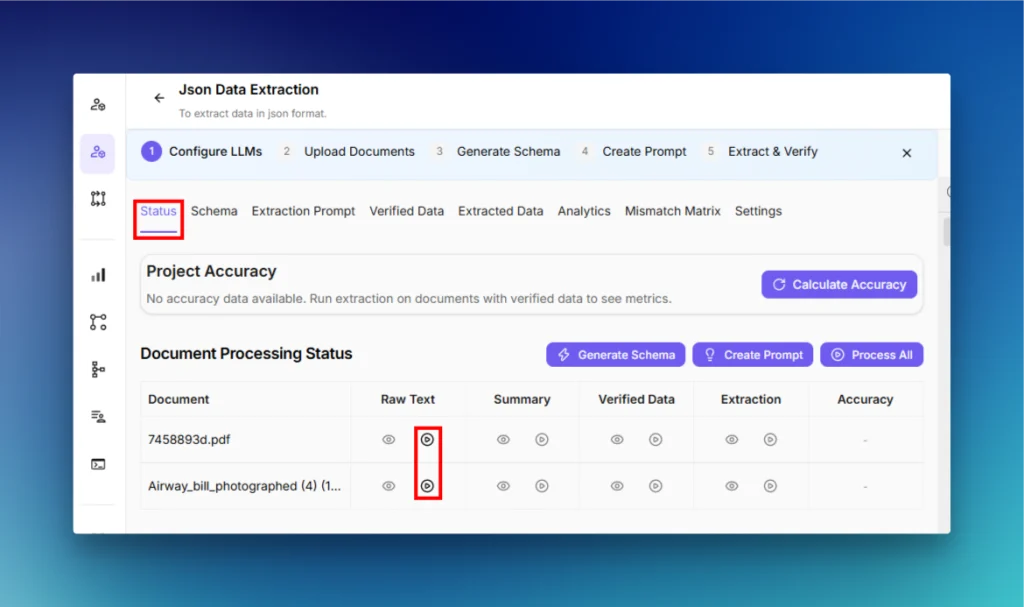
Step 3 — Generate Raw Text With LLMWhisperer
The first processing step is generating a machine-readable representation of each uploaded document.
Open the Status tab
Trigger Raw Text generation for the uploaded documents
Wait for processing to complete
LLMWhisperer converts the uploaded PDFs into text while preserving document structure rather than returning only a flat OCR dump. Its layout-preserving mode is designed to maintain relationships in forms and tables, which is especially useful for these two documents.
I could also preview the generated raw text using the eye icon before moving forward.
For the photographed Air Waybill, this step was particularly important because the source includes handwriting, dense form sections, and a shipment table.
Step 4 — Generate Document Summaries
Once the raw text is available, Agentic Prompt Studio summarizes each document.
Trigger Summary generation from the Status tab
Generate a summary for each uploaded document
Review the generated summaries where needed
Agentic Prompt Studio analyzes the uploaded documents and creates summaries describing the fields and structures found in each one.
These summaries help the agentic pipeline understand that the Air Waybill and Statement of Account contain very different information while still allowing one project to model both structures.
Also Current Agentic Prompt Studio can generate these summaries as part of the schema-generation process rather than requiring them to be created manually one by one.
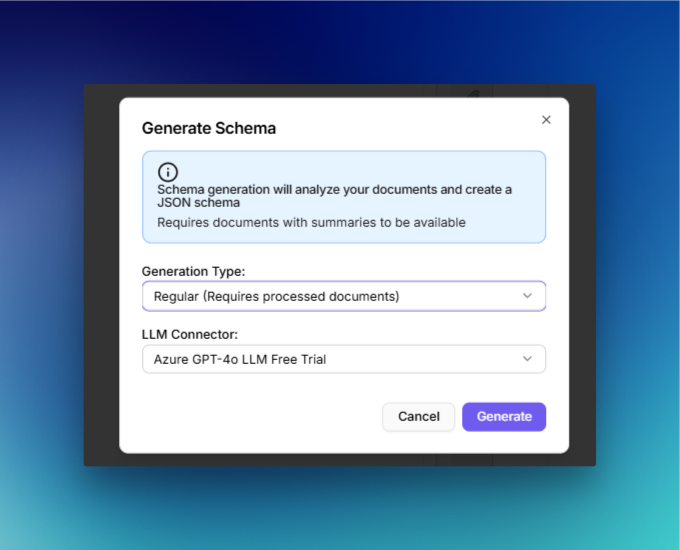
Step 5 — Generate the Schema
Instead of manually deciding every JSON field, Agentic Prompt Studio can generate the extraction schema from the uploaded documents.
Click Generate Schema
Select the appropriate generation option and LLM connector
Start schema generation
Review the generated schema in the Schema tab
Unstract uses a multi-agent process to analyze the documents, normalize equivalent fields, and produce a unified JSON Schema containing field names, data types, nested objects, and repeating structures such as tables.
This was one of the clearest differences from the UiPath setup.
In UiPath, I manually created and described the Air Waybill fields, Statement of Account fields, and table columns. Here, the initial structure was generated directly from the uploaded documents.
The schema still needs to be reviewed before extraction, particularly for complex nested data, but I did not have to define the entire document model field by field.
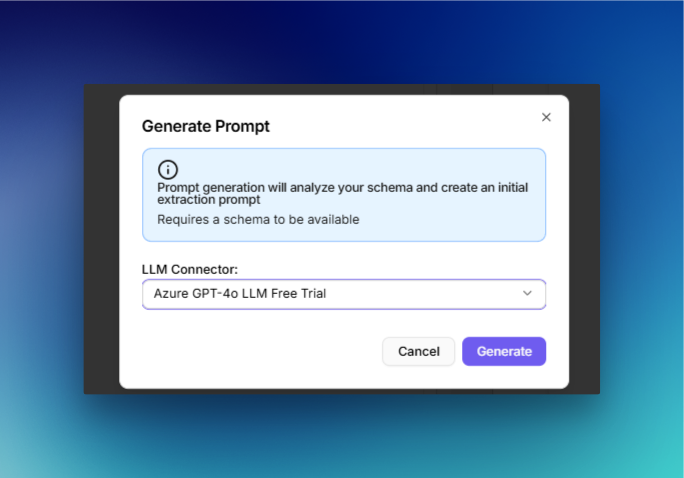
Step 6 — Generate the Extraction Prompt
Once the schema is ready, Agentic Prompt Studio can create the extraction prompt automatically.
Click Create Prompt
Select the required LLM connector
Start prompt generation
Review the generated prompt in the Extraction Prompt tab
Agentic Prompt Studio uses another agent pipeline to examine document patterns, create the extraction instructions, and critique the generated prompt before saving it.
Again, this removed another manual setup step.
Rather than writing individual instructions such as “extract the customer number” or “extract every transaction row,” the generated prompt was already based on the fields and structures detected across the uploaded documents.
Step 7 — Create and Review Verified Data
The next step is establishing a trusted reference against which extraction results can be measured.
Open the Verified Data tab
Create verified data manually or promote a confirmed extraction result
Compare every value against the source document
Correct any mismatches before using it as the evaluation baseline
Verified data represents the known-correct JSON output and acts as the baseline against which extracted results are measured. It can be entered manually or created from an extraction result after confirming that the result is correct.
This adds some manual review, but it serves a different purpose from manual extraction configuration: it establishes ground truth for evaluation rather than telling the model where every field is located.
Step 8 — Run Structured Extraction
With the schema and prompt prepared, run extraction across the uploaded documents.
Trigger Extraction from the Status tab
Wait for each document to finish processing
Open the extracted results
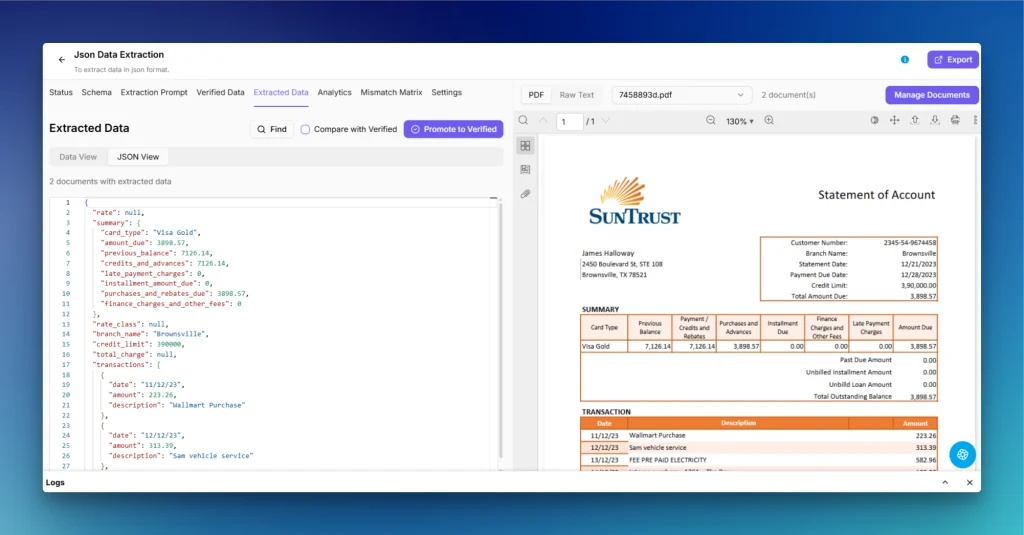
Results were available in:
Data View
JSON View
Data View makes individual values easier to inspect, while JSON View shows the complete structured output. Selecting extracted values can also map them back to their location in the source document.
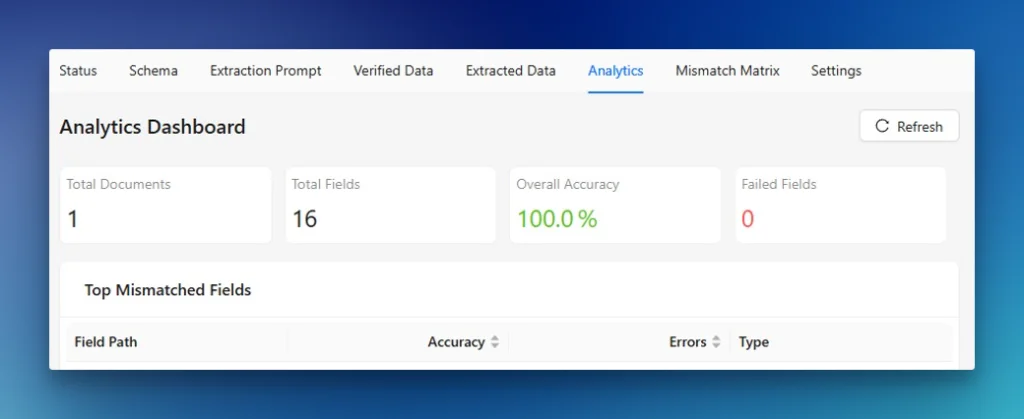
Step 9 — Check Accuracy and Analytics
Finally, I compared the extracted data against the verified baseline.
Agentic Prompt Studio provides:
overall project accuracy
individual document accuracy
field-level extracted vs. verified comparisons
JSON diff
Mismatch Matrix
Analytics dashboard
failed-field reporting
The Analytics dashboard shows total documents, total evaluated fields, overall accuracy, and the fields producing the most mismatches.
First Impressions
The Unstract setup felt more focused on the document extraction problem itself.
The main workflow was:
upload documents → generate raw text → generate schema → generate prompt → verify data → extract → measure accuracy
For this test, the complete setup and extraction flow took around 7–10 minutes from creating the Agentic Prompt Studio project to reaching structured extraction results and accuracy metrics.
Compared with UiPath, I did not have to manually create dozens of extraction fields or build the final JSON structure field by field. The schema and extraction prompt were generated automatically from the uploaded documents, which reduced the amount of manual configuration before seeing usable output.
There was still some setup involved. The LLM connectors had to be configured, the generated schema needed review, and verified data had to be checked carefully before the accuracy metrics became meaningful. Agentic Prompt Studio is also currently documented as a beta feature, so its workflow may continue to evolve.
But for this particular test, reaching a complete extraction was considerably faster. The workflow stayed focused on document understanding itself rather than requiring a surrounding RPA workflow before I could evaluate the results.
Testing Unstract With the Same Two Documents
With Agentic Prompt Studio configured, I ran the same Air Waybill and Statement of Account that were previously tested in UiPath.
Document 1 — Photographed Air Waybill
The Air Waybill remained the more difficult document.
It contains:
handwritten values
photographed/scanned content
dense form sections
shipper and consignee information
routing and charge details
a multi-column shipment table
LLMWhisperer first converted the document into layout-preserved text. This was particularly useful for the cargo section because the meaning of each value depends on maintaining its relationship with the correct row and column.
The generated schema also identified the important Air Waybill structures without requiring me to manually recreate every field from the UiPath workflow.
After running the extraction, Unstract returned the document as structured data including the main form fields and repeating shipment information.
The main areas I checked carefully were the same difficult elements identified during the UiPath test: handwriting and dense table relationships.
Any incorrect or uncertain field could then be compared against the verified data rather than reviewing the entire output manually.
For this document, the main additional work was reviewing the automatically generated schema and checking the extracted values against the source. I did not need to manually define every Air Waybill field before running the extraction.
Document 2 — Statement of Account
The Statement of Account was again the cleaner of the two documents.
It contains clearly separated customer information, account balances, payment information, and a transaction table.
Unstract extracted the statement into structured JSON containing the account summary together with all nine transaction rows.
The transaction table is particularly important here because each date, description, and amount must remain associated with the correct row.
The result preserved the statement-level values as well as the repeating transaction structure, which made the output immediately usable as JSON rather than requiring an additional step to manually assemble the fields.
Overall Unstract Extraction Experience in document Processing
Across both documents, the main difference was not simply extraction accuracy but how the extraction project was created.
UiPath required the extraction fields, field instructions, table definitions, workflow variables, JSON construction, and storage flow to be configured explicitly.
With Unstract, LLMWhisperer first handled document parsing, after which Agentic Prompt Studio generated the initial schema and extraction prompt from the documents themselves.
The Air Waybill still required more careful verification because of its handwriting and dense layout, while the cleaner Statement of Account produced a well-structured result with the transaction rows preserved.
The setup was not completely automatic—connectors, schema review, verified data, and accuracy checking still required attention—but considerably less of the extraction structure had to be created manually before seeing usable structured output.
What the Hands-On Test Revealed: Accuracy, Setup, and Flexibility
After running the same Air Waybill and Statement of Account through both platforms, the biggest difference was not simply whether they could extract data. Both could.
The more noticeable difference was how much work it took to reach usable structured output, and how each platform expects users to configure and improve extraction.
Extraction Accuracy
The Air Waybill was the harder document for both platforms because it combined a photographed form, handwriting, dense fields, and a shipment table.
UiPath’s Short Document Complex Layout Extractor handled the overall form reasonably well and extracted the important structured information. The areas that required the most verification were handwritten values and tightly packed table cells, where preserving the relationship between values and their correct rows was particularly important.
Unstract processed the same document through LLMWhisperer before structured extraction. The layout-preserved text gave Agentic Prompt Studio a structured representation of the form, after which it generated the schema and extraction prompt automatically. As with UiPath, handwriting and dense shipment-table data were the areas that deserved the closest review.
The Statement of Account was easier for both platforms because its layout was cleaner and its fields were more clearly separated.
UiPath handled customer information, balance fields, and transaction data more comfortably than the photographed Air Waybill. The main point requiring verification was whether each amount remained associated with the correct transaction row.
Unstract also produced a clean structured result. In the JSON output shown earlier, it preserved all nine transaction rows together with statement-level fields such as customer number, statement date, payment due date, credit limit, total amount due, and outstanding balance.
Based on the hands-on results, both platforms were able to extract usable structured data from the two test documents, but the difficulty varied significantly by document type.
Test Document
UiPath Document Understanding
Unstract
Photographed Air Waybill
Extracted the important structured fields and shipment information. Handwriting and dense table cells required closer verification.
Produced structured extraction using LLMWhisperer + Agentic Prompt Studio. Handwriting and dense table relationships still deserved verification.
Statement of Account
Cleaner document was easier to process. Customer, balance, and transaction data were extracted, with transaction-row alignment being the main review point.
Produced structured JSON containing account-level fields and all nine transaction rows.
Manual extraction setup
Fields, instructions, and table columns had to be configured explicitly.
Initial schema and extraction prompt were generated from the documents.
Structured output
Required the surrounding workflow to combine extracted values into the final JSON.
Structured JSON was available directly from the extraction project.
The extraction capabilities were therefore closer than the difference in setup experience might initially suggest.
Setup Experience and Learning Curve
This is where the two products felt much more different.
My first complete UiPath Document Understanding workflow took approximately 40–45 minutes to configure.
That process involved more than extraction itself. I had to work with Studio Web, workflow inputs, Document Understanding activities, extraction fields, field instructions, generated data types, variables, JSON construction, logging, and an Orchestrator Storage Bucket.
None of these concepts is unreasonable in an RPA platform. In fact, they provide considerable control once the workflow is built. But there is a learning curve if your immediate goal is simply to turn a difficult PDF into structured JSON.
With Unstract, I reached the complete extraction and evaluation stage in approximately 7–10 minutes.
The basic path was much shorter:
upload documents → generate raw text → generate schema → generate prompt → verify data → extract → measure accuracy
There was still configuration involved. The connectors needed to be available, the generated schema had to be reviewed, and verified data needed careful checking before treating the accuracy metrics as meaningful.
But substantially less of the extraction structure had to be created manually.
Mostly schema, prompt, connectors, and extracted values
There is one important qualification here.
UiPath is doing more than acting as a document parser. The extraction sits inside a broader automation environment containing RPA, orchestration, storage, human actions, and downstream workflow activities.
That additional machinery can feel heavy when you only want extraction, but it becomes useful when the document is one step inside a much larger enterprise process.
Flexibility and Customization
The two platforms also take different approaches when requirements change.
With UiPath, the configuration is explicit. If I want another field, I can add it, describe exactly what should be extracted, and decide how that value moves through the automation.
That provides fine-grained control, but adding or changing document requirements can mean editing the extraction configuration and the surrounding workflow.
Unstract works more from the document class outward.
Agentic Prompt Studio analyzes multiple example documents, generates a common schema, and creates the extraction prompt from those documents. If the document variants change, the schema and prompt can be reviewed and refined without recreating an RPA workflow around every field.
For frequently changing or highly variable documents, I found this approach easier to iterate on.
For tightly controlled enterprise processes where document extraction must immediately trigger robots, actions, storage operations, or existing UiPath workflows, UiPath’s broader configuration model can be an advantage rather than unnecessary overhead.
UiPath Document Understanding Pricing vs Unstract
Pricing is slightly harder to compare because the two companies expose it differently.
UiPath’s public pricing page currently lists Basic starting at $25/month, but document and communications classification/extraction at enterprise scale is listed under the Standard tier, whose price is not publicly published and requires contacting sales.
Document Understanding also has consumption-based metering.
Under UiPath’s current Unified Pricing documentation, Document Understanding modern-project processing is metered in Platform Units. UiPath’s July 2026 pricing update changed the underlying charging model toward per-operation metering while keeping total Document Understanding consumption capped at 0.2 Platform Units per page under Unified Pricing.
That makes the final dollar cost difficult to estimate from the website alone because it depends on the customer’s UiPath licensing agreement and Platform Unit allocation.
Unstract publishes its cloud pricing more directly.
At the time of writing:
Starter: $499/month for 5,000 pages
Growth: $2,249/month for 25,000 pages
Enterprise: custom pricing
Agentic Prompt Studio is included in these listed plans, and overage pricing is published as well. Unstract also offers a 14-day cloud trial.
Deployment options also differ slightly.
UiPath supports Automation Cloud as well as self-hosted deployments through Automation Suite, although specific Document Understanding and generative capabilities vary depending on the deployment type.
Unstract is available as Cloud, On-Premise, and Open Source editions. Its On-Premise edition can run on Kubernetes-based infrastructure, while the Open Source edition provides another path for teams wanting to operate the core platform themselves. Some advanced features are reserved for the paid Cloud and On-Premise editions.
The practical pricing difference is therefore less about simply asking which headline number is cheaper.
For an organization already licensing UiPath across a large automation estate, Document Understanding may fit naturally into an existing commercial agreement.
For a team evaluating document extraction as a standalone problem, Unstract makes the initial cloud cost easier to estimate because page allowances and monthly prices are published directly.
Where Each Platform Wins
Where UiPath Document Understanding Wins
The strongest case for UiPath Document Understanding is when document extraction is part of a larger UiPath automation program.
In my test, extraction, workflow logic, storage, logging, and execution could all exist inside the same UiPath environment. Once configured, the workflow could accept another document and continue through downstream automation without moving between different platforms.
UiPath also has a more mature enterprise human-validation ecosystem. Validation Station can be used to review and correct extracted fields, while Action Center can route document-validation tasks to human reviewers as part of long-running automation workflows.
That makes UiPath particularly relevant when:
the company already runs UiPath robots
extracted data immediately feeds an RPA process
human review needs to sit inside Action Center
orchestration and governance matter as much as extraction itself
a single enterprise automation platform is preferable to a dedicated document-processing stack
UiPath therefore has an advantage in breadth of automation around the document.
Where Unstract Wins
The strongest advantage I observed with Unstract was time to usable extraction.
The UiPath workflow took roughly 40–45 minutes to reach the complete extraction-and-output stage. With Agentic Prompt Studio, the equivalent extraction and evaluation setup took around 7–10 minutes.
A major reason was automation of the configuration itself.
Instead of manually defining every extraction field and table column, Agentic Prompt Studio generated the initial schema from the documents. It then generated the extraction prompt and provided verified-data comparison, accuracy measurement, and mismatch analysis in the same workspace.
LLMWhisperer also keeps document parsing closely tied to the extraction workflow, with support for layout preservation, forms, handwriting, checkboxes, and complex document structures.
That makes Unstract particularly attractive when:
structured document extraction is the primary problem
document layouts vary frequently
reducing manual schema and prompt setup matters
teams want an LLM-native extraction workflow
developers want structured JSON without first building a larger RPA automation
open-source or dedicated on-premises deployment is important
In short, UiPath provides the broader automation environment; Unstract provided the shorter path from documents to evaluated structured data in this test.
Unstract Vs. UiPath: Which Platform Should You Choose?
There is no universal answer because UiPath and Unstract approach the problem from different directions.
UiPath Document Understanding makes more sense when the surrounding automation matters as much as the extraction.
If an organization already uses UiPath robots, Orchestrator, Action Center, and Studio, Document Understanding can become another capability inside that same environment. The additional setup I encountered becomes easier to justify when the extracted data immediately continues through a larger RPA process.
Unstract makes more sense when document extraction itself is the central problem.
In this test, I reached extraction and evaluation considerably faster, with much less manual field configuration. Agentic Prompt Studio generated the initial schema and prompt, while LLMWhisperer handled the underlying document parsing.
That makes it particularly appealing for developers or data teams that need to turn complex and changing documents into structured JSON without first constructing a larger automation workflow.
Deployment requirements can influence the decision as well. Both products have enterprise self-hosted options, while Unstract additionally maintains an Open Source edition. UiPath, on the other hand, offers the benefit of fitting into a considerably broader automation platform.
So the practical decision looks something like this:
Consider UiPath if:
your organization already has a substantial UiPath environment
document extraction is one stage in a larger RPA workflow
Action Center and enterprise human validation are important
centralized automation governance is a priority
Consider Unstract if:
extracting structured data from documents is the primary use case
you want to minimize initial configuration
document layouts change frequently
LLM-native extraction and automatic schema/prompt generation are important
you want a more direct path from document input to structured JSON
Conclusion: Choosing the Right UiPath Document Understanding Alternative
Testing the same two documents made one thing clear: this is not a comparison between a platform that can understand documents and one that cannot.
Both UiPath Document Understanding and Unstract were capable of processing the photographed Air Waybill and the cleaner Statement of Account.
The more meaningful difference was the path required to get there.
UiPath gave me extensive control and connected document extraction directly to a broader RPA environment. But reaching the first complete structured output required approximately 40–45 minutes of workflow configuration, including fields, variables, generated data, JSON construction, storage, and execution logic.
Unstract reached the extraction-and-evaluation stage in roughly 7–10 minutes. Agentic Prompt Studio generated much of the initial schema and prompt configuration, while LLMWhisperer handled the document-parsing layer.
For teams already invested heavily in UiPath, that additional workflow infrastructure may be exactly what they need.
For teams primarily looking for a UiPath Document Understanding alternative that focuses on turning complex documents into structured data with less initial configuration, Unstract presents a different and compelling approach.
The most important takeaway from this UiPath Document Understanding comparison is therefore not that one platform universally replaces the other.
It is that they optimize for different starting points.
UiPath starts from enterprise automation and brings document understanding into it. Unstract starts from complex document understanding and makes that extraction easier to turn into structured, production-ready data.
Which approach fits better depends on what you are actually trying to automate.
UiPath Document Understanding Vs. Unstract: FAQs
1. What did the UiPath Document Understanding setup actually require, end to end? Enabling the service at tenant level, creating an Orchestrator Storage Bucket, building an RPA workflow in Studio Web, adding the Extract Document Data activity, defining every extraction field and table column manually, enabling the generated data type, then constructing the final JSON through an Assign expression before writing it to storage. That chain took roughly 40–45 minutes to reach a first usable result.
2. How does Agentic Prompt Studio differ from defining fields by hand? Instead of declaring each field, its instruction, and its table columns, you upload example documents and the platform generates the initial JSON Schema and extraction prompt from them. The schema still needs review — particularly for nested or repeating structures — but you’re not authoring the entire document model field by field.
3. Why does table configuration get treated as a separate problem? Because in the UiPath test, table columns had to be explicitly defined, and in the Unstract flow the table structure was inferred into the generated schema. That difference matters when row-and-column relationships carry the meaning — a shipment row where pieces, weight, rate, charge, and goods description must stay bound to each other.
4. How is accuracy measured when both platforms “work”? Unstract provides verified data as a ground-truth baseline, then reports project-level and per-document accuracy, field-level extracted-vs-verified comparison, a JSON diff, a Mismatch Matrix, and an analytics dashboard listing the fields producing the most mismatches. In the UiPath test, evaluation was done through output and log inspection.
5. What versioning friction did the article report on the UiPath side? UiPath Community discussions referenced in the piece show developers asking about Modern versus Classic Document Understanding activities, package and version compatibility, and cases where updated fields or extractor versions didn’t appear in Studio until projects were republished or dependencies refreshed. The author is explicit that these are forum reports, not universal product limitations.
Unstract – A better alternative to UiPath Document Understanding: Related topics to explore
Engineer by trade, creator at heart, I blend Python, ML, and LLMs to push the boundaries of AI—combining deep learning and prompt engineering with a passion for storytelling. As an author of books and articles on tech, I love making complex ideas accessible and unlocking new possibilities at the intersection of code and creativity.