[00:00:00]
Hey, everybody. Uh, thanks for joining this session. I’m Mahashree, Product Marketing Specialist at Unstract, and I’ll be your host for this webinar. I’m quite excited about today’s topic, document extraction through the CLI and MCP. Now, if you’ve spent any time on Developer X or Hacker News this year, you’ve probably seen this debate between these two, uh, paths of accessing tools.
So quick, uh, context for our business audience over here. If these terms are completely new to you, the
[00:00:30]
CLI and MCP are simply two different ways of accessing a tool while bypassing its UI. And developers have been going back and forth all year arguing about which one is better. So here’s what they exactly mean. The CLI stands for command line interface, and this is basically your terminal or the black screen you might have seen developers work with.
Now, developers have been using it for decades to work with products directly because it’s fast and convenient. So instead of
[00:01:00]
logging into your UI and clicking through screens, they type a short command and get the result straight back. And since this is, uh… since it’s just a command, it can be repeated across thousands of files or set to run on its own.
So this was always how it was. The CLI was a developer favorite, and then came the AI agents like Claude, ChatGPT, or Cursor. So to be really useful, these agents had to connect with the tools and data that a business works with on a
[00:01:30]
day-to-day basis. But then the problem was that every connection had to be built separately, one tool at a time.
So in late 2024, Anthropic introduced MCP, the Model Context Protocol. So think of it as a universal connector, one standard way of any– for any AI agent to plug into products like Unstract or HubSpot and so on. So while, uh, so for a while, the MCP was the exciting new thing, but developers soon noticed that agents could already work
[00:02:00]
in the terminal, and they were doing just fine with the CLI or sometimes even better.
And that’s when the debate really kicked off. So in Jan, um, early this year, Peter Steinberger, the creator of OpenClaw, posted that MCPs were a mistake and Bash is better. Bash is one of the most common command line tools. So a lot of people agreed with him. In March, Perplexity’s CTO said that his team had completely moved away from MCP internally in favor of APIs and CLIs.
And
[00:02:30]
just a day later, Y Combinator’s CEO put it even more bluntly, calling MCP out and saying that it sucks. So these were the kind of, uh, statements that were being made that kind of triggered the debate between developers on whether these, uh, proved a valid case for the CLI or if MCP really had something to offer.
So their complaints came down to three major things. So MCP consumes too many tokens while processing. Logins and authentication are painful to set up in the MCP. And
[00:03:00]
above all, it felt unnecessary in a lot of places. AI models already learned how to use command line tools really well because they learned f-from years of developer documentation and code.
But while this debate was going on, the pushback came just as quickly from the MCP side. So within weeks, MCP had defenders from companies like AWS and OpenAI, and AWS said it runs MCP across its own production systems. They pointed out that many
[00:03:30]
products like Notion, Linear, or Asana don’t have a CLI at all and do, do offer MCP And with the CLI, one login does everything, while with MCP every user can sign in with their own account, and it is catered to that particular user.
So this tug-of-war went back and forth for quite some time, but today we are seeing most developers kind of coming to a consensus that you might actually need both. Both the MCP and CLI are great pathways of
[00:04:00]
using tools without, uh, you know, while bypassing the UI, and they might have specific use cases where both of them shine individually.
So right now, the debate isn’t more about e- either or or, rather we are looking at where to use, uh, each of these technologies individually, and most of the powerful businesses today are basically combining these two systems depending on the use case they have in hand. So that is exactly what we’ll be looking at in this webinar.
Over the next few minutes, we’ll be covering when to use which, and we’ll be looking at this
[00:04:30]
specifically through the lens of document extraction So let’s start with the CLI. So the CLI is a developer favorite for a reason. It’s fast, it lives right where developers already work, and they’ve been using it for years, so it’s…
it feels like second nature. So you write a short script to the CLI once, and from there on, it can run the exact script the same way as many times as you need it. And that’s exactly why the CLI comes in so handy when you have a process in mind and you already know the extraction
[00:05:00]
steps right from the start to the finish.
So this is basically suitable for repeatable batch jobs where you already know how the workflow is going to go. So for instance, take an accounts payable team that processes invoices landing in the specific folders overnight. So no matter which invoice comes in, the process is going to be the same. They might extract the data, they might check it with a different source within the system and then send it on.
So it’s a repeated automation, and this keeps happening every night. So how you would tackle this
[00:05:30]
problem is you’d write a script and run that exact same step or the same, um, set of steps over and over again on all the nights. And the same goes for an insurance company working through a backlog of thousands of claims forms or a logistics company pulling shipment details from the bills of lading it receives every day.
So in each case, you’re running the same extraction pipeline on the same type of document as many times as there, there are documents. And that’s why– that’s where we call, uh, this kind of processing as
[00:06:00]
batch processing, and that is exactly where the CLI really shines. So now there are two ways of building the CLI.
The first is to write the script yourself, and this is how developers were working for a long time. But now with AI agents like, again, like Claude Code or Cursor, you can basically offload this to the agent. You simply describe a prompt and you tell it what you want the pipeline to do. The agent writes the script for you and gets the automation running.
So either way, the AI only does this
[00:06:30]
thinking once, and then the script is, uh… So it does the thinking while you build the script, and then the script is just, you know, set off on its own where it can run, uh, on an everyday basis or depending on how often or frequently you schedule it, and it’s just happening that way.
So this is basically how the CLI works, and that’s where the big token saving comes into the picture. So we spoke about how- Uh, MCP can be quite costly because it con- it consumes a lot of tokens while processing. We’ll see exactly how when we cover the MCP segment.
[00:07:00]
But with the CLI, the AI is working only in the beginning where it is basically defining the workflow and building it.
So, um, a popular study also pointed out that for the same complex document extraction task in hand, the MCP consumed 6X more number of tokens than the CLI did. So that is where we’re really saving up on the tokens when it comes to CLI. So over here, the AI is playing a role, as I said, only while crafting the pipeline, and then it steps aside and it’s just the execution
[00:07:30]
that is done on a repeatable, uh, basis.
So this is, again, CLI is suited for high volume, repeatable, predictable workflows and, uh, that makes the use case for CLI that you should be looking at. And again, CLI is developer friendly, so a lot of business users on the downfall might not be really familiar with this environment. So coming to an end with the CLI segment, let’s move on to where we, uh, see MCP, you know, find its use.
So in stark contrast, not every document
[00:08:00]
comes as a part of a neat, predictable batch. So sometimes you have a document that falls into a folder and you need to, you know, process all these documents in bulk, in batch processing. So that is one way in which document extraction, uh, use cases, uh, you know, uh, are incurred by businesses.
But some other times you might get a document that is kind of, um, not the kind of document that you might be seeing every day. You might want to do special analysis on a particular document or pull out just one document out of a bulk and analyze it in
[00:08:30]
your own way. So these are the use cases where you have on-demand requests for the system, where the MCP comes into the picture.
So now let’s say that there is a finance manager who receives an invoice from a vendor they haven’t seen before. So they look at this vendor, and they’re not very familiar with the name, so they want to quickly look up this particular name in their system and see if it exists. So what they would do is first, you know, and, uh, maybe send this invoice to an agent and have the agent extract the
[00:09:00]
details from the invoice, like the vendor’s name, their address, contact details, and so on.
So that is where a document extraction tool like Unstract comes into the picture. So they, uh, plug in the Unstract, uh, tool into their MCP environment, and they extract the details. And next, they would take these details and, you know, uh, check with their database to see whether these records actually exist.
So over here, the database or the CRM also has to be connected To the environment where the MCP is working. So once they check with
[00:09:30]
the, uh, uh, vendor details on their database, they would get either a yes or a no. So it would be a know- known vendor or a completely new vendor. And depending on the answer, they would either…
If it’s a known vendor, they would push it down the traditional invoice pipeline, or if it’s a completely new vendor, they might want to alert their Slack team to, uh, basically check this particular, uh, invoice and see what to do with it. So they would have– they would just key in a prompt saying, “Alert the team on Slack, this particular channel, that this is an invoice where we haven’t verified the
[00:10:00]
vendor yet.”
And all of this is done by just using the agent and not actually opening any of the platforms, be it Unstract, the database, or Slack or, um, any other platform that might be involved in this workflow. And this is what the MCP, uh, you know, uh, facilitates you to do. So it is business user-friendly. So this is, um…
the UI is quite friendly, and you do not have to know any, uh, coding language for it. You ask in plain English, and then the agent inside already understands what you want and
[00:10:30]
gets this moving. And again, you have secure access because each user is, has defined access on what they can use and how they can use the platform.
So you have fine-grained access controls And finally, there is AI at every step. So in co- stark contrast to CLI again, over here, because the nature of the workflow is in such a way that you do not know what is the start and the finish, you might have an idea of how this goes, and then you just wanna make requests and ask questions, and then figure out the process on the go.
So
[00:11:00]
these… this is where AI is involved in every step, and that’s exactly why MCPs consume more tokens than CLIs. So I think right now you might understand the differences in use cases when it comes to CLI and MCP, and there is no hard and fast rule about how to use this. Sometimes, uh, you might have an overlap.
It really depends on what your business is comfortable with. But right now we are just looking at what, uh, consensus we’ve arrived at and where we see the use case for MCP really, you know, uh, bank on and versus when, uh,
[00:11:30]
CLI really, uh, is useful in certain other use cases. So that said, let’s quickly summarize whatever we’ve covered before we move on into the session.
So over here I have a set of factors that I’m going to be comparing both the CLI and MCP on. So CLI is, again, to wrap up, it’s best suited for batch jobs, for scheduled or repeatable jobs. MCP, on the other hand, is more suitable for on-demand requests or one-off requests where you want to converse with the agent and,
[00:12:00]
uh, find, find out how you wanna take the pipeline further.
So who uses it? CLI, again, is a developer favorite, so we have developers mostly using it over here. Whereas MCP is mostly used by business users and analysts. So who decides the steps? So in CLI, you write the script once and then it is already written in advance, and then it just gets repeated over time.
Whereas with the MCP, the AI agent is actively, um, making decisions, helping you make decisions, and it goes that way. So what does AI do during runtime?
[00:12:30]
So as I mentioned, in CLI, the AI just builds the script and then it steps out, whereas with MCP it stays in every step of the way. So when it comes to token costs, CLI, because AI is only involved in the starting portion of the, uh, execution or, you know, when you have to set up the pipeline, it is, uh, you know, comparatively lower in the token costs incurred rather than MCP, where you use it in every step, so there is high AI reasoning that’s happening over here.
And when it comes to
[00:13:00]
repeatability, CLI is more repeatable because you run the same steps every day. And for MCP, it can vary between runs. And again, when it comes to the volume of documents that you’re processing, CLI can process thousands, or it’s more suitable to process thousands of documents in a go because these are batch jobs.
Whereas with MCP, we have fewer jo- uh, documents that we’re dealing with at any given time. For access, when it comes to access, CLI has one login per machine, and then you just, you know, set up the pipeline. Whereas with MCP, you can define finely grained access
[00:13:30]
controls. So with, uh, the Unstract example that, uh, I’m going to cover in this demo basically is we are gonna look at how an invoice can be batch processed using CLI and then versus how we can actually, um, uh, do special analysis on a particular invoice by seeing whether that invoice’s vendor is present in our records or whether we need to alert our Slack, uh, team.
So we’re gonna be, you know, checking out how we can, uh, process an individual invoice and get to the bottom of it using an MCP. So with
[00:14:00]
that, I think I’ve like, uh, tried my best to wrap up the comparison between CLI and MCP and where we see each of them being used. So with that, let me move on to introducing Unstract as a platform, especially to those of you that are completely new and with us in this webinar today.
So Unstract is an agentic AI document processing platform, and if I had to briefly, you know, tell you what this platform does, I can bucket it into three, uh, three segments. So
[00:14:30]
firstly, once you upload your documents into the platform, the… it basically extracts the raw text from it. So this is known as the text extraction or the pre-processing layer.
And what happens over here is it basically looks at the original document, and it extracts just the raw text while preserving its layout. Now, the reason, the reason this pre-processing layer is important is because not all the time are you going to be dealing with digitally native documents. Sometimes you might have scanned documents,
[00:15:00]
you might have grains in the documents, noisy documents, handwritten text.
So all of these can again contribute to difficulty in the LLM actually interpreting it. So for you to, you know, feed the best context to the LLM, you process it first through a pre-processing layer, which basically extracts just the raw text and then passes down that context to the LLM for data extraction.
So we’ll see how this is done in our demo. So once your raw view or the extracted text is ready, it… the development phase comes in. So here is
[00:15:30]
basically where you’re going to be using this context to write prompts, which are going to define two key, uh, aspects, which are, what is the data that I want to extract from that particular document, and also, what is the schema that I’m going to follow for extraction?
So these are the two major factors that any prompt is going to have. And in the development phase, uh, we basically support an environment called the Prompt Studio where you can enter your prompts, and you also have various tools over there which are, uh, going to help you save up on the costs and the number of
[00:16:00]
tokens that you spend, which are going to help you improve your output accuracy.
So we’ll take a look at all of that. Now, another important, um, update that we have, especially with Unstract, is that earlier you had to enter these prompts manually. So even though, um, prompt-based document extraction brought down the work you had to put into document extraction to a large extent, you still had to write the prompts and make sure that it was working all right.
But with the agentic prompt studio that we’ve recently, uh, introduced, you really, uh, do not have
[00:16:30]
to stop at that stage either. This entire layer can be automated, where even the prompt generation is automated by the system. So that is exactly what we’ll be seeing in the demo today. So once you have a project with the prompts working on your documents and your ex- your data is getting extracted in the schema that you want and you’re happy with the project, you can deploy it in any of the flexible deployment options that the platform offers.
So it really depends on what your business requires. So we have API deployments, ETL pipelines, MCP tools, which is exactly what we’ll be looking at today. There is the
[00:17:00]
CLI, as well as n8n workflows where you can, uh, you know, add the extraction layer. So this is basically how the document processing pipeline would look from a bird’s-eye view point of view.
So again, if I had to throw some numbers out there to, uh, tell you about where the platform stands today, currently, we have six point six k-plus stars on GitHub, a thousand-plus member Slack community, and over ten million pages are being processed per month by paid users alone. So that said, let’s move into the platform, and I’ll take you
[00:17:30]
around Unstract to show you how this looks.
So Unstract basically comes with various offerings. We have the Document Studio, LLMWhisperer, which is Unstract’s native text extraction tool or the pre-processing layer I was talking about, and then there is Unstract Flow as well, and, uh, where you can create powerful deterministic agentic workflows where you have multiple tools that you can connect with to create, um, comprehensive workflows.
And there is also the API Hub. The API Hub is basically a pre-collection of APIs where
[00:18:00]
we have basically defined extraction, uh, workflows for popular documents like invoices, purchase orders, bank statements, and so on. So in this demo, we are primarily going to be focusing on the Document Studio. So over here, you’re going to see how a document comes in.
Uh, we are going to be deploying a text extractor. So you can use LLMWhisperer either as a standalone solution or you can use it as part of Document Studio as well. So in this demo, we are gonna be using it as part of Document Studio. So firstly, in Document Studio, we’ll pass, um, the document
[00:18:30]
through the text extractor, and then we will, uh, define certain prompts once the text is extracted and, uh, we’ll then see how you can extract the data using these prompts and then deploy it, uh, via the CLI or the MCP So firstly, once I open the platform, this is the dashboard that I see.
So I have the various metrics on how I’ve been processing my documents over here. So as a first-time user for, uh, you know, into, uh, Document Studio, what I’d have to do is define
[00:19:00]
certain prerequisite connectors. So I have them right here under Settings. We have the LLMs, vector DBs, embedding models, and text extractor.
So it’s pretty simple. You just have to, uh, click on, uh, the LLM of your choice. We have… You can see that we have all the popular models over here. So if I want to integrate with Gemini, then I’ll have to specify these details, and I can just submit it, and I’m good to go. So similarly, I have vector DBs, embedding models, as well as text extractors.
So under text extractors, where you’d also find
[00:19:30]
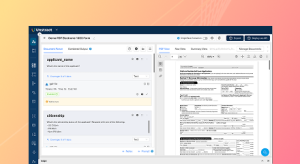
LLMWhisperer along with various other, uh, uh, text extractors in the market. So now that I have, uh, already integrated with a number of connectors, I’m just going to jump into the, um, Agentic Prompt Studio. This is basically where I’m going to show you how prompt engineering can be automated on, uh, your documents.
So I’m gonna create a new project over here, and I am basically going to be extracting, uh, data from invoices. So let me call this the invoice extraction project.
[00:20:00]
So what I have over here is the Agentic, um, Prompt Studio interface. And the first, um, set of action I’d have to perform is go into settings and define the exact LLMs and, uh, text extractor that is going to be working on this project. So the Agentic Prompt Studio also gives you the flexibility of choosing different models to work on specific operations.
For instance, over here we have an agent LLM, which
[00:20:30]
is basically the LLM used for generating the schema and the prompt. Whereas the lightweight LLM that you have over here is another LLM that is used for tasks like generating the prompt metadata. And, uh, we also have an LLMWhisperer connector to choose from for text extraction.
So let me give in my choices over here
So once I’m happy with my pro- uh, choices, I am going to basically upload the invoices into this project. So I am
[00:21:00]
gonna upload two invoices today
All right. So you can see the uploaded invoices right here. So we have one invoice over here and another one, um That I can, uh, look at over here. So we have two invoices, and you can see that they have completely different layouts and, um, this is basically how you’re gonna be getting invoices,
[00:21:30]
right? It’s not gonna follow a specific layout.
You’re gonna get it in different layouts and even multiple languages. So that is also something that we’ll see in a little while. So now that I’ve uploaded the documents into the, uh, Prompt Studio, the first course of action is to perform the text extraction or pre-processing, and that is what I am going to do by clicking on Raw text under the Status tab.
So what this does is it deploys the LLMWhisperer connector that I’ve chosen for this project to run on these documents and extract the raw view. So
[00:22:00]
now that, uh, it’s extracted the raw view, I can view it over here by switching to Raw text, and you can see how LLM Whisperer has given an output. So it basically extracts the text from the original document in a layout preserved way.
So this is basically the context that you’ll be feeding to the LLM. So this does away with any document noise or any, um, anything else that would come in the way of the LLM actually, uh, getting the complete context of your document. Now, the reason why layout preservation
[00:22:30]
again is especially important is because LLMs consume information from documents very much like humans would.
So the best way in which you can actually pass the context to an LLM is to preserve the layout of the document which was initially intended for a human. So that’s exactly what’s being done over here for this invoice as well. So that is the first stays, uh, stage or the first phase of the, uh, pipeline that is text extraction.
Now, moving on into the development phase. So the development phase is basically where you’re going to be
[00:23:00]
giving the system prompts to, A, extract, uh, you know, you’re telling, uh, the system what data to extract, and B, what is the schema for extraction? So for this, the first step I’d have to do in the Agentic Prompt Studio, where I’m going to automate this entire layer, is to trigger the summary of these two invoices.
So what happens over here is the system basically goes through the invoices, and it looks for all the important data fields from both these documents. So let’s… If you take a business example,
[00:23:30]
let’s say a business is, um, you know, typically incurring invoices from, let’s say, uh, five vendors, then what you would do is upload all the sample invoices, the kind of invoices that you, uh, usually get into this project, and you run the summary on each of these invoices after text extraction.
And the summary basically collects all the important data fields from across the invoices. Now, the reason this is important is because sometimes you might have data fields in one particular document that might not be present in another. So when you’re
[00:24:00]
finally creating a prompt to extract the data from, you shouldn’t be missing out on any data fields.
So that is exactly what this, um, stage really contributes to. Because over here I have a detailed extraction of all the key fields from both these invoices with the name of each d- uh, data field, the description, the data type, as well as- Example values. And this is done for all the fields. The same holds true with the other, uh, invoice as well.
So once the summaries for the
[00:24:30]
documents are ready, I am going to generate the schema. And what happens over here basically is the system puts together the summary to, uh, generate one unified schema. So this one project is going to be deployed across these two variants of invoices, or in your business it might be N number of variants.
So the… it basically puts together the summary so that the system has an idea of all the data fields that it needs to account for. And also, this is where your system normalizes values. So let’s say in one invoice you have the
[00:25:00]
date in the format with the date first, followed by the month. In another, you might have the date in a completely different, let’s say, an alphanumerical, uh, format.
In the third invoice, you might have the month first, followed by the date. So these are all different versions of the date that you’re entering, but your system, your, uh, business is pos- you know, it’s probably storing this in one particular format. So that is what you’re going to be normalizing in the, uh, schema generation stage as well.
So we’ll give it a couple of minutes for the schema to get generated.
[00:25:30]
Meanwhile, I thought I’d quickly take you through another agentic prompts video project that I’ve completely run end to end, just to save up on the time in this webinar. So, uh, let me just open that quickly for you. It is another, um, invoice extraction project
So I’m gonna be opening the invoice extractor over here. You can see that I have a bunch of invoices that I have uploaded. So this is a skewed scan that I have over here. This is not
[00:26:00]
a digitally native document, and this is basically the raw text that is, you know, extracted from the scan. I also have a handwritten invoice over here.
So we have some text that is handwritten, if you look at the PDF view. So this is not, uh, basically the view that the LLM will be working on. We have extracted the raw text in the text extraction phase, and this is the, uh, context that will be passed on to the LLM. So, uh, coming back to the status tab, we saw how the raw text is first extracted, then the summary is
[00:26:30]
generated, and then we clicked on Generate schema.
So the schema basically just looks like this. It’s an ex… You can almost consider this as an extended summary where you have the summaries of all the test documents that you’ve uploaded. And again, you have the details like the description, the name of the field, the example values and data type as well for all the fields.
So you can edit the schema as well. And once your schema is generated, the next step is to generate the prompt. So you do that by c-uh, clicking on Create prompt. And what
[00:27:00]
that does is it, it, uh, generates an extensive prompt over here that you can see. So this is the extraction prompt, and if you just go through this, it has multiple, uh, segments to it.
So we have the task overview. So we are giving it an overall instruction on what, uh, this extraction is supposed to do or this project is supposed to do. And then we have a detailed output schema. So we have all the data fields that we want to extract in the output, and we’ve also marked the ones that are absolutely required along with their data type.
So none of this is actually given by the user at all. This is something that
[00:27:30]
would probably take teams even days of work sometime to get you the right or the perfect prompt for extraction. But this is just done in a couple of minutes and set up by using the, uh, Agentic Prompt Studio. So this also has, uh, you know, uh, like it, it really goes down to the nitty-gritties of looking at how each and every field needs to be extracted.
For instance, if we take the business name over here, it’s a required field for extraction, and the system automatically tells you, I mean, the AI automatically, automatically tells you where to look for this
[00:28:00]
particular data. So it’s usually, uh, at the top of the document. It gives you the location, so it’s near the top, often centered or in a prominent header.
And it also gives you example values. So this is done for all the, uh, docu– I mean, all the data fields. And, uh, for phone number, you can even, you know, you even have a pattern that is automatically generated so that the system knows what it should be looking for. So this is basically how extensive the prompt can get, and the system also accounts for, uh, what to do in case you run into certain edge cases
[00:28:30]
and, uh, instructions on how to handle missing fields, multiple values, ambiguous values, and all of that So this is the prompt that is automatically generated by the system.
But let’s say I want to edit something about it. So I can always click on edit and edit any of these, uh, lines that I have over here. And once I click on save edit, it would be saved as a separate version of the prompt. So I can roll back to a previous version at any time by clicking on history, and I can also compare two different versions.
So, uh, you
[00:29:00]
have version one over here and version two over here, and the system also automatically highlights the places where these two versions differ. So this is, uh, the, um, level of control that you have with the automatically generated prompts. So once this is done, the next step would be to generate the verified data.
So once your extraction prompt is done, w- you generate the verified data. That is nothing but you run the extraction prompt on across all your documents, and you get the extracted data over here. So
[00:29:30]
this is the extracted data I have for the handwritten invoice, and I… You can check it out for all the other invoices as well.
So this is the extracted data that I have for the digitally native invoice. Now, even though, I mean, this is a verified data set, so what– how this is different from a typical extracted data set is basically that once I do the first round of extraction, it’s good practice to actually compare each of the extracted values with the original document just to see if it is being extracted correctly.
The
[00:30:00]
reason we do this is because business rules change all the time, and sometimes you would want to come back to the project and change the prompt accordingly to suit your current business rules. And many times when you rework on prompts, it would sometimes affect a, affect an output that you were not intending it to affect.
So in these cases, just to, you know, keep a golden standard for your output data or to have something to compare your subsequent extraction runs with, we create the verified data set. This maintains the quality of your projects. So I can edit in case any of the
[00:30:30]
extraction over here is incorrect, I can click on edit and change that as well.
And once I have this verified data ready for all the test documents, I have a strong hold, and I can be confident in my results going forward. This is also an accuracy-enabling capability. So once the verified data is generated, I would run the extraction so I can make any changes to the prompt and come back and do the extraction.
And I basically have the output of the extraction over here for all the documents And this is basically how the,
[00:31:00]
uh, agentic ta- uh, agentic prompt studio works. And you also have accuracy scores for each of the individual documents as well as an overall project accuracy score. So what this is, is that the system automatically compares the verified data with the extracted data, and it gives you an accuracy score of how much of a match you have between these two data sets for all your documents.
And in case you have a lower accuracy score for any of your documents, you can just click on it and you can actually inspect the exact areas that went wrong. So this is the level of control that you
[00:31:30]
have with your extractions in the agentic prompt studio. And the final step for me to wrap up the development phase, as you can see over here, I have mentioned what data to extract and the schema to extract this in.
Now, the final stage before I, you know, push this down to a deployment is to export this project as a tool. So once this project is exported, I can use this tool and create workflows where it can be deployed as an API, an ETL pipeline, or a task pipeline. So you can… If you open the API deployments over here,
[00:32:00]
you have– uh, you can create API deployments for any of your workflows.
So we have various workflows over here. So you have an API endpoint, and you also have API keys. These are two key aspects of the deployment that we are going to be using, uh, you know, up- in the upcoming demos where we are going to be deploying the invoice extraction project at, uh, via the CLI and the MCP.
So that said, let me move back to the presentation. I think we’ve gone through these three phases of Unstructured and how you can… I’ve– like, I’ve just completely skimmed through it
[00:32:30]
and, uh, you can actually check out more details about this. We have an extensive documentation. I’ve asked my team to drop the links in chat so you can look at the documentation.
We have previous webinars where we’ve spoken about it as well as blog posts that you can look at. So, uh, with that, let me just move on to, uh, covering how to set up your Unstract CLI and MCP and how to go forward from there. So firstly in this video, I am going to be showing you how you can install the Unstract CLI.
[00:33:00]
So let’s get started with this. So firstly, what you will have to do is over here I am basically creating a virtual environment. So think of this as a clean, separate space for Unstract, for the Unstract CLI to function. So, uh, that is, this is the command I’m giving, uh, to the, uh… I’m creating the environment in the name of demoenv
And then we are basically, um, switching into the, uh, to the environment where I want to be
[00:33:30]
performing, uh, the remaining operations. So once I go into that particular environment, I am now installing the Unstract CLI. And all these commands are available in our documentation as well. So you can see over here that it has been successfully installed
Now I am going to confirm on this installation, and you can see that once I enter the relevant command, we have the version of Unstract CLI that’s been, uh, installed that the system gives back to me as the
[00:34:00]
output. And then I’m going to basically connect my account with this particular, uh, uh, CLI. So now I connect the CLI to my Unstract account.
A short, uh, setup wizard walks me through, uh, through this entire process. So I’ll have to press enter on the default Unstract cloud addresses, paste my API keys. And these API keys, the platform key, the deployment key, as well as the LLMWhisperer key are important for you to use, um, uh,
[00:34:30]
your particular account in the CLI.
So you can see that it’s actually hidden for security purposes, and you wouldn’t be able to access them… I mean, see them over here. But you can check them out, uh, by, you know, where you would find this is the deployment key is basically under, uh, manage keys. The platform key would be under settings So you would go into platform API keys and get your platform API key from there.
And for LLMWhisperer, you would go into LLMWhisperer and get your LLMWhisperer API key from there. So that’s basically how you set it up,
[00:35:00]
uh, in the CLI And once we are connected, it gets saved to my settings and, um, this deployment key basically shows that it would be used every time I run a project on the terminal
So this entire process is actually available in the documentation, and I am just, uh… I’m only, like, showing you the video version of the documentation over here on the CLI installation. So the final step over here is
[00:35:30]
to test if everything is working all right, and, um, then your CLI is good to go and it’s ready to use.
So this is basically how you install the CLI, uh, the Unstract CLI. And once it is ready, you can, uh, basically deploy your projects over there and, uh, you know, set up the, uh, batch processes, uh, processing that I was talking about earlier. So let’s see how to do this. For this, we’ll be moving into a live demonstration
[00:36:00]
So let me open my terminal for this. And I also have the commands that I need that I’ve… I mean, I’ve already saved them separately in a file just to save time. So in the terminal now you can see that I’ve installed, uh, the Unstract CLI. So what I’m basically going to do over here is I’m going to get the, uh, commands from this file, and I’m going to enter it into the terminal, so…
And I’ll explain this throughout step-by-step. So the first command that I’m going to be entering over here, this basically
[00:36:30]
is the project folder where the agent will build a pipeline. So this is called the invoice pipeline. And as you can see, uh, this is an, um… I mean, we’re just listing out everything that’s there in the project folder, and this is a pretty, um, you know, empty, uh, uh, folder that we have except for a configuration file called .env.
So up next, let’s go into this particular folder. So everything that we do will be in this folder next
[00:37:00]
And the next step is I’m gonna activate the environment where we installed the Unstract CLI earlier so that the agent can actually use it. So that is the demo env environment that we had installed earlier, which you’d also seen in the video So now that this environment is activated, let me just clear the screen.
And now you can see that we’re actually in this environment. It starts with demoenv over here
[00:37:30]
So again, in this particular, um, folder, we still have the configuration file and there’s no code and there’s nothing else. So there is a .env file, and it has some hidden details, so let’s take a look at what they are. So you can see over here that we are basically, um, we’ve connected with Slack as well as
[00:38:00]
Google Sheets.
So these are the two connections that are hidden in this, uh, folder, and, um, basically the reason is because we are going to be using these two connectors in this particular use case. Now let me quickly actually take you through the use case. That’s something we should, uh, probably look at before I come to the demo.
So in this particular demo, what I am going to be showing you is we are basically going to get invoices from a particular folder, and we’ll extract data from the invoices. So the key data, uh, items that we’re looking to
[00:38:30]
extract is the invoice number, the vendor details, the amount, the total amount given on the invoice, as well as the due date.
And then the system calculates a status on each of the invoices. So it would be overdue if, uh, you know, the current date is beyond the due date. It would be classified as urgent if the due date is in five days, and upcoming if it is, uh, none of these two, uh, initial conditions. So depending on the conditions, we have three, um, op- a set of operations that, you know, the invoice would go into.
So
[00:39:00]
suppose the total amount that was extracted from the invoice is over $10,000, then a Slack alert will be triggered to the finance team Slack channel. And, uh, it would also be, uh… I mean, you would also get an alert in case your invoice is overdue. And, uh, all the invoices get stored in a Google sheet with each of the rows, uh, I mean each of the columns, uh, would be invoice number, the vendor detail, as well as amount and due date.
So we’ll take a look at this Google sheet and you would have a better idea of what I’m talking about. And finally, after each of
[00:39:30]
the invoices from the invoices folder is processed, it would be moved to the processed folder. So this is basically the, uh, entire pipeline we’re looking to build with the CLI.
So it’ll be built once by an agent, and then it’ll, it will be run on its own after that. So, uh, we’ll take a look at the, um, you know, folders that we’re exactly looking to process. So we have the invoices folder over here. I have it on my desktop. You can see that we have five invoices. This is the processed folder.
This is basically where I want the invoices to be
[00:40:00]
dropped after they are processed. So if I just open these invoices for you, we have various, uh, I mean, each of these invoices would be in different layouts. So this one you can see is clearly over $10,000, uh, of the total amount, and this would be routed for review through the Slack channel.
We have an invoice that’s in a different language over here
And, uh, we should also be having an overdue invoice. So, um, yeah, so we have an overdue invoice as well.
[00:40:30]
So these are the invoices that I’m going to be processing. And I have a Slack channel where I want to trigger the alerts to as well. So we have the invoice finance team, uh, Slack channel over here where, uh, the alerts would be delivered.
And we also have a Google Sheet where this particular, um… I mean, all the invoice details would be updated as well. So the Google Sheet has five, uh, columns. We have the invoice number, the vendor, uh, name, as well as amount, due date, and status. And after I run this particular,
[00:41:00]
uh, CLI, um, uh… I mean, after I run this on the CLI, you would see that these rows get, uh, added automatically.
So let me go back to my terminal, and we’ll be, uh, you know, starting out with this So, so far I’ve basically created the, uh, project folder where I’m going to be working on this, and we’ve seen that it already… I’ve already, you know, connected with Slack as well as Google Sheets. So there is documentation on how to do this, or you can check it out, uh, using
[00:41:30]
an agent as well.
So next, up next, I am going to start Claude Code and, uh, this agent would be working right inside the terminal. So I’ll basically be telling this agent what to, uh, do and, uh, what to do and how to create this pipeline in natural language. So you can see over here that I have Claude Code activated in the terminal, and I have a prompt over here that I’m just going to simply copy/paste.
I’ll, I’ll, uh, take you through the prompt once I paste it inside the terminal
[00:42:00]
So this prompt basically just gives the system an idea of what it should do. It’s basically the exact same use case that I’ve just taken you through. So, uh, it says that I want to build an automated invoice processing pipeline using the Unstract CLI, and it says Unstract command is already installed and logged in, and it gives you, uh, the commands to run to learn more about how it works, and then it gives you how the pipeline should look.
So take every invoice, uh, PDF in this particular folder, and then send it to the
[00:42:30]
Unstract API deployment called Invoice Extraction Tool using the Unstract CLI, and then get the extracted data as JSON, and then we pick out the invoice number, the vendor name, total amount, and due date, and then we work out the status based on the due date, so it would be overdue, urgent, or upcoming.
And then we send the Slack alert in case the total amount is over $10,000 or if the invoice is overdue, and we add the row of… for every invoice into the Google sheet with each of these columns. So this entire,
[00:43:00]
uh, use case is specified over here, along with other additional details. So we have the details like the Slack, uh, webhook URL and the Google Sheet web app URL are in the .env file.
So we tell them, uh, we tell the system the various, um, details that it needs to have to successfully run this particular project. So this might take some time for it to complete, so, uh, while this runs, we’ll come back to this. We’ll come back to the result. I just wanted to quickly take you through how it actually looks to save up on some time.
So I have a
[00:43:30]
video over here, which is, uh, which has a fast-forwarded recording of, uh, this run in the CLI. So we’re basically going to be, uh, running the same use case, so you can see the invoices folder
So we have the various invoices that we’re dealing with over here
[00:44:00]
So this is the Google Sheet which is empty before the, um, before we process the invoices And now I’ve basically entered the same commands
So we’ve opened Claude Code now, and I’m going to paste the exact same prompt. And now we’ve, uh, basically fast-forwarded this
[00:44:30]
video just to, you know, uh, jump right to the results
So the system also in case it, you know, uh, it comes across an obstacle during the processing, it also automatically finds a way around it. It
[00:45:00]
tries its best to do that before it brings it to you. So this is the output that we have, the, uh, summary at the end. So you can see that, you know, um, some of the amount is overdue, some of it is, uh, you know, um…
I mean, some of the dates, uh, invoices are overdue. Some… Uh, the amount on one of the invoices is over $10,000. So what this actually does is when you go back to the Google sheet, it has updated all the records into these rows, and you also have the alerts triggered on Slack. So this is how your output should look after our live, uh,
[00:45:30]
run gets completed as well.
So this is basically how the CLI functions. We’ve just taken five invoices for the sake of this demo, but you might have thousands of invoices or any other documents that you might be processing, and this is basically how you do it. So you, um, have the, uh, agent create the pipeline just once, and then you automate that pipeline using a cron jo- uh, uh, you know, uh, you automate that pipeline, you schedule it depending on how often you want it to be triggered, and then it just gets, uh, executed like that that often.
So,
[00:46:00]
uh, right now, while the, uh, terminal, you know, uh, completes the job, let me actually go through the MCP as well, and then we’ll come back to this. So with the CLI demo complete, let me move into how to set up the MCP, which is the other way of accessing your tool while bypassing the UI So I have a video for the MCP installation as well.
Just a minute
[00:46:30]
All right. So this is, uh, basically the MCP installation video. So I’m basically installing… I mean, I’m using Claude Desktop over here, and I’m going to add the tools that I need. So for unstruck extraction projects, I am basically going to add a custom, uh, connector. And this over here, I would have to, you know, mention the API deployment’s name as well as the API endpoint, both of which we’d seen in the API
[00:47:00]
deployment on the platform.
Um, you would see that in the card that we’d seen in the platform. And then we define the authentication. So since we are using the API key, I’m going to select this as no sign-in, and we have… We are going to basically put in the API key
And that would connect me to this particular project. So in this case, I am installing the Unstract Credit Card Extractor tool into the MCP. And after that, I can now, um, you
[00:47:30]
know, uh, choose the access permissions whether to allow… uh, you know, what actions I wanna allow and what I do not want to allow or, uh, if it needs approval.
So once this is done, your tool is successfully connected, and you can just use it by interacting with your agent. You do not have to open the platform at all. So we have it right here. So you can see that under connectors we have various, uh, connectors and among them we also have the Unstract Credit Card Extraction tool.
So that is how you set up, uh, the Unstract Extraction tool, not just
[00:48:00]
for the credit cards, but for any project that you want to use. And we have detailed documentation for this as well. You can find it in the, um… We, we’ve, I mean, given you the links in chat. So now moving to the, um, MCP, I just wanted to quickly, you know, may-maybe take you through a use case or two before I conclude this webinar.
So over here you can see the various connectors that I’ve connected with. So through via the, uh, agent, I can actually access Slack, Unstract Invoice Extraction tool, Google
[00:48:30]
Sheets, or Google Drive without actually opening any of these apps at all. So, um, so if we… Actually, if you rewind a little and you think about the use cases for MCP, these are one-off requests or on-demand, uh, uh, you know, um, re- uh, requirements that you have with your documents.
So let’s say that, uh, I get an invoice which is from a vendor whom I haven’t really, you know, I haven’t heard of. So this is the same example we’d covered earlier. So I want to see whether that vendor’s detail already
[00:49:00]
exists in my business systems or if it’s a completely new vendor who I need to look at, but I have the invoice in my hand.
So what I can do is I can upload that particular invoice into the MCP. So I’m going to choose that invoice, and I’m gonna say, um, use the invoice extractor tool
Extract details from
[00:49:30]
this document
So we’ll just give this a couple seconds to finish running
So meanwhile, you can see how the CLI has actually given you an update, uh, uh, I mean an output. So you have the summary
[00:50:00]
over here. Now let’s actually go into the Slack channel. So you have the three alerts that have been triggered over here. So one or… I mean, two of them are overdue invoices, and one of them is an upcoming invoice, but the amount is over $10,000.
So you have the details of the invoice number, the vendor name, the amount, due date, as well as the reason why this particular alert has been triggered in the Finance Team Slack channel. Now let’s quickly go into the, um, invoice payment due sheet, and you have the five
[00:50:30]
records that are updated over here along with the status.
So this is basically how you can perform, uh, you know, a document extraction end-to-end. And, uh, you can have this run on batch jobs for hundreds and thousands of documents in one go. So coming back to the MCP, we’ll just give it some time, some more, a few more, uh, seconds for it to finish processing
[00:51:00]
All right, so the extraction is complete, and you can inspect the conversations over here. So it, it has used the invoice extraction tool, and you have these results right here
So this is the data that was inst- extracted from this particular invoice using this tool. And, uh, what it says is that, okay, I’ve
[00:51:30]
basically extracted the, um, I mean, details from this particular invoice. Now I wanna check whether this, uh, data is present in my records. So I have… Let’s say I have a Google sheet where I already have all the vendor details, uh, present.
So I have the vendor details, the contact person, all these fields over here for each of the vendors that I’m dealing with. So now I just want to cross-check, uh, you know, uh, that particular data extracted from the invoice with this particular Google sheet. So over here I’m just, you know, cross-checking with a Google sheet, but it could be a CRM or
[00:52:00]
any other application in your case
Over here, I’m just telling the agent to cross-check whether the vendor is present in the invoice vendors sheet
[00:52:30]
All right. Over here, there seems to be a problem with the Google Sheet connector. But let me actually take you through how this looks. So I have a run over here. So over here in the prompt, I’ve said extract the data from the invoice using the invoice extractor tool, and check whether the vendor is present in the invoice vendor’s Google Sheet.
[00:53:00]
So, uh, maybe I have to pre- you know, me- mention that it’s a Google Sheet, but what the system actually does is it, uh, checks with the Google Sheet and it re- uh, you know, it returns whether the, um, vendor is there present or not. So in this case, this particular vendor is not present in the sheet that we have just looked at.
So let me just run that, uh, uh, you know, prompt one more time to see if it works
[00:53:30]
Okay, so okay, there is a problem with the Google Sheet connector. So what basically happens is, uh, once it checks that it’s not present, I can trigger an alert to the finance team cha- uh, Slack channel saying that this vendor is not, has not been verified, and then the system generates a message and sends it to the channel.
So over here, um, because there is a problem with the Google Sheet connector, let me just say trigger an alert to the
[00:54:00]
finance team Slack channel
Saying that this is an unverified vendor
[00:54:30]
All right, so this is basically how it works. There is a issue with this particular demo over here right now, but then you basically send this, um, alert to the Slack channel and you would, uh, see it in the Slack channel that we just looked at over here. And this is how the MCP as well works, um, in, um, you know, when you…
[00:55:00]
w-when it comes to document extraction. So with that, let me go back to the presentation. And that is a wrap up, folks. We can head into the Q&A right now. So you looked at how to set up the CLI, how it actually works, and also how the MCP works. Although there was… uh, there were, uh, you know, there was a roadblock with the MCP demo today, uh, this should be able to work fine.
We have extensive documentation on this, uh, setup, and you can always talk to our team, have a free chat with our team where we can sit with you
[00:55:30]
one-on-one and see how to take this forward and, uh, you know, which workflow you wanna go for. And also, if you have any other doubts regarding document extraction or how to customize Unstract for you, we can answer those, uh, doubts in the one-on-one chat as well.
And, uh, with that, we’ll head into the Q&A, and, uh, I invite Gokul to take over the Q&A
[00:56:00]
Gokul, we have one open question. Do you wanna take that? Yeah, absolutely. Uh, yeah, so the question is, our inbox has bills of lading, invoices, and packing lists all mixed together. Can a CLI pipeline handle that? Uh, so what you need is, uh, a two-pass, uh, API in this case, one that classifies,
[00:56:30]
uh, you know, the kind of document, and then the other one must be, uh, you know, the extraction APIs for each of these documents, right?
So of course it can handle it, but it’s just, uh, you know, it’s a two-pass, so one for classification, the other one for extraction, and you must be able to do that. Um, MCP server for now, I think we support Claude. I may have to check if we have the GPT, uh,
[00:57:00]
support already. Uh, but yeah, I mean, uh, for now I think it’s just Claude.
Yeah, I mean, so, uh, Adithya, do you by any chance know if we support GPT?
Or I mean, I mean, let me see if, if we can switch it up Okay. I think it’s, it’s just not for now. Yeah
I think it’s just Claude for now, Gokul.
[00:57:30]
Yeah. Yep, yeah. All right. Super. I guess, uh, all the questions are answered. Any other questions?
Okay. All right. Uh, thank you so much for joining the webinar today, and, uh, I hope you had an insightful session. Thank you, Gokul, for taking over the Q&A. I’ll be sharing the recording with you shortly.
[00:58:00]
Hope you have a great day. Bye-bye.
See Unstract in action with walkthroughs of core features and real extraction workflows.
Managed cloud, on-premise, or open-source. Unstract adapts to your infrastructure needs, so choose what works best for you.

Prompt engineering Interface for Document Extraction

Prompt engineering Interface for Document Extraction

Make LLM-extracted data accurate and reliable

Use MCP to integrate Unstract with your existing stack

Control and trust, backed by human verification

Make LLM-extracted data accurate and reliable




CLI + MCP: Document extraction pipelines for batch jobs and AI agents