[00:00:00]
Okay, uh, let’s get started So hi, everyone. I, uh, I’m Mahashree, Product Marketing Specialist at Unstract, and I’ll be your host for today. So in this session, we are looking at spreadsheets, which are one of the most common ways in which businesses store and, uh, share data among themselves. So spreadsheets eventually obviously become very important to look at when we’re looking at extraction because they do contain some of the most key or important data that a business has.
[00:00:30]
Now, while they are prevalent and, uh, you find them almost everywhere, the spreadsheet is almost not always the place where the data finally ends up. It needs to make its way into an ERP or a database so that you can actually use it in your business operations and decision-making. But there is a gap between that, where there is data sitting in the spreadsheet and data living in your business systems, and this gap is exactly what we are here to cover in this session.
We’re gonna be looking at what… why this gap
[00:01:00]
exists, what are the challenges, uh, that are present for us to close this gap, and how Unstruct helps us do that efficiently. So here’s the agenda for today. We’ll start out by looking at the spreadsheet problem across industries because these, this is a specific, uh, document type that we find almost everywhere, so we’ll see how widespread this exactly is.
Next, we’ll dig into the exact challenges that stand in the way of closing this gap, and from there we’ll look in detail at
[00:01:30]
Unstract’s capabilities for overcoming these challenges. And this is the meaty section of the webinar where we’ll also be covering a live demo of these capabilities in detail so you get a hands-on, uh, experience of how this works as well.
And finally, before we wrap up, we have an expert Q&A session planned where one of our experts will be on air to take your questions and answer them live. So that said, we’ll get started with this session, but I’d also like you to take a look at the housekeeping items that we’ve, uh, you know, uh, put in the chat,
[00:02:00]
uh, in the session.
So this is a listen-only webinar, and all of you would automatically be on mute. You can ask your questions in the Q&A tab at any time during the session, and our team will be able to get back to you with the answers via text. Uh, please use the chat tab to introduce yourselves, and this is also where you would let us know in case you run into any technical difficulties during this webinar.
And as a final point, when you exit the session, you’ll be redirected to a feedback form where I request you to leave a review on so that we can
[00:02:30]
continue to improve our webinar experiences going forward. So that said, we’ve arrived at the first discussion for today, the spreadsheet problem and how prevalent it is.
So by actually taking a look at where you find spreadsheets in day-to-day work, you’d be able to understand the scale at which this problem is, and it actually becomes pretty hard to ignore. So here are some of the common industries, uh, some of the most prominent industries and also where you find a lot of spreadsheets.
So we’ve also
[00:03:00]
given some of the most common spreadsheets that you find in each of these industries. Uh, let’s take a look at them one by one. So first, we have finance and accounting. So over here, some of the most common spreadsheet would be an invoice or an expense report or a balance sheet. Invoices are again, uh, very critical to business operations, and you find them everywhere.
Expense reports are used in auditing or budgeting, and balance sheets are fed into financial models to throw projections. And these are
[00:03:30]
all the reasons why the data that exists in these, uh, in these sheets becomes extremely important for us to extract. But the problem is that these sheets can also come in complex layouts, which makes it extremely difficult for us to extract the data.
For example, in invoices, every vendor would have their own format. You could have merged headers, floating subtotals, and also currency symbols that are all mixed up. So this is, uh, pretty much what we’ll be looking at in this webinar, and we’ll see how
[00:04:00]
agentic AI is really deployed over such structures and layouts for us to cleanly extract the data.
Moving on, we have insurance. Over here, we have loss run reports, SOVs. SOVs is something that we’ll actually be covering in the demo, uh, today. And we also have claims and settlement sheets. So these are again, some of the key, uh, spreadsheets that we find in insurance, which again come with more or less the same challenges like merged headers and so on.
And in logistics, there are bills of lading that could come in
[00:04:30]
multiple languages, inventory trackers and freight rate cards. With real estate, we have operating statements, and this is also another example that we’ll be covering in our demo. And you’ll get to see hands-on exactly how complex these sheets can actually get.
And again, we’ve got rent rolls and a statement of value over here as well. And finally, how can we ignore healthcare? So this is where data is loaded with sensitive information and needs to adhere to strict compliance regulations. And over here, we find clinical trial logs,
[00:05:00]
medical inventory trackers, and patient scheduling grids.
So now not only are these sheets loaded with sensitive data, they also contain many abbreviations and codes that might need to be cross-referenced across multiple, uh, data or multiple tabs in the very same sheet while processing. So these are all some of the most commonly seen spreadsheets that are prevalent today, and we’ve briefly also touched upon the challenges that they come with when it comes to extraction.
Now, let me consolidate all these challenges for you so you get
[00:05:30]
an idea of what exactly we are dealing with. So with the previous slide, we saw how prevalent the problem is across, uh, every, um, you know, industry, and right now we’re gonna be looking at the exact pain points that we are going to be addressing in this webinar today.
So the first challenge is that sheets need not look alike. Even when two companies send the same data, uh, the same type of document, say a rent roll or an invoice, the layouts are going to look different. And traditional extraction depended heavily on fixed templates and
[00:06:00]
rules, so this was always a struggle, especially when you get, uh, documents at scale.
Now, next, and one of the biggest problems or pain points for many of you over here would be that spreadsheets come in complex structures. We’re talking about merged headers, nested rows, floating subtotals, multi-tab layouts. So the problem with these structures is that it’s not enough to just extract the data, but the structure itself inherently also represents a relationship that is present
[00:06:30]
between the data points in that particular sheet.
So it’s extremely important that along with the data that you extract, you also extract the relationship or preserve the context of the relationship in your extraction. And that was one of the major roadblocks when it came to traditional extraction, because it really struggled with doing that. But we are seeing with LLMs that we can easily overcome this challenge because LLMs understand information just like humans would.
So when they look at a document or a spreadsheet, they are basically consuming it just like we would,
[00:07:00]
so they’re also able to extract the context while they do that. So this, again, plays a key role, especially when you have spreadsheets that cross-reference data, you know, uh, from one tab to another. So all of this becomes pretty easy to handle when we deploy LLMs over them Now, thirdly, spreadsheets, again, contain data that isn’t business ready.
So if extraction itself is a challenge on its own because of the layout and the complex structure, enriching that data that is
[00:07:30]
extracted into business formats is another challenge in itself. So extracted data is rarely in the format in which we need it. For example, you could have mixed date formats or you could…
that you need to normalize, or domain codes that you want to map to certain values in your business systems so that the data is stored structurally and not in a mess. So this is what we call as data enrichment, and this is a key component of document extraction, which was earlier heavily dependent on IT assistance because you
[00:08:00]
had to, uh, you know, take that extracted data and process it before you push it down to downstream operations.
And when you are dependent on IT teams to a large extent, this again took time and it was hard to maintain in the long run. Whereas with LLMs and document processing platforms today, we are able to handle all of this with close to zero code involved, and we’ll see how. Then we have multilingual content.
So like I’d mentioned with the bills of lading before, you could be dealing with spreadsheets with multiple languages or
[00:08:30]
even a single sheet could have multiple languages in it. So this is another major roadblock that we need to look at and see how we can channelize this content. And finally, spreadsheets can come with a lot of sensitive data.
This is another big challenge because of, uh, especially in regulated industries like healthcare or finance, where, where companies or organizations are wary of sending sensitive information to AI models even. So what is the point of having modern tools if you’re not able to send your data to them, actually?
[00:09:00]
And that is what– why it is important to have tools that are equipped to handle sensitive data, especially when we cannot… when we also cannot afford to extract them incorrectly. So these are two key pain points over here when you have sensitive data, that is to adhere to compliance or have strict policies so that your data is safe and handled properly, and to also make sure that you have tools in place to ensure the accuracy of the extracted data.
I mean, this goes, uh, for any data as well, but especially with sensitive
[00:09:30]
data, it’s going to really cost you in the long run if you push inaccurate data downstream. So these are all the challenges that we have with spreadsheets and, um, this is probably what you might all be dealing with as well. And we’ll be moving on, uh, to, to check out what Unstract is.
We’ll be introducing the platform, and we’ll see how we can, you know, tackle each of these challenges head-on. Meanwhile, I encourage you to post in, uh, the chat tab if you are de- dealing with any particular spreadsheet of your own, and if you have any of these challenges or any challenges
[00:10:00]
that we haven’t covered over here.
So that brings us to Unstract. Now, Unstract is an agentic AI document processing and extraction, uh, platform. Now, if I had to briefly lay out the capabilities of this, uh, platform, we can bucket it into three major categories. So, uh, this is basically the, um, cycle that your document would go through or the workflow that your document would go through once you upload it into the platform.
So firstly, you have the text extraction phase.
[00:10:30]
So what happens over here is once you upload your document, you deploy a text extractor to extract the raw text from that particular document. So you do this to prepare this document in a format that is consumable by LLMs. Now, now, uh, mostly spreadsheets are digitally native, but if you look at PDFs or any other, uh, Word documents, sometimes you could have scanned images in them.
You could have noise or grains in them, which make it very difficult for some, uh, LLMs to
[00:11:00]
process data and extract it accurately. So the first step over here is to create that uploaded document or spreadsheet into a format that is easily understandable by LLMs. So that is exactly what this phase does, and in Unstract, at Unstract, we have our own text extraction tool called LLM Whisperer that is deployed for this specific purpose.
Now, once this is done, you push this extracted layout into the, uh, next phase, that is the development phase. So in the development phase is where you’re going to be entering prompts that are going to define,
[00:11:30]
A, what data you want to extract from that particular document, and B, what is the scheme of extraction that you want to, um, you want to extract this in.
So this is the key components of this, um, phase, and you also, uh, have various accuracy-enabling tools for you to make sure that you’re extracting perfectly… uh, data that is perfectly accurate. And, um, we again have tools in Unstract to facilitate this. We’ll take a look at how you can do this. And once you’re happy with the project, you’re happy with the way your data is being extracted, you can deploy it in any of the options
[00:12:00]
that we offer.
So we have API deployments, ETL pipelines, MCP tools, uh, where you can deploy, um, Unstract as well as LLM Whisperer projects in MCP environments. You can also deploy it in n8n, uh, workflows. So these are all some of the, uh, deployment options that you have that you can, you know, choose from depending on your business needs.
And again, if I had to throw some numbers on the platform right now, we have six point six k plus stars on GitHub, a one thousand plus member Slack, uh, Slack community, and over… Uh, we are processing currently over ten million
[00:12:30]
pages per month by paid users alone. So that said, um, I wanted to quickly, before I jump into the demo segment, I wanted to quickly take you through some of the key capabilities that we’ll be looking at.
So, uh, this is just to bring your attention to what you can expect in the demo and, um, uh, you know, for you to also understand, uh, what are the capabilities that, uh, you know, come in hand, especially when we are dealing with complex spreadsheets. So firstly, as we spoke about earlier, we, uh, will be looking at the document or spreadsheet
[00:13:00]
pre-processing capability using LLMWhisperer, where you extract text in a f- uh, format that is LLM ready.
And this is basically done by preserving the layout of your original spreadsheet or document. Now, as I mentioned earlier LLMs consume information just like humans would. So because spreadsheets and PDFs or documents are primarily designed, uh, and structured for human consumption, this is the best way in which you can pass the, uh, data down to LLMs as well for them to work on.
So that
[00:13:30]
is exactly what LLMWhisperer is extremely good at, where it is able to preserve the original layout while it extracts the raw text. Up next, we have a specialized Agentic tool just to handle complex table structures. That is the Agentic Table Extractor. So this will deploy, uh, deploy a multi-agent workflow to accurately extract your data.
So each of these agents would focus on just one operation when it comes to table extraction, and we’ll see how. So over here, I’ve briefly laid out how the, um,
[00:14:00]
Agentic Table Extractor works. So we have, uh, you know, around, uh, four agents that are working and, uh, two final stages as well. So firstly, there comes the Briefing agent.
So the Briefing agent gives a brief of what table we are looking to extract the data from. And then comes the Presence Detector. So once you have this brief of what kind of table you’re looking for, the Presence Detector detects for this table either in your spreadsheet or your document. So if you have a document or a PDF, it goes through each of these pages looking for that particular table.
If you have a spreadsheet, it would do
[00:14:30]
that with the tabs or with however the layout is. And then comes the Blueprint Generator. So once you identify the table that you want to extract the data from, the Blueprint Generator agent basically extracts the raw structure of the table. So, as I mentioned earlier, you would have nested structures, you would have merged headers, merged columns.
So when you have these complex structures, it’s important to retain the structure, uh, structural integrity before you pass it down to an LLM. So that’s exactly what this agent will be doing. It will be focusing not on
[00:15:00]
the data, but simply on the, uh, extraction of the structure and creating a blueprint.
And then comes the Content Extractor, which is another agent that will be deployed to extract the content from the, um, document and put it back into the structure that the blueprint has created. And then we have the Code Generator. The Code Generator basically, uh, extracts the data now from this blueprint in the format that you want.
And finally, we execute it with the Code Executor. So this is basically the workflow that happens
[00:15:30]
behind the scenes when you deploy the Agentic Table Extractor, and we’ll see how, um, during the demo And the, um, benefits of the agentic table extractor is that you’re not just having one LLM model which is doing the heavy lifting of all these different operations.
You can define specific models that are good at just a specific task, and that’s exactly what’s being done in the background and why the agentic table extractor is important when it comes to table data extraction. So that said, le- uh, the final
[00:16:00]
capability that I wanted to bring your attention to before we move into the demo is human in the loop.
Now, with all the automation that we have today, it’s still important that we have the human somewhere in the loop for certain cases, because e- when you’re dealing with extremely sensitive data or, uh, fields that are extremely critical, or this might even be a compliance requirement where you have a human in the loop to take a look at certain data items before you pass it downstream.
So, uh, Unstract supports a pretty, uh, robust human in the loop workflow and interface, and we’ll take a look at how this is done as well. So that
[00:16:30]
said, let me move into the, um- Demo, and we’ll take a look at how each of this can be done. So I hope you can see my screen. Uh, this is the Unstract interface that I have over here.
So once I open this, uh, what you would find is the dashboard. So the dashboard, you know, has certain key, uh, metrics like the total number of pages processed, the documents processed, and, uh, the total number of HITL reviews. So you have all the key metrics over here, and below that are a few trends and
[00:17:00]
charts like the total number of pages processed in the last few days.
The trend analysis is given over here. Now, if I were logging in for the first time into the platform, what I would do is set up certain prerequisite connectors that are needed for me to perform data extraction on Unstructured. So they are right here under Settings. We have LLMs, Vector DBs, Embedding Models, and Text Extractor.
Now, again, Unstructured is an LLM-driven platform, so you have all the popular LLMs over here that you can choose from. Now, you can integrate with any of these models, and
[00:17:30]
I was earlier talking about sensitive data and how you need to make sure that it is handled safely, and certain organizations don’t want to send this data out to even, um, uh, you know, AI companies.
So you cannot use these advanced tools, uh, when you have such limitations or compliance requirements. So that is exactly where the NVIDIA build comes into the picture, where you can basically deploy the NVIDIA model and this… Uh, you can have the entire document extraction done within your own infrastructure, improving the safety and
[00:18:00]
compliance, uh, standards that you need to meet.
So we have an entire webinar documentation as well as blogs on how you can do this, how you can implement Sovereign AI in your organization. So if y- if this is something that interests you, you can, uh, you know, uh, check this out. Our team would have dropped the link in chat. So once I basically integrate with the LLM model, as you can see, I can integrate with how many of our models that I want.
I’ll also have to set up Vector DBs, Embedding Models, and Text Extractor. And it’s basically the same
[00:18:30]
way you click on whichever model that you want and, uh, it, it would ask you for a few, uh, uh, details, and once you fill it in, you’re good to go. So in the Text Extractor is basically where we also have LLMWhisperer.
So I can integrate LLMWhisperer as my text extractor, uh, or I can go for any of the other, um, tools in the market as well. Now, LLMWhisperer is one of the popular choices that we see our users go for because it goes hand-in-hand with the platform, and it’s extremely powerful with its layout preserving capabilities, which is why we
[00:19:00]
also offer this as a standalone tool in case you’re interested in using just LLMWhisperer for your needs.
So let me quickly take you to LLM Vispera, the standalone tool, and, uh, you’d be able to see how this works on different, um, document types So what I have over here is the LLM Whisperer playground. So, uh, you can basically upload any document or sheet of your own. You can upload a hundred pages per day for free and check out how LLMWhisperer works on your own documents.
Or we also have certain pre-uploaded documents that you
[00:19:30]
can check out, uh, you know, how the tool basically works. So I’m going to be uploading a document over here. Um, in this case, I’m going to be uploading an operating statement from, um, that I have. So the operating statement is nothing but… It’s a document that basically consists of all the expenses that are incurred while running a, a building.
So you have various in, uh, expenses, and you have, uh, you can see that the, uh, uh, text is extracted over here. So
[00:20:00]
now the reason, uh, usually what would happen is you would have the original PDF or Excel sheet on the left, and you would have the extracted, uh, view or context on the right. But because the browser does not inherently support Excel sheets to be displayed, we do not have that over here.
So I… Let me actually take you through the, uh, Excel sheet that we’re actually working with. So this is the sheet that I have. You can see that it is, uh, pretty complex. We… This is the operating, um, statement that I have. So you have the various
[00:20:30]
expenses over here, and you have the details of how much, uh, y- uh, expense you incurred across each of the months.
The total is given, uh, on the right, the right-most column. And you also have various tabs. So the first one is an operating statement, and then we have rent rolls. So you can see we have multiple headers over here, which is another common challenge. And, um, finally, we have tenancy reports. So, uh, who are the tenants that stayed in your, uh, building?
Uh, what was their lease period? What was their rent?
[00:21:00]
What was, uh, you know, the, uh, the area of, um, the building that they occupied? And all these different details that are given over here. You can see that it has… It’s spaced out. It has a lot of indentations. It, it is nested. So these are all the complex, uh, you know, structural elements that we had looked at earlier.
This is a pretty difficult document or a spreadsheet. So let’s take a look at how Unstract has been able to extract the text from this sheet. So this is basically the view that I have. So you can see that we have based
[00:21:30]
the, uh, I mean, LLMWhisperer has basically, um, retained or preserved the original layout of the sheet.
So this is the first sheet, the operating statement And as I scroll down, you have the entire sheet extracted over here. And this is the second sheet, so you can see that it is separated using a separator marker, and we have the rent roll that starts from here. And the rent rolls are again extracted with their layout intact.
So we saw that it had multiple headers, and all of that is extracted perfectly well over here.
[00:22:00]
So if I scroll down a little further, again, we have the third sheet that, uh, uh, comes, and, uh, this… the third tab basically, and this is basically the tenancy report. And you can see that all of this data is extracted perfectly well while preserving the layout.
So this is the secret sauce behind LLMWhisperer’s success, w- uh, because of which, uh, we see a lot of users go for this because you can see how perfectly well it has retained the layout. Now, we looked at the example of an Excel sheet.
[00:22:30]
Let me quickly take you through some of the other examples that I have over here so you understand how this actually works.
Um, for instance, if I open this particular document, we have a, a tightly packed table, which is another difficulty with traditional parsers, especially when you have a lot of text just put together in one place. And, uh, in a couple of seconds, you can see that, you know, we’ll, we’ll see, uh, LLMWhisperer’s output.
You can see that this particular table also has nest, uh, merged headers. And this
[00:23:00]
is basically the output that LLMWhisperer has generated with the layout intact. Now, this is still a digitally native document. Now, you might be dealing, um… apart from spreadsheets, sometimes you might be dealing with forms.
You might even be dealing with sheets that were filled in by hand long ago, and you have to scan it and upload it into your system. So that comes with the risk of having noise in your documents and also handwritten text. So, um, uh, let me just take you through one of the forms that we have over here. You can see that it has handwritten text and a
[00:23:30]
couple of check boxes f- uh, checked by hand and, you know, we have some text fields filled in by hand as well.
And we have the extraction right here. So we have the, uh, handwritten text extracted perfectly well. The checkboxes that were checked are extracted with an X mark inside the, uh, box. So this is basically how the data is extracted using LLMWhisperer, and I would
[00:24:00]
encourage you to upload your own sheets or documents over here for you to take a look at it.
And even if your documents are off-oriented, for instance, you can see this ID card is tilted and, um, the text is blurry. It’s hardly visible, so how would the model be… uh, or LLM be able to, you know, work on this particular document? But you can see with LLMWhisperer, we’ve perfectly extracted the text with the layout intact, and this is basically the context that the LLM will be using for data extraction.
So you can see that pre-processing or text
[00:24:30]
extraction in itself is a way of ensuring accuracy for document extraction, because when I– if I were to just pass this particular document as it is to the LLM, it’s gonna be very difficult for the model to work on, and it could lead to incorrect outputs. But with this context passed in, this is very clean and easy to understand, and the output accuracy can be improved to a large extent.
So that said, let me go back into Unstructured. So we saw how LLMWhisperer works on a range of document types and spreadsheets. Now,
[00:25:00]
let– that is basically the text extraction phase that we had covered. Now, the next phase is to actually define the prompts on your sheets and, you know, uh, specify what data you wanna extract and the schema that you want to extract the data in.
So in Unstract, you can do this using the prompt studio. So in this demo, I’ll be creating a new project where we are going to be extracting some, uh, critical data from the operating statement that we had looked at earlier. So let me create the project over here. I’m going to have to give this a project name.
[00:25:30]
I’m just gonna call this the operating statement extraction tool. And I’m also gonna give this an, uh, a description and an author name. So once I do this, this opens up to my Prompt Studio interface. So this is how the interface looks. I’ll be uploading the documents on the right-hand side and, uh, entering the prompts for extraction on the left-hand side.
The first step over
[00:26:00]
here is to go into settings and set up the models that are going to be working on this particular project. So we had seen earlier that you can connect with any number of models, vector DBs, text extractors, and so on. So which combination of these models are you going to be using? So by default, the system itself chooses the models over here for you, or I can edit this according to what I want in case I’m very particular about the models that I want to use in this particular project.
So once I do this, I am, uh, good to go,
[00:26:30]
and I’m just gonna click on update. Now, the Prompt Studio also comes with certain other settings that, uh, I’ll be coming back to in a little while. So once I set up the LLM profile, that is basically the combination of models that are going to be working on this project, I can upload the document.
So in this case, I am going to be uploading the operating statement that you had seen earlier. And once I do this, I will have to again extract the text. So earlier, we saw the standalone version of LLMWhisperer where it was just performing text
[00:27:00]
extraction. But in Unstract, you have the entire end-to-end capability of document processing.
So again, uh, since we are creating a new project, I’m going to have to extract the text again for that particular sheet. And we have the same sheet that is extracted right here with the various tabs. So we have the rent roll as well as the tenancy report below that. So now that this is done, I can, uh, create a new prompt, and I’ll have to give this a prompt name or leave it as such, and enter the prompt that I, uh,
[00:27:30]
want for the extraction to be done.
Now, I have already, uh, you know, um, pre-written the prompt, uh, to save time during the session. So I’m just gonna copy-paste this for you to, you know, quickly see how this works Now, while writing a prompt, there are certain aspects that you’ll have to take into account. For instance, you’ll have to make sure that it’s clean, it’s able to extract the data exactly how you want it.
It also accounts for edge cases that you might run into. So if you were to run into
[00:28:00]
certain null values or certain values that you did not expect, how do you handle these edge cases? So that is basically, um, everything that the prompt needs to, uh, you know, um, contain. And you can see that we’ve given the details like the, uh, table description, which table we want to extract the data from, and we also have the tab descriptions given over here.
So what kind of data do, do each of the tabs represent? So this is, uh, basically how a well-written prompt would look. And then we have the JSON or the output data structure. So what is the exact structure? So we
[00:28:30]
have all the data fields that I want to extract from this particular sheet, and, uh, what is the structure that I want it to follow?
And below that, we also have the instructions for handling edge cases. So there are certain instructions like only extract a value if its corresponding label is explicitly present in the tab. So if the key is not found, return null, do not infer, derive, or calculate any value. Similarly, there is another…
I’m just randomly going through the instructions. So vacant is a valid tenant name value in the rent roll, so
[00:29:00]
do not treat it as a missing or null tenant. So these are all certain, uh, you know, precautions that we are taking for the extraction to be accurate. Now, once I enter the prompt, what I would have to do is choose from a range of data types that I have for the output.
Now, because this is a complex spreadsheet and it has multiple tables, I am going to go for the agentic table extractor, and this is where you will enable it. So in the output, you have the agentic table given over here, and I’m going to have to define which adapter is going to be deployed to run
[00:29:30]
this particular agent So once this is done, what the agent tech table extractor also supports you with is we had spoken earlier about how it’s important to write prompts that, uh, are perfect or, like, you know, that, um, are able to extract data accurately.
So the- there is an, a readiness, a prompt readiness checklist that the agent tech table extractor comes with, and that’s exactly what’s being run right now. So it will basically go through the prompt and see whether this prompt has a target
[00:30:00]
table description, whether it has a clear JSON structure specified, and instructions for extraction.
Uh, all three of which we just currently looked at. But again, you, uh, this is another, um, layer of protection that you have on your prompt so that you can make sure that you’re working with the right kind of prompts. So over here, this has given me a green signal, and I can go ahead with my extraction. So I’m just gonna click on Run, and this is going to takes a couple of minutes, uh, you know, for me to get the output.
So while the agent t- table extractor
[00:30:30]
works on this particular, uh, spreadsheet, let me, you know, open up another project where I have basically run the exact same prompt on the exact same spreadsheet. But just to save time on the webinar, I’ve already pre-run the, um, results over here. And this is basically the JSON that you have, which you can feed into your downstream operations Now, this is basically how the development phase works and how you can extract data from your spreadsheets, but we also looked at one other challenge when we were
[00:31:00]
covering, um, the, uh, various challenges in spreadsheets.
So with this prompt and with LLMWhisperer clubbed together, we are able to overcome challenges like merge headers and nested, uh, cells or structures. But there is the challenge of, uh, data enrichment, where your data that is exact-extracted from the file might not be in the format that your business needs.
So how do we address that within the platform? So that is what we’re going to be looking at in this, um, project. So as
[00:31:30]
you can see… Let me just take your attention to the prompt. So we have all the various, uh, you know, key fields from this, uh, sheet that are given over here and what structure. And we have two categories or, I mean, two fields over here, which are basically not present in the, uh, original document.
So we have the standard category and the recoverable status. Now, both of these fields are not present here, and what they mean is that for each of these expenses, um, whether they are payroll expenses or administrative salaries,
[00:32:00]
each of these pay… uh, you know, uh, insurance benefits or payroll taxes, all of them, you know, belong to a certain category of expenses which is not given over here.
And not all of these expenses need to be, you know, um, the, the, uh, building or, or the company that’s running it does not have to bear all the expenses. Sometimes it is recoverable where the tenants would share the expense and give it back to the, um, owner. So which of these expenses are recoverable and which of them are not?
This is, again, another detail that is not present
[00:32:30]
in this particular sheet. So how do we… If it’s not present in the sheet, how do we extract that value when we push the entire, uh, uh, data down into the business system? Because I want it to be a part of this JSON. So in these cases, what I can do is I can use any value from this particular sheet.
For instance, I can take the code that I have over here, the account code for each of these expenses, and I can match it with another, uh, reference file or another system within my business
[00:33:00]
to check whether for this particular code, if this particular code’s expense is recoverable or not, and what category of expense, the overall category of expense does this belong to?
So this makes downstream reporting, when I use this data for downstream reporting, it makes it a lot more easier and more comprehensive for me to understand the entire picture. So that is exactly what we are going to be doing with a feature called Lookups. So you can find it over here when I click on the hamburger icon, we have Edit Lookup.
And this is
[00:33:30]
basically, um, what I’m gonna be opening up over here And this is how your lookup interface looks. So, um, I- I’m going to have the variable that is the prompt that, uh, I mean, the extracted data from the prompt, and I’m going to have to re- uh, refer to it using this particular variable. I can give the lookup another prompt.
So we have the extraction prompt that extracts the data, and the lookup prompt is basically used to enrich this data before it is sent down to downstream operations.
[00:34:00]
So this is a lookup prompt that I have over here. You can see that we’ve basically asked this, um, the lookup to do exactly what I just dis- uh, you know, described right now.
So in the variable, which is basically extracted data, it’s going to go through the entire, um, um, set of data, and it’s going to look for the standard category in the reference file that I’ve uploaded. So I can also upload reference files in lookup. So here is a reference file that I’ve uploaded in the form of a CSV, and what this lookup would
[00:34:30]
do is it would refer to this file, and in this file, we have key categories like the code and the name, the income ex- or expense, and, uh, we have the recoverable status as well as…
So the category is basically what I’m going to have to ex- uh, extract to look at the expenses category, and we also have the recoverable status, whether it can be extracted or not. So for each of these, uh, I mean, let me randomly take one of these expenses. So you can see that there is a, a payroll taxes expense over here.
We have the code that is given. So this is the
[00:35:00]
code that is present in the original sheet that we had uploaded in the operating statement, and we have the category of expense it belongs to, and we also have the details of whether it is recoverable or not, and in this case, it is… Yes, it is recoverable. So similarly, there is another, um, expense right above it where it is not recoverable.
So this is the detail that I’m going to be populating my, uh, output JSON with, and I’m gonna be doing that using this, um, particular reference file, and I’m going to define how this is
[00:35:30]
done using the lookup prompt that I have over here. And I also have to give it details of how to handle edge cases. For instance, um, return the entire input JSON structure back unchanged except for the standard category and recoverable status.
So there are, again, like, you know, additional in, uh, instructions that you would have to look into and, uh, uh, the same rules or best practices that you use for extraction prompts need to be used over here. So this is basically how I’ve set up my lookup, and when I click on the Enriched tab over here, I
[00:36:00]
basically have the enriched data output that is given.
So this raw tab or the raw view is what, um, the extraction looks like without the lookup being run on it, and with the Enriched tab, I have the lookup also in action. So let me quickly, you know, uh, scroll all the way down So this is basically how the JSON looks. This is what you’ll be feeding into your, uh, system, and it’s pretty easily set up.
You don’t have to write a single line of code. All of this is given to you in a couple of minutes.
[00:36:30]
And when I scroll… I mean, this is a pretty long, uh, sheet, I mean, uh, you know, list of data. So when I scroll down, you’ll be able to see where we are extracting the standard category and recoverable status.
So as you can see, for this particular, um, expense that I have, um, it belongs to the standard category that is given over here, and the recoverable status is not applicable. So we might have other expenses as well. Let me just go through this
[00:37:00]
So you can see for each of these expenses, we have the standard category and the recoverable status given over here
So in this case, we have the recordable status as yes, and we also have the standard category. So you- for another one, you’d have it as no, and this is the data that you’ll be feeding into your, um, system and you’ll be using for decision-making and downstream operations. So the final step in the Prompt Studio is to basically ex- uh, export this particular project.
Once you’re
[00:37:30]
happy with how your data is being extracted in the development phase in the Prompt Studio, you would have to export this as a tool, and then you can use this tool to deploy this project as an API deployment, an ETL pipeline, a task pipeline. You could also have a human-in-the-loop deployment or MCP and all these other deployment options that the platform offers.
Now, before I go into that, I also wanted to take you through another, uh, project that we have so that you get an understanding, uh, because we literally just looked at one spreadsheet. So
[00:38:00]
let me take you through the SOV extraction, which was another, uh… which, which is basically the statement of value. So SOVs are used in insurance and also real estate, where you have, uh, the…
you have a building’s details, and you have various details about the building, like the occupancy, the construction, uh, code, the year, the size of the building, and, uh, whether it has fire prote- uh, protection, whether, uh, whether it’s around, you know, um, any natural, uh, flood zones. So all of this data
[00:38:30]
is encompassed in this particular spreadsheet, and we have uploaded a bunch of spreadsheet, uh, spreadsheets that are, you know, the SOVs over here.
So, uh, let me take you through the exact sheets that we are actually dealing with. So we– This is the first SOV that we are dealing with. So you can see it’s a pretty complex spreadsheet that I have, and I’d have to scroll right to look at all the values. And again, this has multiple tabs that also, you know, cross-reference one another
[00:39:00]
This is the second SOV that I have. So you have ISO construction codes and RMS construction codes. So these codes are again used in sheet one for you to, you know, cross-reference. So this is another, um, you know, key capability that Unstruck supports because all these tabs are processed as one. You have it extracted together with the layout intact And this is the third SOV that we’ll be dealing with.
And this again comes with multiple, uh, tabs, and this also has nested
[00:39:30]
hierarchical data. So you can see that each… I mean, with normal parses, you shouldn’t understand all of this information as just, you know, information that’s given individually. Over here, clearly, as a human, we’d be able to understand that this is hierarchical data.
All of this comes under a particular heading that’s given over here. Now, this is exactly what the LLM will be able to understand since it processes information just like humans do, uh, just like humans do. So this is one tab that I have, and we have other tabs over here as well with other tables. So I’ve uploaded all
[00:40:00]
these sheets into, um, the prompt studio, and again, we have a prompt over here extracting key, um, you know, data from this particular sheet.
So the first prompt over here has the agentic table extractor given as the output data type, and you can also define other output data types. For instance… I mean, the reason I’ve given the agentic table extractor over here is because this needs to work with the tables. Um, this particular prompt needs to extract fields ex, uh, you know, exactly from the tables.
So it has a lot of table-heavy work to
[00:40:30]
do, whereas the second and third prompts are not like that. For instance, we are in the second prompt, we are extracting the policy details. So the policy details are usually not present in the table exactly. They could be at the beginning or the end, given in, uh, just textual form.
So you have the, uh, another Uh, prompt for that, and I’ve also given the schema. So in the schema we’ve also… I, I, I mean, as you can see for any other schema that we looked at, we have the, uh, data field given along with the, uh, you know, exact structure in which we want the extraction to be done. For instance, over here
[00:41:00]
we’ve given the exact date structure that I want the policy start period and end period to be extracted in.
And over here, I’ve just given the output data type as JSON, and you can see the output right here. So this is basically how, uh, the Prompt Studio works and, uh, I mean, if I, I also spoke to you about the various other settings that we have in Prompt Studio apart from LLM profile. Now, I’ll quickly run you through this, um, so we have an understanding of how this works.
So the other settings that I have, for instance,
[00:41:30]
over here is the LLMChallenge. So we spoke about how it’s extremely important to ensure that you have tools that, um, ensure that the extracted data is accurate. Now, this is something that’s not possible if you were to directly feed your document into an LLM because it has no tool to validate the output.
Whereas with the LLMChallenge, what you can do is you have an extractor LLM over here, in this case, the Sonnet 4.6 model that’s going to be working on the sheet. You can define an alternative model which is of a
[00:42:00]
completely… It’s a completely different flagship model from a different vendor, which also works on the same extraction prompts.
And what happens is these two… The output that’s, you know, um, given to you from the extraction prompt and the LLMChallenge, uh, the challenger, um, uh, LLM and the extractor LLM are compared with one another, and only if they are, um, the same is it given to the user. Otherwise, the user gets a null response.
To understand this in more detail, let me actually inspect, uh, the LLMChallenge log for
[00:42:30]
you. For instance, over here we have the policy details that we are extracting. Now, I can click on the LLMChallenge log that I have right here And when I click on this, you basically can also inspect the conversation between the two runs.
So we have the extraction LLM, we have the data that it has extracted from this particular sheet, and you have the challenger LLM, which basically rates the extraction based on the output that, uh, the challen-ch-challenger LLM itself produced. So if it is a perfect match, it gives you a
[00:43:00]
five on five score, otherwise it depends on how perfectly your extraction run has matched with the challenger run.
And you finally have the result that is given to the user. So this is how you can prevent any inaccurate extractions or LLM hallucinations from happening. And we have certain other, uh, features over here. For instance, the custom data. So this is a dynamic feature. Now, um, many times the… in your prompts, you might have to hard code certain values.
Now if I were to take a very random example, let’s say I’m talking about shipments, and I have some
[00:43:30]
shipment reports, and I have a particular, uh, field where I am… I’ll have to check whether the weight of that particular shipment is within the threshold that is allowed for that particular shipment. So in these cases, I will have a minimum threshold and a maximum threshold, and these values can change over time.
So instead of hard coding these values in the prompts themselves, you can call these values from your business systems by defining a custom data. So you do not have to come into the, uh, platform and change the prompts themselves. If you just
[00:44:00]
update it in your business system, it would automatically get reflected over here.
So these are all some of the other, uh, you know, advanced capabilities that we have in Prompt Studio. Another capability over here is grammar. So this is especially important when we’re dealing with documents with a lot of industry jargon. For example, um, I could have the word gain, which could mean anything, you know, um, it could have multiple, um, meanings depending on the context.
But if I were, you know, dealing with a financial document, then I w- I might have to associate
[00:44:30]
this with profits. So this defines a synonym for this particular word, and this is how you closely… You know, this is another accuracy-enabling measure as well. And we have preambles and postambles, which are, again, prompts that are added to every other, uh, prompt that you run.
So these are generic prompts that you can edit, and highlighting support is given where you can perform source document highlighting. Now, I’ve… I’m just briefly going through these features because we have limited time in this webinar, but we do have entire webinars on these, uh, uh,
[00:45:00]
features, and we also have an extensive documentation that you can look at, and the, the, uh, the links are again given in the chat.
So that said, this is how the extraction looks in Prompt Studio, and I will have to export this as a tool before I deploy it. And for me to deploy any project on Unstract, I’ll have to create a workflow. So moving to workflows, let me quickly cover this. So we have the SOV extraction right here, the workflow that I’ve created.
I’ve created an ETL pipeline. So an ETL pipeline means you get
[00:45:30]
your input document from a file system like Google Drive, and you use… you deploy a tool over it. So in this case, I’ve selected the SOV extraction, but I can choose from any of the, uh, different Prompt Studio tools that I have. So, uh, each of these tools are basically Prompt Studio projects that were extracted and, I mean, that were exported as a tool, and I can use this in this particular workflow.
But since I- I’m going to be getting SOVs from this file system, I’m going to, uh, deploy the SOV extraction tool over here. And I’ll have to define where
[00:46:00]
this particular, um, data goes to, what is the destination once it is extracted. So over here, I have the database details that I’ve given and the table details where I want this data to go and sit.
And I also have human-in-the-loop settings over here. So this is where you define, uh, which of your documents need to be routed for human review. So as I mentioned earlier, you, uh, cannot completely automate workflows even in this day and age. You do need a human in the loop. And, uh, for that, how are you going to…
what are, what are the, uh,
[00:46:30]
conditions that you’re going to define for, uh, a document to fall under human review? Because if you’re dealing with thousands of documents, you cannot possibly manually review all of them. So I can define the percentage of documents that fall into human review over here. So if it’s just twenty percentage, then I’m going to define this as twenty.
And I can define the rules or the logic behind filtering this twenty percent. So I’m gonna add a rule over here, and I can filter this by confidence score, I can filter it by value. So, uh, for instance, if I have the policy header
[00:47:00]
to be a certain policy over here, then I can define this, and I can add another rule as well.
And, uh, you know, I can apply the and, or, or not condition for the two rules to work hand-in-hand. I can also add, uh, rules as groups and have individual rules under each group. And so this is basically how nested the conditions can, uh, go and how, uh, detailed you can set this up. Now, I’ve already, you know, run this particular workflow, and I’ve triggered a document for human review.
So let me take you to the review
[00:47:30]
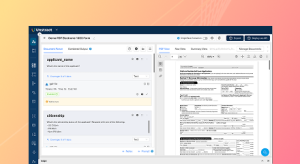
interface. So, uh, and you’ll, you’ll be able to see how this works. So I’m gonna go into HITL review over here, and this is the review interface. I can access all the document classes that I have for the review over here. So I’m gonna search for the SOV extraction And when I click on Next, I basically have the, um, the sheet over here and the various, uh, data fields that I’ve extracted from this particular sheet.
Now, as a human, I can go through each of these extractions and compare it with
[00:48:00]
the sheet over here and see if it is accurate. And if I have to make any changes at all, I just have to double-click on the field and I can make a change. So over here, let me just, you know, replace this, the last three digits with maybe a seven seven seven.
I’m randomly making this change, but once I do this, this is the data that will be pushed downstream. So once I do this, I can just click on Finish review, and what happens is this revie- uh, this document would move from the reviewer workflow to the approver workflow. So in Unstructured, you can deploy a
[00:48:30]
two-layered human review, uh, process where you have a reviewer going through the document first and then the approver going through it.
And, uh, sometimes if you do not want a second layer of review, you can, uh, you know, disable that option as well. Now let me go back to the platform and I’ll go into the approver workflow to s- you know, just show you how that works
So I have, again, the SOV extraction, and when I click on next, I basically have the, um, the data from the review queue that is passed to the approval workflow. And as you can
[00:49:00]
see, we– the, uh, edited value is over here. So the approval can again edit this value, or we can straight up approve this, and this will fall into the, um, queue or the destination database.
So this is basically how your, uh, extraction works in Unstract and how you basically can, you know, deal with all the, um, challenges that we looked at right from merge headers, nested tables, when you have to prepare your document, uh, your document data or spreadsheet data in a business-ready format,
[00:49:30]
and how you, uh, ensure the accuracy and also factor in the human review.
So all of this is done, and, uh, I’ve tried my best to take a look at all the features and cover this, uh, to the best of my abilities with the given time. But if you are, you know, curious on how to take your particular workflow forward or how to take your particular use case forward, then you can sit with our experts and have a chat.
This is a free, um, chat that we offer, and we can understand your needs and see how we can take this
[00:50:00]
forward. The link to this is… Uh, the registration link to this is also given in chat. So finally, we’ll be moving in, uh, moving on into the Q&A in case we have any questions.
[00:50:30]
Okay. Hello. We don’t want to set up a lookup for data enrichment. We already have a workflow that is designed to do this. Can we somehow send the extracted data outside Unstruct to this workflow and bring it back after it is enriched? Okay, so, um, we can do this. You don’t have to enrich your data within Unstruct itself.
You can send it to a post-processing webhook, which is another feature that we offer. And, uh, what this hap- So this is where you can deploy your own enrichment
[00:51:00]
workflows if you have one already set up, and you can bring that data back into the platform before you push it to downstream operations. So you can check that out, uh, in our documentation as well.
It’s called the post-processing webhook.
[00:51:30]
So we enter our expenses in our sheets in rupees, but we need to store it as USD in our systems. Can Unstruck do this too? Okay, we do not have any, um, we do not support live conversion, uh, based on the, uh, conversion rates that are out there. But what you can do
[00:52:00]
is you can send this data again to a post-processing webhook where you can connect with the, uh, conversion, the live conversion rates, uh, depending on the date of your expense and, uh, you can make the change there and push the data back.
So this is a workaround that you have in case you need to, uh, change your, um, amount values from one currency to another
So I work
[00:52:30]
at a university and we deal with Social Security numbers and s-student information. Can I be assured that this information will remain confidential? So yeah, the Unstack, uh, platform itself does not store any of your data. And, um, as I mentioned, we have sovereign, uh, frameworks that are available.
You can take a look at our blog and, um, you can, you know, deploy NVIDIA NIM, um, uh, models to work on your data as well if that’s something that you would want to look at. Or you can also, you know, uh, if you want
[00:53:00]
to, uh, explore your particular use case in more depth, we can sit for a chat and we can see what data you’re exactly dealing with, and, uh, we can see how we can ensure, uh, safety and we can discuss this further with you.
Thank you.
Our transcripts are quite old, dating back to the ’40s. Will this work on them too? Yeah, uh, I mean, as you’d seen, we have, you know, uh, uh, the platform can, uh, work even with scanned documents and, uh, I’m…
[00:53:30]
I mean, uh, it depends on how your transcripts are. I mean, if it’s a photo or a scanned document, it… the platform is equipped to work with that for sure, and, uh, yeah, it will be able to do this.
That’s precisely actually what, uh, the LLMWhisperer, uh, works on because we have a lot of scanned documents being uploaded as well with a lot of noise and handwritten text. So, uh, that is something we can do. All right, folks, thank you so much, uh, for joining the session today. I hope you had an insightful session.
And,
[00:54:00]
uh, if you have any further questions, do register for the chat, and, um, it’s a, a free personalized demo, and we’ll be able to sit with you on your particular use case. Hope you have a great day, and thank you so much. See you at our upcoming events.
See Unstract in action with walkthroughs of core features and real extraction workflows.
Managed cloud, on-premise, or open-source. Unstract adapts to your infrastructure needs, so choose what works best for you.

Prompt engineering Interface for Document Extraction

Prompt engineering Interface for Document Extraction

Make LLM-extracted data accurate and reliable

Use MCP to integrate Unstract with your existing stack

Control and trust, backed by human verification

Make LLM-extracted data accurate and reliable




Spreadsheet data extraction: Handling multi-tab, multi-format files & more