[00:00:00]
Uh, hi everybody. I’m Mahashree, Product Marketing Specialist at Unstract, and I’ll be your host for today’s session. Thank you so much for joining us. In today’s webinar, we’ll take a deep dive into how data can be extracted from tables within documents. So why tables, and why are they so important? Now, tables often hold some of the most valuable information in documents, whether it’s financial summaries, product catalogs, audit logs or whatnot.
In many cases, they contain the very
[00:00:30]
crux of the data. So it’s very important that we accurately extract the table data because all of that information that is… it will remain trapped within the tables if we do not. So in this webinar, we’ll learn about the key challenges in extracting table data, especially from documents, and what are some best practices to do it accurately.
And we’ll also take a deep dive into what Unstract has to bring to the table when it comes to this. So before I get started, let me quickly go over a few
[00:01:00]
session essentials. So this webinar will be in listen-only mode, and all attendees will automatically be on mute. In case you have any questions, you can start asking them in the Q&A tab that you’ll find at the bottom panel of your screen.
Our team is working in the back end, and they’ll be able to get back to you with the answers via text. Now, if your question is not taken up, then don’t worry, we’ll take it up towards the end in our interactive Q&A. You can also introduce yourselves, chat with fellow attendees, and let us know about any technical difficulties that may occur
[00:01:30]
in the chat tab.
And, uh, as a final point, when you exit this webinar, you’ll be redirected to a feedback form where I request you to leave a review on so that we can continue to improve our webinars going forward. So that said, here’s the agenda for today to give you a quick bird’s-eye view of what we have in store. So we’ll be starting out by looking at the challenges in document table extraction, and we’ll also cover why traditional methods have fallen short when it comes to these challenges, and how LLMs are,
[00:02:00]
again, overcoming many of these challenges today.
Following that would be the interesting chunk of this webinar, where we’ll explore an in-depth demo of Unstract and the table extraction capabilities that come with it, and we’ll also be introducing Unstract’s ready-to-use plug-and-play API, the All Table Extractor API, which is specially designed to extract all the tables from any given document.
And finally, once we cover the demo, we’ll be venturing into a live Q&A, where one of our experts will be on air
[00:02:30]
to answer your questions, and that’ll be the end of this webinar. So that said, let’s get started with a simple question: Why does document table data matter? So we’d already looked at this earlier.
As I’d mentioned, tables contain the crux of your document, uh, data, in many cases. They contain the critical data, whether it’s numbers, keywords, or important information, and that is why it becomes of paramount importance that we accurately extract table data.
[00:03:00]
And moreover, it’s not pertaining to any particular industry.
It is domain agnostic. So studies have also indicated that especially in fields like clinical research, over eighty-five percent of documents contain essential information in the form of tables. And that’s not true just for this one domain, but it’s true across all the domains that we’re seeing. This pattern holds true for financial statements, business reports, contracts, and a lot more…
and many more documents. And finally, when if we do
[00:03:30]
not extract the table data, then we, then the, uh, overall data that we contain in the business is missing huge chunks which are important and which could play a role in important decision-making for your organization. So that the three, um, points that you have laid out on the screen are key reasons why document table data matters today.
And let’s move on to covering the challenges. What are stopping it or what are the obstacles we have in the way to get the accurate
[00:04:00]
table data extracted? So many of these challenges boil down to the actual structure or the layout of the table itself, and we’ll be going over them one by one with examples.
We’ll be seeing how, why they were an impediment for traditional systems and what elements are bringing to the table today So firstly, we have nested tables. So as you can see, these are table formats with one table within another. So we have the examples, uh, two examples right here on the screen, where we can see an
[00:04:30]
entire table inside or within the cell of the parent table.
So these are some formats, uh, which are common– which commonly occur in documents and again, these can be quite difficult for traditional systems to interpret because many of these traditional systems rely heavily on visual cues. So they rely on the rows or the line, uh, or the lines which form the rows and the columns to des-deciph-decipher where the table begins and ends.
However, with nested tables, this becomes pretty unclear
[00:05:00]
because you already have a parent table and before that ends, another one begins. And secondly, nested tables introduce a hierarchy to your table data, which traditional tools, again, most often, uh, are not built to handle. So this is where we see a difference with LLMs because when we use LLMs to extract table data, they’re not just looking at the table layout or the visual cues.
They actually go a step further and understand the table semantically, which means that they understand what
[00:05:30]
information this particular table is looking to convey. And this means that they also understand any subtables or hierarchical implement- implications that might be present. And, uh, you’ll be seeing how this plays a role when we look at the demo segment.
We’ll be looking at, uh, a sample nested table from which we’d be extracting data as well. So with that, let me move on to the next, uh, challenge that we have, which is tables that span over multiple pages. So I’m sure many of you must have seen this, uh, format
[00:06:00]
of a table as well in documents. It’s quite common to come across tables that don’t fit neatly into a single page.
Some of these tables can be really long, spanning across two, three, or even more number of pages. And if you look at the example right here, you see that we have a single table that is, uh, split across two different pages, and we have a page that ba-ba-basically breaks the visual cue over here. And that is the reason why many traditional systems struggle with interpreting tables that span over
[00:06:30]
multiple pages because the visual cue gets interrupted, and the tool often assumes that the table has ended on page one and treats the continuation as a separate or a completely new table.
So this, again, results in incorrect data extraction, which can impede in decision-making. On the other hand, because LLMs interpret the meaning of the table, we are again able to overcome these challenges and, uh, get the table data extracted accurately
[00:07:00]
Up next, we have missing or implicit borders. So sometimes we come across tables that don’t have clearly defined borders or lines separating the rows and columns.
So there are, uh, these are what we call as tables with missing or implicit bo- boundaries. So if you look at the examples right here on the screen, you’ll notice that the information is still organized in a tabular form with the data neatly aligned in rows and columns. However, there are no visible grids that separate these rows and columns, which again can become
[00:07:30]
a difficulty for traditional extraction tools because they might end up treating the entire section as plain text or misinterpret the text spacing.
So this again leads to incorrect data extraction. So LLMs, on the other hand, are better placed to pick up on these patterns like aligned columns, repeating labels, or numerical sequences. So this really helps them reconstruct the table accurately and extract the data As a fourth challenge, we have scanned or handwritten–
[00:08:00]
scanned tables or tables with handwritten text.
So now we can consider each of these challenges as individual challenges, both scanned tables as well as, uh, tables with handwritten text. But I’ve put them together because both of these formats are not digitally native. So now scanned tables or, uh, with tables with handwritten text are again very common in real-world documents, especially in medical records, in handwritten notes, in manually filled forms and so on.
The table is still struct– I mean, the data is still structured like
[00:08:30]
a table, but because it is in the form of an image, the text and layout aren’t digitally accessible, which again could make it difficult for traditional table extraction systems because these tools could break when they incur issues like faded print, skewed alignment, uneven handwriting, or poor scan quality.
So in contrast, LLMs, I wouldn’t say, are again extremely capable at handling these challenges at all times. We have observed even some, um, some of the most
[00:09:00]
advanced LLMs break when it comes to scanned tables or tables which have handwritten text. But what I can say is that with tools, with text extractor tools like LLMWhisperer, which is Unstract’s very own text extractor, and it deploys effective OCR to extract layout preserved text from even scanned tables or documents.
So with these kind of tools, you can support the LLM in extracting the raw text first before extracting your data. So we will take a look at how LLMWhisperer performs
[00:09:30]
when it comes to extracting, um, tables, especially from scanned, uh, images or, uh, with, uh, tables with handwritten text. And finally, there are multi-layout tables with merged headers or cells.
So this is again something that you’d see often where you have tables with merged cells, merged row labels or il-il-irregular column spans. So these are what we call as multi-layout tables, and in some cases, the table structure changes halfway, with new subsections or different column
[00:10:00]
groupings introduced within the same table.
So these are again especially difficult for traditional systems to handle because when a header spans multiple columns or when a cell size– when the cell size varies abruptly, the tool struggles to understand which data belongs to which header. So this is another challenging, um, uh… I mean, this is another challenge that traditional systems face when it comes to table layouts.
And again, because LLMs are built to understand the semantic meaning of the table, they can better
[00:10:30]
understand a merged header and what it represents, a higher level category and so on. So we’ll take a look at all of this and, um, before we get into the demo section, I understand that many of you in this webinar could be completely new to Unstract.
So, uh, let me just quickly take a detour To quickly, uh, help you understand what Unstract is all about, what LLMWhisperer is about, and, uh, we’ll then move into the demo segment So Unstract, folks, is an LLM-powered unstructured data
[00:11:00]
ETL platform. And if I had to briefly lay out the capabilities of the platform, uh, to you, we’d have three major categories.
Firstly, the text extraction phase, the development phase, and finally, the deployment phase. So within text extraction is where we see the role of LLMWhisperer. So this is basically where you extract raw text from your uploaded documents or, uh, documents that might contain tables, and then you would be passing this raw text to the chosen LLM for,
[00:11:30]
uh, data extraction.
So this is an important phase because you have to extract the raw text in a format that the LLM best understands, and this basically is when you preserve the layout of the original document itself, and that holds true for tables as well. So LLMs understand information very much like humans do, which is why it’s very important to preserve the original layout, and that is what LLMWhisperer is known to do and why it has been a popular, uh, choice among our customers as well when they’re
[00:12:00]
looking for a text extractor.
So this is basically, uh, the key area that we’ll be focusing on today because we covered a bunch of table layout challenges. So we’ll take a look at how the text extractor tool, uh, LLM Whisperer, is deployed to extract tables even when there are difficulties in the layout. And, uh, because of this, this is also available as a standalone application because you might have different downstream operations part– uh, with every pa- uh, particular business.
So this…
[00:12:30]
We’ll take a look at, uh, how this works in the demo segment. But moving on from the text extractor ex- text extraction phase, we have the development phase, where we basically get this extracted raw text. We deploy LLMs to work on, uh, the prompts that we give. So this is done in a prompt engineering environment in the platform called the Prompt Studio.
So within the Prompt Studio, you’d be entering prompts in natural language which, A, define what data we’re looking to extract, and B, what schema we are looking
[00:13:00]
to extract this data in. So once we’re given these details, the prompts would be run, uh, against the documents using the chosen LLM, and you can upload multiple document variants to check out how your prompts are working.
And there are, again, advanced settings within, uh, the Prompt Studio itself that we’ll briefly be taking a look at in today’s webinar. And finally, once you have developed your prompts, once you have tested how it works against the various documents that you might have, and once you’re happy with the Prompt Studio project, you can go ahead to deploy
[00:13:30]
it in any of the ways that we offer.
So natively, the platform supports API deployment, ETL pipeline, task pipeline and human-in-the-loop deployment. However, for more advanced use cases, we also have community nodes for both Unstructured as well as LLMWhisperer on n8n, and this can al- both these platforms can, again, also be deployed as MCP servers.
So that said, a couple of numbers that I can, uh, throw around, uh, to, you know, give you an idea of where Unstract stands today. We have over 5.9k
[00:14:00]
plus stars on GitHub, a 1,000-plus member Slack community, nine… And we’re currently processing over nine million pages per month by paid users alone. So that said, uh, here are the different ways in which you can use the platforms.
So Unstract is available in three editions. There is an open source offering with limited capabilities. Uh, there’s a cloud version that you can go for, as well as an on-prem offering. And, uh, coming to LLMWhisperer, we have an LLMWhisperer playground that I’ll also be introducing in
[00:14:30]
this webinar, where you can upload over 100 pages for free on a daily basis, and you can access the end-to-end capabilities of the platform.
So this gives you, uh, enough space to test how your documents work and how LLMWhisperer is able to extract the text from your particular business documents. And, uh, it’s also available to be deployed as an API, uh, a Python client, JavaScript client, and, uh, as we’d mentioned earlier, we also now have an A10 as well as MCP servers.
And both these platforms
[00:15:00]
are ISO, GDPR, SOC 2, and HIPAA compliant as well.
So that said, let me move into the demo segment and, um, let me show you how all of this works. All right. So what you see over here, folks, is the LLMWhisperer, um, interface. So we have… This is the LLM Whisperer playground that I was just talking about. So you can upload any document of your choice over here, and you can test how, uh, it’s being, uh, it’s…
I mean, how it can extract text from that particular
[00:15:30]
document. However, in this session, I would be, um, going into one of the pre-uploaded documents where we have tables, so we can, uh, uh, you know, particularly see how this works on tables. So the example I have over here is an insurance document with the benefits and coverage.
So you can see that this is a pretty condensed table that we have over here with a lot of text. And as I’d mentioned earlier, it’s very important to preserve the layout of the table when you extract it from the document because this is
[00:16:00]
what is gonna give you, uh, give the LLM the maximum context of the information in the table.
So that is what you’re seeing over here, folks. You can see how LLM Whisperer has, um, quickly extracted the text from the complete document, and every little detail, like the indentation that we have over here corresponding to this area in the document, and, uh, every other detail is, uh… I mean, every other spacing detail and text detail is preserved with the layout, and this is basically what we are looking to extract.
Now, what you’re seeing over
[00:16:30]
here is just the text extraction. However, you can also extract this entire table along with the rows and columns. I mean, we did talk about it ear, uh, earlier, that LLMs do not necessarily have to have the rows and columns to interpret text, uh, perfectly well, but it is always good to have, have it just in case.
So let me show you how that is done as well
[00:17:00]
Just a minute
All right So what we have over here is basically the same extraction. However, we have all the lines and, uh, the rows
[00:17:30]
and columns extracted as well. So this would help… I mean, if you are, uh, pull… I mean, if the downstream operations involve traditional systems, then this extraction would help since we have the rows and columns intact.
And, uh, with LLMs also, this is just better to have, uh, as they would be in a better position to understand the overall, uh, uh, I mean, what overall context of the table and what it is looking to convey. So that said, this is the LLM, uh, Whisperer playground that we just looked at and how LLMWhisperer can be deployed to extract your table data.
[00:18:00]
However, in this webinar we’ll be in- introducing an API which is a re- uh, as I mentioned earlier, the All Table Extractor API, where we would be extracting… where this API can be deployed in your workflows, in your document workflows, and, uh, you would basically be able to extract all the tables from any uploaded document.
So this API is present in our API Hub, which is another offering within Unstract. So if you’re using, if you’re an existing user, you’d be
[00:18:30]
using, uh, the platform, and you would, uh, see, uh, this dropdown over here that you can switch between any of the three offerings that we have currently. So this is how the Unstract…
I mean, we just looked at LLMWhisperer, uh, and this is how the Unstract interface looks. So I can simply use this dropdown and move to the API Hub as well. So, uh, just to give you a few points on the API Hub, we currently have six APIs available, and we’d be adding more as, uh, as time goes. So each
[00:19:00]
of these APIs are specifically designed to handle specific use cases that we find to occur pretty commonly with our customers.
So, uh, two APIs over here, the PDF Splitter and the All Table Extractor are utility APIs, and we have four other APIs to extract particular data from, uh, particular documents. So in this webinar we’ll be, uh, going through what… how the All Table Extraction API works. So this can also be run, uh, you can try the playground on cloud, or you can also
[00:19:30]
download this as a Postman collection.
And when you open this, we have all, uh, the overview of this particular API, so we have all the key features, that it can, uh, detect tables and PDFs, uh, images, scanned documents and web pages. It maintains the table structure and cell relationships. What is the output format that we have? So we have JSON, CSV, and other structured formats.
And, uh, we also support batch processing. You have all the common use cases where this particular API could, uh,
[00:20:00]
be of use especially. And finally, we have the table detection capabilities, like automatically identifying table headers and names, m- uh, handling merged cells. So this was one of the challenges that we had looked at earlier as well.
And recognizing the type of data that is present, whether it is numeric or text or date and so on. And it also works with both bordered and borderless tables So this was another, uh, challenge that we had looked at earlier. So in this webinar, let me
[00:20:30]
upload, or I’ll try to upload one of the documents that I have, uh, into the playground, and we’ll see how this works So I have a table over here that I’m going to be uploading.
It’s a pretty simple table, so it has some product details and the sales metrics for each of these details. And this is just to show you how this works. However, we have, um, other tables that we’ll be looking at as well. So we have all the tables over here, and each of these tables contain one of the
[00:21:00]
challenges that we looked at earlier.
So we’ll be running the All Table Extractor on Postman to be ex- uh, to extract the, uh, tables from these documents. So I have a couple of documents that, uh, I’ll be taking you through today. So, um, firstly, the document that we’ll be looking at is just a sample document that I have over here. So it has a bunch of tables along with some text, and you can see it has, uh, around 29 tables over here.
So when you have documents with
[00:21:30]
so many tables, um, what the All Table Extractor does is that it actually extracts just the tables from, uh, the document, and you can specify further which particular, uh, table you want to extract again. So let’s, uh, see how this works. So I’ve basically uploaded this, uh, document into the Postman call.
So I have deployed the All Table Extractor API over here. You can see the document uploaded. And we have two key, uh, fe- uh, features… I mean, uh, two key capabilities where,
[00:22:00]
one, the API discovers the various tables within the document. So you can check out the result over here where we have each table name, and a description is given along with the table number on what that particular table is about and, um, how it is generally formatted.
And that is true for all the tables that are present in any uploaded document. So we have table two over here along with the description. So you have an understanding of the kind of tables you have, uh, which has been
[00:22:30]
extracted from any uploaded document. And next, you can extract the tables by, again, running another, uh, request where over here you can see that I’ve specified I would want to, uh, I want to extract the first table.
So this is the extract table number parameter. So I have specified that I want to extract the first table from this particular document, and we have the extraction, um, output over here. So let’s cross-check this with the tables that we have. So as you can see, this
[00:23:00]
is the first table, but, uh, since the post…
I mean, since this, uh, works with the array concept, so this would be table zero, and this would be table one. So that is basically the table that we had seen in the output. So you can see how the layout has been preserved, and this again contains merged cells, right? So you can see that, uh, this particular header is common for all these three subhead, uh, sub-rows that you see over here.
So, uh, going back to the output, you can see that the entire structure has been preserved, and the,
[00:23:30]
this- Raw text extracted with the layout preservation is what is going to ultimately help LLMs interpret these tables accurately and extract data. So we have seen that, uh, this is the result that we get when we, um, extract table number one.
Now let’s check out what it is when I extract, uh, the table at zero. So let me run this request again
[00:24:00]
So you can also run a request to check the a- uh, the status of this particular extraction So you can see that it is completed now
And this is basically the extracted table. So let’s cross-check this in the document. And this is basically the same table that you see over here. So this is basically how you can extract all your, uh, tables from your documents, but again, you might not
[00:24:30]
always have digitally native formats, right, of tables.
So you could have any of the challenges that we had covered earlier. So let me quickly go through various other examples that I have over here. For the want of time, I’ve already run these API calls and, uh, you’d basically be seeing how this API functions, uh, uh, with the various, uh, tables that we, we have uploaded.
So firstly, we’ll be looking at how the All Table Extractor API works with missing… with tables that contain missing columns.
[00:25:00]
So the, uh, document that I’ve uploaded over here is basically this document that you see. So you, uh, this has missing columns and, uh, and missing rows as well. So this text is again neatly spaced.
It is in a particular pattern. Uh, so let’s check out how the, um, All Table Extractor has been able to work on this. So again, we have, um, gotten, uh, the table details, so what this table is about, and once we run the extraction API,
[00:25:30]
we get the result right here. So this is basically, again, we’ve got, we got the result with the rows and columns intact and, uh, you’d seen earlier in the document that there were missing rows and columns.
So moving on. The next challenge is the multi-layer, uh, tables. So this is again, uh, difficult. I mean, so it’s a very common format of finding your tables in, but it’s quite difficult for traditional systems. So let’s check out the document that I’ve uploaded over here
[00:26:00]
All right, so this is basically the document that I have uploaded. So this is also, uh, you, you might remember it from the presentation deck. So this was also the example that we’d used for tables spanning over mul- multiple pages. So upon closer inspection of this document, you can see that while one challenge that this table contains is that it spans over two different pages, it also contains merged headers.
So you can see over here how, uh, the social class distinction has been, um, the common header, and we have three
[00:26:30]
sub-columns under this particular header. So, um, going back to the call, let’s take a look at, uh, how this API has been able to extract the data
All right. So although the table, I mean, the data doesn’t really make sense since it’s… I’ve just taken this example for your understanding on how, uh, for how the, uh, all table extractor works. You can see that we have a line breaking this table. We have it spread across two different pages. However, we have
[00:27:00]
all the, um, columns intact over here.
So until region, uh, all the, um… Yeah, until, I think, column four, we had the, um, table on page number one and the remaining on page number two, and that is basically what you see over here. And, uh, the system has also merged the header along with the individual sub-columns. So we have the header over here, and it has been merged with the individual sub-columns.
So this again gives
[00:27:30]
the LLM better context. It is able to understand how, um, that this header is common to all of these sub-columns. And if you are using, again, traditional systems for downstream operations, it becomes even more easy since they do not have to deal with, um, uh, multi-layer columns, rather the information is already merged and presented to them in a simple manner So that said, let’s move on to nested tables, which we have next.
So the example that we’d be taking for nested tables is right
[00:28:00]
here. This is again a table that you might have seen on the presentation. So we have two different, uh, tables within a bigger table, and within each of these different tables, we have two other nested tables as well. So there is quite a strong hierarchy that I’m seeing over here.
So this, uh, gives the subscription rates, uh, for a particular, um, product, and we have the new charges, and within that, we have the monthly plan and, uh, for enterprise and premium, and we have
[00:28:30]
the old charges, and we again have two different, uh, tables nested within that. So let’s take a look at how this table has been extracted using the All Table Extractor, and this is basically what we have.
So you can see that, um, it has preserved the layout of the original table. So we have the new charges, and then we have two sub-tables within that, and then we have the old charges and two sub-tables within that. So this is basically how you can extract, uh, how this works with
[00:29:00]
nested tables. And finally, to give you an example of a skewed scan.
So we were also talking about scan tables, uh, which could be skewed, which could be unaligned, and you could have bad lighting and so on. So let’s, uh, take an example of a scan table over here. So this is a very common format in which you might be dealing with tables, and because not all business operations are done on the, uh, system, you might be doing a lot of these operations manually.
So when you have to
[00:29:30]
scan these documents and upload them, you might not always, uh, you know, end up with great scans. You could have skewed scans, scans with bad l- uh, lighting and with handwritten text. So this is one example of a table that I have over here, and when I uploaded this to the All Table Extractor, we basically got the output with the data intact.
So this is the same, uh, data that you saw over here. So you can take a look at the ratio, the compensation rate, and all of that… all of those
[00:30:00]
details are preserved and brought to you, uh, with the extracted text, and you can then run this for, uh, downstream operations. And finally, we will, uh, we also uploaded another, uh, document which contained a number of tables.
So each of these tables… I mean, this is, this is a document which contains some lab results, and each of these tables do not have any rows or columns. They have, um, the… They just have the data laid out in a tabular format. So the…
[00:30:30]
It has a number of, uh, tables as well. So, uh, you can see a number of tables across this particular document.
And, uh, in this, uh, particular API call, what we have done is we are extracting table zero from this particular document, and you have the output right here. So just to cross-check this with, uh, what is present in the document, this is basically table zero, and you can see that it is the same data that you found in the output.
So let
[00:31:00]
me… Uh, you can take a good look at this, and I’ll be going back to the output just to give you an idea of how it has been extracted
So this is the output that we have. And this, folks, basically, uh, I think it sums up the capabilities of the All Table Extractor. So we saw how this works with documents that might contain multiple tables, and then you can specify which table you want to be, uh, you want extracted particularly as well. And we also went
[00:31:30]
over the various challenges that it can handle quite seamlessly and, um, that is about it when it comes to the All Table Extractor.
Now let me quickly, uh, go back to the cloud version where, uh, we had uploaded a sample document. So I had, uh, uploaded this, and I clicked on Extract before moving to the Postman deployments. And basically, this is how this works on the cloud. You can download this extracted table data as a JSON or TSV, and you can use it for downstream operations.
[00:32:00]
So that said, uh, we covered LLMWhisperer and the All Table Extractor API in detail, and this is good to… I mean, this is good enough if you’re just looking to extract table data and you have, uh, downstream operations or processing set. But with Unstract, I’ll quickly take you through how you can perform the downstream operations as well.
So for that, let me move into the platform. So let me get into my account here
[00:32:30]
So what you see is the Unstract interface. And, um, if you are a new user, I’ll, I’ll quickly give you a demo of how downstream operations can be run over here. So if you are a completely new user and, uh, you’re new to the platform, the first step that you’ll have to do is integrate with some of the, uh, connectors that we have.
So these are some prerequisites that you will need to get started with your document projects. So, uh, firstly, Unstract runs on LLM, so it’s important to integrate with, uh,
[00:33:00]
any LLM, and we have all the popular options right here. And, um, we… A- again, you’d need a vector DB, an embedding model, and finally a text extractor.
So over here is, again, where you’d find LLMWhisperer, and along with other text extractors in the market as well. So once you connect with the, uh, relevant connectors that you’re looking to integrate, you can get started with Prompt Studio, where, uh, this is, uh, basically the development phase that I was talking about, where you can upload documents,
[00:33:30]
specify prompts, and get your data extracted.
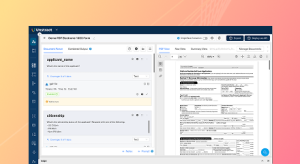
So in this session, I’ll be getting into an existing Prompt Studio project that I have over here. So what you’re seeing over here is a credit card parser. And as I mentioned, the first step that is done once you upload your document into Unstract is to extract the raw text in a layout preserved format.
And that is basically what we are seeing over here. So you can see that every little detail, right from the logo, right from, um, other details, and we also have a table over
[00:34:00]
here. So all of these, uh, all of this information is extracted keeping the layout intact, and if you, uh, specify the parameter to include the rows and columns and tables, that would be, uh, present as well So once I extract the, uh, raw text, this raw context is basically is what will be passed to the LLM that you deploy in your project.
So you can choose which combination of LLM embedding model vector DB and text extractor you want to use for this particular project. So you can
[00:34:30]
see that right here I have two LLM profiles set up, and I’ve gone with the second one. So once I choose this, your LLMs could run on, would run on your document and, uh, you have, uh, you can also specify the prompts over here.
So for each of these prompts, if you take a closer look, we are specifying what data to extract and in what schema to extract that particular data in. And you can also specify the output data types over here depending on what you want. And once you’re happy with all the, um,
[00:35:00]
data that is extracted, you can deploy this particular project in any of the, uh, native deployment options, that is the API deployment, ETL pipeline, task pipeline, or human in the loop.
Or you can also, um, uh, use MCP servers and n8n. So, uh, we have, uh, an option to directly deploy this particular project as an API, and, uh, again, within Prompt Studio, we have advanced settings as well. So we have, uh, a number of settings that I wouldn’t be going in, um,
[00:35:30]
detail in this particular session. So you have cost-saving features like summarized extraction, and you also have accuracy enabling capabilities like LLMChallenge, where we use LLM as a judge implementation to validate your extracted output and to also prevent hall- LLM hallucinations.
So we do have extensive documentation on each of these features. We have webinars and blogs available. So, um, my team would have dropped, uh, the resources in the chat tab that you can access and, uh, go through to explore these capabilities
[00:36:00]
in more detail. So for the want of time, I’ll be stopping right here and, uh, I’ll…
Let me just explore another Prompt Studio project that I have where I have basically uploaded, uh, the nested table that you had seen. So this was one of the other examples of the nested table that we had. So I’ve basically uploaded this and, uh, this is the raw view that was extracted, keeping the table layout intact when we are looking, when you’re looking to extract, uh, data on Unstract.
So you have the table extracted,
[00:36:30]
and we just have one prompt over here, so what was the… uh, what is the population in Chicago? And you have the data extracted right here in, um, the output, and the output data type has been set to number. So this is basically how you set up Prompt Studio projects if, um… So you can either go with LLMWhisperer alone, or you can go with the All Table Extractor and plug the, uh, uh, API in your existing document workflows.
Or depending on your, really depends on your particular
[00:37:00]
business needs, whether you’re going with the All Table Extractor, whether you decide to use LLMWhisperer separately, or you go with all the end-to-end capabilities, uh, club together when you use Unstract. So that said, um, let me move back to the presentation.
So depending on your business needs, as I was just talking about, you might require any… Uh, you might w- need to deploy your projects in different ways. So if you could always sign up for a free trial, and you can access, uh, the capabilities of the platform on your
[00:37:30]
own. You can check out our resources or another way in…
uh, popular way in which we, um, talk about, uh, the platform to people and help them set it up is by booking a free demo where you can sit on a one-on-one conversation with one of our experts, and we’ll be able to guide you through what you need for your particular business and how Unstract can help you set it up.
So if you’re interested in this free demo, uh, do book a demo with us. Uh, you have the link available in chat as well. And with that, let’s, uh, go into the Q&A in
[00:38:00]
case we have any questions for today
All right, uh, looks like we don’t have any remaining questions. They have been answered in chat. Okay, so thank you everybody for joining our session today. Uh, we hope you had an insightful
[00:38:30]
session, and we look forward to seeing you at our upcoming events as well. Thank you so much
Hey, there is a question, uh, Kevin. Um, Kevin, uh, yeah, we, we do support more than 20 file formats, uh, including Excel file. Just try it out. Yeah, we support more than 20 file formats. If you look at our documentation, you would see that we support, uh, more than– we natively support, uh, Excel. So XLS, XLSX, all that like will
[00:39:00]
work right out of the box.
Uh, please try it out
Yeah. Thank you. Okay. Thank you so much
See Unstract in action with walkthroughs of core features and real extraction workflows.
Managed cloud, on-premise, or open-source. Unstract adapts to your infrastructure needs, so choose what works best for you.

Prompt engineering Interface for Document Extraction

Prompt engineering Interface for Document Extraction

Make LLM-extracted data accurate and reliable

Use MCP to integrate Unstract with your existing stack

Control and trust, backed by human verification

Make LLM-extracted data accurate and reliable




Spreadsheet data extraction: Handling multi-tab, multi-format files & more