[00:00:00]
All right, let’s get started. So, hey, everyone. Thank you so much for joining today, and welcome to the session. I’m Mahashree, your host, and I’ll be walking you through how to extract tables using multi-agent AI from complex real-world documents today. As you can see, that is the, uh, title of this webinar.
Now, tables are a very important component of documents. They often contain the most important crux of your data, which is why it is extremely important that we accurately extract
[00:00:30]
table data. However, because of certain structural challenges that they may come with, for instance, there could be merged headers, nested tables or, uh, values running across pages.
So all these structural challenges had historically contributed to the difficulty, uh, faced by traditional OCR to extract table data especially. However, we have seen a change especially with the advent of LLMs and LLM-powered platforms like Unstract, where without any coding or training, uh, you were able to
[00:01:00]
extract table data accurately wi– by just giving prompts and your data would be extracted.
So now that we already have an answer, why are we here today? That’s because that answer has a ceiling. So while the elements can work perfectly well in the demo, many a times we saw that they were breaking in production. Which is why a single LLM alone isn’t enough to extract table data. Rather, we are looking at moving to an agentic system where we have a bunch of LLMs that work strategically with one another, forming a system
[00:01:30]
that, uh, performs specific operations and extracts the table data.
So that is what we are going to be looking at today. And, uh, we’ll be, uh, looking at this capability using Unstract’s, uh, agentic table extractor. So that said, here are a couple of session essentials or housekeeping items I’d like to quickly run over. So this webinar will be in listen-only mode, and all attendees will automatically be on mute.
In case you have any questions, do drop them in the Q&A tab at any time during the session. Our team is working in the
[00:02:00]
back end, and we’ll be able to get back to you with the answers via text. Now, if your question remains unanswered in the chat box, then, uh, not to worry, we’ll be taking it up towards the end of our session in our interactive Q&A.
You also have the chat tab where you can introduce yourselves, let us know where you’re joining from, and this is also where you’ll let us know in case you run into any technical glitches during this session. And as a final point, when you exit this webinar, you’ll be redirected to a feedback form where I request you to leave a review on so that we can continue to improve our sessions going
[00:02:30]
forward.
So that said, here, um, is the agenda for today. So before we come to this, here’s a quick slide on why tables, why are we talking about tables specifically. So I already, uh, kind of touched upon this in the introduction. So tables, again, contain the crux of your document data. They have all the important numbers.
And not only that, but because of the spatial arrangement, they also have a nuanced insight on the relationship between the data present in the tables. So that is also something that traditional OCR definitely
[00:03:00]
struggled with, and we’ll see how with LLMs and agentic systems, this, uh, even this nuance can be extracted pretty well.
So that brings me to the agenda of this session. We’ll firstly, uh, we’ll start off this webinar by discussing, uh, the agentic leap in general and in document extraction. Next, we’ll unpack Unstract’s agentic table extractor in detail and go over how it works. That will be followed by a live demo of the table extractor, where we’ll upload some real-world documents and see how it works on
[00:03:30]
these, uh, tables.
And finally, we’ll conclude the session with an interactive Q&A at the end. So that said, let’s kick this started and, uh, we’ll be talking about the agentic leap. So as I mentioned, we are seeing the shift from single models, uh, to a system of agents today when it comes to handling business operations, and these agents talk to one another while getting work done.
So this is not just, uh, particular to document extraction, but we are seeing agentic AI take over almost all aspects of
[00:04:00]
business operations. So that, um, when it comes to document extraction especially, and tables, as I mentioned earlier again, it is able to handle complex tables with far more ease. So tables with nested structures, tightly, uh, packed rows and columns, um, and also missing rows or merged headers.
So these are all the kinds of complex table challenges that agentic AI is now able to easily handle. And this is extremely important because tables are a prominent, uh, component of documents, not just,
[00:04:30]
uh, in one industry. We– It shows up almost everywhere, and that is why, uh, this particular problem cannot be avoided.
And again, with the agentic systems, you avoid guesswork. So instead of configuring one model and hoping it gets the extraction right, you now have a strategic pipeline of specialized agents, each owning a specialized step. So for instance, there could be one agent just finding the table out in the document, seeing where it is present.
There could be another agent mapping out its structure, and
[00:05:00]
another agent that is actually extracting the values. So this again makes the entire workflow more auditable, because when something goes wrong, you know exactly which agent to look at instead of debugging a black box. And again, this isn’t limited to document extraction, as I mentioned earlier.
Agentic AI is turning up to be the trend that could possibly shape up the infrastructure that businesses run on in the upcoming decade. And at Unstract, we bring you the technology as early as it arrives so that our users stay ahead of the curve. So
[00:05:30]
that said, let’s now dive into the Agentic Table Extractor, and, uh, we’ll see how it works.
So over here you have the six, um, agents that Unstract’s table extractor contains. So we’ll, uh, we’ll be going over these one by one. Now firstly, when your document arrives, uh, it gets passed to agent one, that is the briefing agent. And what this does is it basically takes the user’s target table description.
So you give it a prompt on, um, you know, spec- uh, specifying what table you want
[00:06:00]
to be extracted. So it takes this prompt, and it populates it with, uh, better details on exactly how to identify this table in your document. And this prompt that the briefing agent generates will then be used by the second agent to detect where that particular table is present in the document.
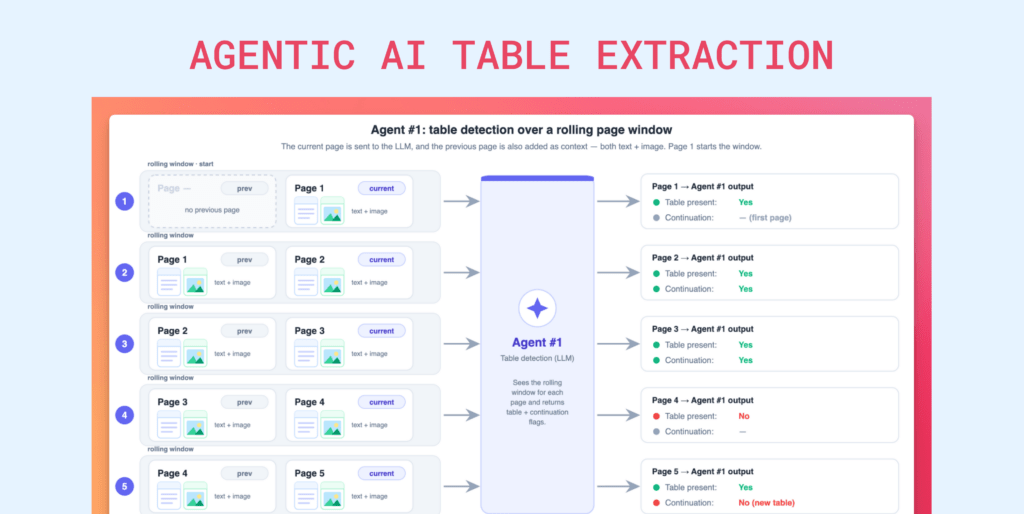
So once this, um, the briefing agent writes the prompt, it gets passed on to the presence detector, which is a light LLM, and it basically uses that prompt and flips through every page of the document to answer
[00:06:30]
one simple question. That is, does this page have the table that we want or not? So it’s not trying to read the details of the page, it’s just sorting through the pages and putting it into two piles, so that when the expensive models that come in subsequently in the pipeline, um, to extract the, uh, data from the tables, they do not end up working on all the pages, but just those that matter.
And the presence detector again supports parallel processing for faster sorting and, uh, the processing of the entire workflow as a whole. So once
[00:07:00]
agent two completes its work, it gets passed on to the third agent that is a VLM or a blueprint generator. So it looks at the, uh, columns… It basically looks at the structure of the table.
It looks at column headers, grouped headers spanning multiple columns, and nested tables tucked inside rows, and it basically neatly maps them out, making a blueprint of an empty table. So this blueprint gives, uh… This is especially important when your table structure is a difficulty, when it’s extremely complex.
So with this blueprint, you know
[00:07:30]
exactly what, uh, data you can expect to receive. And once the blueprint, uh, generator generates this, it moves on to agent four, that is the content extractor. So this agent gets the blueprint from the previous stage, and it goes over the document row by row to actually map out the real values.
So this is the agent that handles all the real-world stuff, like the tables that spill across two pages or stray bits of data that might belong to a row above. So these are the, um, de-details and, um, the
[00:08:00]
structural, uh, the, uh, the struc-structural elements of the table that this agent handles. And the result is that it actual, uh, it puts the content into this blueprint neatly.
And at this point, if you do not have a specific format in which you want to extract the output from this data, uh, from this table, this is the last step. So it puts- Puts it in, into this blueprint, and it immediately goes in for extraction. So, uh, in case you have a specific output in mind, you want the output to be structured in a
[00:08:30]
specific way, that’s when the f– uh, last two agents in the extractor kick in.
That is your code generator and code executor. So in which case agent five, in, in case you have a specific JSON format in which you want to extract this output, it basically, um, generates a small Python program that converts the raw data into your desired format. And this agent even double-checks its own code and fixes it if there are any mistakes and retries a couple of times if needed.
And finally, we have agent six.
[00:09:00]
That is the code executor. So this agent takes the program written previously and runs it to produce the final output. It runs the code in a lockdown sandbox, so it can’t be, uh, touched, um, by anything, so in, in case it… there are any, uh, secrets or, uh, there are no dangerous commands, and it runs within a certain time limit.
So it’s the only agent that doesn’t use AI at all. It’s purely execution. And at the end of it, you get your table data extracted in your de-desired format. So that, folks, is how the
[00:09:30]
agentic table extractor works. We went, uh, through this step-by-step to see the various, uh, stages and what is happening, what each agent, um, operates on.
And the entire design, the clever bit of the entire design is that, uh, there is a cost-saving handoff. The cheap model, that is agent one right at the beginning, does the bulk grunt work of scanning all your pages so that the expensive models, that is, uh, you know, probably agents three and four, only ever touch the handful of pages that actually have the table or that actually matter.
[00:10:00]
And again, the last two agents are optional, and they are only run when, uh, you need a specific output, uh, format that, uh, is required by your business. So now that we’ve seen how the extractor works in theory, let’s take a look at how this actually is implemented in action And before that, I wanted to quickly, uh, introduce Unstract to those of you that are completely new and with us in this webinar.
So I’ll take two minutes of your time to quickly go over this. Now, Unstract is an agentic AI document processing and extraction platform.
[00:10:30]
And, um, if I had to briefly put the capabilities of the, the platform, you would have three major categories. That is the text extraction phase, development phase, and finally, the deployment phase.
So text extraction is what happens to your documents at, at the very beginning when you upload it into the platform. So, uh, whether you’re extracting from tables, unstructured documents or any other, uh, document, what… This is a common phase that every document goes through. And what happens over here is you deploy
[00:11:00]
a text extractor of your choice to extract the raw text from these documents, because documents could come in many formats.
It could have, um, noise, for instance. It could have scanned images. It could have handwritten text. There could be grains on the document. So these are all components that basically could make it difficult for an LLM to extract data from, and that is what’s taken care of in the text extraction phase. So you basically extract the raw text, and you retain the layout of the original document.
Now, the importance of retaining the original,
[00:11:30]
uh, layout is because LLMs understand documents very much similar to how humans do. So the best way in which you can actually pass the complete context of your document is to retain the original layout, and that’s what happens in the text extraction phase.
And once this is done, it gets passed on to the development phase. So here is where you use the, uh, prompt engineering interface in Unstract, known as the Prompt Studio. And you enter prompts that specify, uh, what is the extraction scheme or what is basically the output format, uh, the JSON structure that you want from your extraction, uh, what
[00:12:00]
data are you looking to extract.
And you also have certain tools over here in the Prompt Studio that help you, uh, validate your extractions and enable accuracy. So once, uh, you specify your prompt, you’re happy with how it’s running on your test documents, you can now deploy this project in any of the deployment options that the platform offers.
So natively, we offer API deployments, ETL pipelines, task pipelines, as well as human-in-the-loop deployments. And for certain advanced use cases, we also have MCP tools for Unstract, as well as a native text extractor
[00:12:30]
tool, LLMWhisperer. So we’ll take a look at LLMWhisperer as well when we jump into the demo.
And again, there are, uh, n8n workflows, uh, where Unstract as well as LLM Whisperer are supported as community nodes. So this is how the general workflow looks when it comes to, uh, document processing in Unstract. And if I had to throw certain numbers out there to give you an idea of where the platform stands today, we currently have six point six k-plus stars on GitHub, a thousand-plus member Slack community, and we’re currently processing over ten million pages per month by
[00:13:00]
paid users alone.
So that said, let me jump into the platform, and I’ll take you through how it actually looks. So hope you can see my screen. And, uh, this is basically the Unstructured interface. I’m currently in the dashboard, so this is what, uh, you know, opens up when I log into the platform. The dashboard basically gives me a few important metrics on how I’ve been processing my data.
So, uh, it gives me, you know, uh, KPIs on, like, the pages processed, the documents processed, how many, uh, HITL or human reviews have I completed, the number of
[00:13:30]
prompts executed. And if I just scroll a little further down, we have a, a bunch of insights in, um, in the form of trends that I can, uh, look at and analyze over the months as well.
So this is the dashboard, and if I were a new user logging in for the first time, what I would have to do is set up certain prerequisite connectors. And they are nothing but, um, four important prerequisites over here. That is your LLMs, vector DBs, embedding models, and text extractors. So you can find them under Settings.
Now, these four elements are important for you to get
[00:14:00]
started with extraction on the platform. Now, if I click on LLMs, you have, uh, you can see that I’ve already connected with a bunch of LLMs over here, and you have access to all the popular models out there in the market. So you just have to click on a model of your choice, enter, uh, the details that it asks for, and you can get started with your connection.
You can set it up, and you can get started. Below that, we have vector DBs, and again, you integrate with, uh, vector DBs in a very similar way. We have embedding models and finally, the text extractor. So
[00:14:30]
this is the text extractor, uh, that will be, you know, extracting the raw text from your documents. And as I mentioned, there is LLMWhisper as well that you can integrate with.
This is, um, a tool that we see our users, uh, most often opt for because it is Unstract’s native, text extractor, and it goes hand, uh, you know, well hand in hand with the platform. And it’s also a powerful, uh, text extractor if you’re looking for, uh, you know, layout-preserved text. So that is one of its key, uh, strongholds, and LLM Whisper
[00:15:00]
is also available as a standalone solution in case your requirement stops just at that.
So once you connect with the, uh, you know, uh, relevant connectors, you can get started with the extraction. And that brings me to Prompt Studio, where I will be creating a new project over here for, uh, extracting, um, the documents
So I’m gonna click on New Project, and I, in this, uh, particular webinar, I’ll be extracting, uh, table data from a rent roll. So let me
[00:15:30]
create this project as Rent Rolls Extractor
I’ll have to give it an author name and a description as well. So I can give it a detailed description, but in this case, I’m just, uh, going to give it as the title itself. And let’s take look, uh, let’s take a look at the, uh, documents that, um, we’ll be looking at today. Just a minute
[00:16:00]
Let me just, uh, open up the documents. Uh, just give me a second
All right. So we have the documents over here. So today, I mean, this is the rent roll that I’ll be uploading. So you have a senior citizens community rent roll. So this is a tightly packed table. We have a bunch of information, and we also have some nested components and, um, you know, uh, text that is running across rows as well.
So
[00:16:30]
this is one, uh, table that we’ll be extracting, and the other one is a clinical drug testing report. So this is a pretty long document. So you can see that it runs for 134, uh, pages, and it’s mostly unstructured data in, in the form of text. And if I actually scroll down a little, you’d see that it has some table buried somewhere.
So for instance, over here on page 22, we have a table, and again, this is a pretty difficult table. So because it has, uh, split headers and also merged columns. So
[00:17:00]
these are the kind of tables that we’re looking to extract data from. And again, it has some, um, unstructured data. And if I go further down We’d probably, you know, run across, uh, run into another table that is present somewhere else in the document.
So in case, I mean, uh, you have large documents, usually the problem with large documents is that, uh, you would have to go into chunking, because when you’re using an LLM to extract data, LLMs often have a strict context limit. So if your document runs beyond
[00:17:30]
that context limit, then you’ll have to break this document down into specific chunks and process each chunk separately.
So this was a manual, uh, stage or a system ha- uh, a stage that you would have to specify in the system, and that is completely taken care of by the Agentic Table Extractor because, uh, with advanced sliding, uh, window techniques, we are able to now automatically handle large documents or large tables. And again, we already looked at the light LLM.
So, uh, in the Agentic, uh, uh, Table Extractor pipeline itself,
[00:18:00]
in the second stage especially, the presence detector, there is an agent specialized to go through this entire document and just look at those pages that have the relevant table that we’re looking to extract. So because of these two capabilities that are inherently a part of the Agentic Table Extractor, you don’t really need to worry about how long your document runs.
And, uh, this is again, like, you know, uh, maybe the closest real world, uh, use case that we have over here, because this is how documents arrive generally. Um, you have tables buried in them, and they are– they
[00:18:30]
run, you know, many pages long. So we’ll be looking at the table extraction for both these, uh, documents, uh, that I just showed you today right now.
Now let me go back into the platform, and this is, uh, basically, uh, the, uh, prompt studio interface. Now, what I’d have to do first is to specify which of my LLM, uh, LLMs embedding models, vector DBs, and text extractors are going to be working on this particular project. So, uh, that… Because you saw I could, uh, you know, uh, with the platform,
[00:19:00]
I could connect with multiple LLMs.
So which one am I going to choose for this extraction? So I’m gonna give it a profile name and give it a combination. Now, for this extraction, I want very specific LLMs, uh, to work on it. So just give me a while until, you know, I skim through these LLMs and choose the ones that I’m looking for.
All right. And I’ll have to go through the VectorDB as well?
[00:19:30]
Just a second, folks. Yeah
[00:20:00]
So now that I’ve configured the connectors that I want, I can click on Save, and this basically saves this as a new profile. So this is a combination of, uh, you know, uh, the various elements that I’m going to be using, and I can add additional, uh, LLM profiles as well and switch between, uh, different combinations.
So that is another option that I have. And again, in Settings we have… You can see that we have a bunch of other features. Now, because of the want of time in this webinar and because we are specifically focusing on the agentic table extractor, I wouldn’t be going through
[00:20:30]
these in much detail, but let me just skim through them so that you get an un, uh, idea of what they are.
So the summarized, uh, extraction, uh, over here is basically, uh, some settings that you can set to preserve the number of tokens that you use. So with the summarized extractor, once you enable this, it basically runs on the document and creates a summarized version of the document over which the extraction will be done.
So in this way, you save costs and, you know, um, use lesser number of tokens for extraction. And we have LLM Challenge over here, which is a co- uh,
[00:21:00]
accuracy-enabling capability. So what happens is, over here you specify another, uh, model which works alongside the extractor LLM that you’ve specified. And, uh, these two models work side by side to get the answers.
And once the results are out, what happens before it gets sent to the user is that the mo- the system basically compares the two, uh, um, results, and only if they match is it given to the user. Otherwise, the user is given a null result. So this is one way in which you can handle inaccurate extractions and LLM hallucinations as well.
[00:21:30]
And again, there are certain adaptive capabilities where you can specify custom data, and you can also specify grammar. So in, uh, many industries, uh, for instance, if I have a word called profit, I could define its synonym as gains. So this is basic. I mean, I’m giving you a very basic example over here, but there are, uh, you know, various industry jargons where a word that is typically used outside is understood differently within that particular industry.
So in those cases, you can define the grammar over here. And then we have the preamble and
[00:22:00]
postamble. So these are, uh, two prompts that would be added at the beginning and at the end of all your prompts. So this is one way of you controlling the prompt quality so you can, uh, in case you have certain common instructions that you want to be carried, uh, you know, uh, across all the prompts in the project, then you can add them over here.
And finally, we also support highlighting, where if I enable this capability, when I perform the extraction, I can click on each of the output and the system would automatically highlight where that particular output was fetched from in the source document. So these are the
[00:22:30]
various other capabilities supported in Prompt Studio.
I’ve just given you a quick, uh, glimpse of them. However, if you actually want to go through them in detail, we have, uh, detailed documentation as well as the, uh, other webinars and blogs as well. So the team would have dropped a text in chat, and you can check out the various, uh, other resources in case you wanna learn more about these.
So now that I’ve specified the LLM profile, I know which of my LLM models and, um, vector DB text extractor are going to be working. Let me now upload
[00:23:00]
the document, uh, that I want. So- In this case, I’m going to be uploading a rent roll. So this is the same, uh, rent roll that you’d seen earlier. And as I mentioned, the first step in, uh, document extraction is to extract the raw text.
So that is what I, uh, I have done over here. So, uh, you’ll see that once this stage is complete, you’d, uh, find the raw text from this document extracted with its layout intact So we’ll give it a couple of, uh, seconds. All
[00:23:30]
right. So you can see that the raw text has been extracted right now. And if I click on Raw View, this is basically how it looks.
So you can see that the layout has been preserved, every indentation, every spacing, everything has been preserved. And this is the output you would get in spite… even if you have scanned documents, even if you have documents with handwritten text, this is the kind of, uh, unified output you’d get at the end of it.
And, uh, okay, one second, I… Just a minute
[00:24:00]
Sorry, I came out of the project
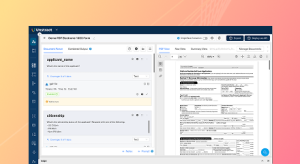
Yeah. So this is basically the kind of context that will be sent to the extractor LLM for further extraction. So now that this is done, let me upload the prompt. So, uh, that is o- once you extract the text, the s- second step is to actually enter your prompt. So I have the prompt, um, already created over here to save time in the webinar, and let me just enter it.
[00:24:30]
So you can see that I have a pretty detailed prompt. I have given instructions on how the table looks and, um, I’ve given, you know, the d- the structure of the table, what it contains, and, uh, s- the second segment of the prompt is an output JSON structure. So you have a detailed structure of how you want the output JSON to look.
And thirdly, we have instructions. So these are specific instructions for this particular, uh, extraction. So, um, for instance, over here I’ve said that extract a value only if it’s explicitly present in the document or extract
[00:25:00]
every unit in the community section across all pages. So these are the kind of instructions that you can specify.
And you’ll then have to specify the output, uh, data type. So over here, if I give it as text, I would just get a bunch of text line items as the output. However, we are enabling the agentic table extractor. So let me select this as the agentic table. And once I do this, you can see that I have, um, the agentic table extraction settings available.
So I would have to specify the settings over here, where I’d have to, uh, mention a light LLM adapter that would work. So what is… This light LLM adapter is basically the model that will be working, uh, as the presence detector. So this is the lightweight model that’ll go through all the pages in your table, in your document, and see which of the, uh, pages contain the table that you’re looking to extract data from.
So let me,
[00:25:30]
uh, again, specify a specific model that I want for this
[00:26:00]
Yeah. Okay. Uh, and again, we have certain other settings, like the start page, the end page, and the number of pages I want to process parallelly. So I have the liberty to mention these settings as well. And once this is done, you can see that, uh, the, uh, system [00:26:30] basically also gives me a readiness checklist.
So what this does is it calculates whether this particular prompt is good enough for accurate extraction. So again, prompt engineering has made work far more easier for extraction, however, uh, engineering the prompt in itself is a skill, uh, and it needs to be done well. So with the agentic table extractor, we have a prompt readiness checklist, so it looks for whether this particular prompt contains the target table information, whether it has a JSON structure, as well as
[00:27:00]
instructions for the extraction.
So this is how you, um, ensure that your extractions are accurate. And you can see that I, um, in this particular case, I’ve gotten a green signal from all these three, uh, aspects. So once this is done, I can now click on, um, the Run button and you would see that the system, uh, takes some time, but it… you would see that all the relevant, uh, data items are extracted from this table.
Now, while this runs, I just wanted to quickly take you through certain other, um, you
[00:27:30]
know, sample projects that we have where we have extracted table data. So this is again another rent roll, and, uh, this is a raw view, uh, uh, that we have. So this is another rent roll with a different structure. You can see that I’ve, uh, actually uploaded two different documents in this particular case.
So there is, again, uh, the readiness checklist. We have the prompt over here, and this is basically how the output looks. So you can see that for, um, I mean, the data is extracted according to the JSON structure that we’ve specified, and this can then
[00:28:00]
be, uh, you know, deployed in downstream operations as an API ETL pipeline.
This, uh, entire project can be deployed further down. So this is another rent roll example, but let me also take you through the clinical drug test report that I’d, uh, you know, shown you earlier. So we have the report over here
Yeah. So this is again, you know, how a typical real world document would also look. So we have this document that’s running many pages long. However,
[00:28:30]
we want the ex- you can see over here in the prompt that we want the extraction to be done only from table one. So we’ve given the details of this particular table.
We’ve, um, yeah, and then it follows, uh, with a JSON structure and the extraction rules. So again, this f- uh, you know, this, um, adheres to the prompt readiness checklist, and we have the output right here extracted from the relevant tables. So this is how the Agentic Table Extractor works, folks. And I know this is a pretty small demo, however, this is a feature
[00:29:00]
that is handling a lot of things because we see our users, um, often struggle with table extraction, and again, it contains the most important information.
So with the Agentic Table Extract, uh, Extractor, you can actually, you know, really overcome this pretty easily and that’s, uh, that actually reflects in the demo because you can see that it’s actually pretty simple to set up and run, and it gets you the accurate results that you want as well. So it’s more of a win-win situation.
And, uh, so the, uh, while the rent roll, uh, project runs, uh, we’ll see the output in
[00:29:30]
some time. So while this runs, let me show you, you know, how… what is the, um, how, how you, uh, move after one, uh, you’ve actually entered the prompts and run the project. So once you’re happy with the output, what you would do from the Prompt Studio is to actually export this project as a tool, and now you can use this tool to create workflows.
So I’ll take you through a sample workflow that I’ve created using another tool So there are, I mean, you can specify multiple projects in your account. So, uh, in this case, we looked at the rent roll
[00:30:00]
extraction. So you could have credit card extraction, you could have, uh, bills of lading extraction. So we’ll just take a look at a sample workflow over here to see how you can deploy this, um, further down the line
All right, so we have a contract extraction API over here. So you can see that, uh, the input configuration has been given as, as an API, but this can also be a file system. And then you specify a specific tool that you want, uh, to
[00:30:30]
deploy in this workflow. So in this case, uh, we’ve chosen the contract extractor.
However, if I click on change, um, the tool I can… I have access to various other tools as well. So in this case, if I actually, um, mention the table extractor, we have the table extraction or the rent roll extractor as well should be available over here. So we have a bunch of extractors that we can choose from, and, uh, these are the tools.
So each tool is designed to extract data from a different kind of document. So depending on which document you’re getting
[00:31:00]
from the input, uh, source, you define the tool, and then you specify where this destination or where the output, uh, should go, what is the destination for the output. So in this case, we’ve given it as an API, and we’ve deployed this as an API deployment.
However, with ETL pipelines, you would see that you’re getting the document in from a file system, and once you process it, you’d be sending it out to a database or a data warehouse. And this is also the stage where in between you can handle or configure HITL as well, which is the human in the loop, uh, aspect.
So we have specific webinars on this
[00:31:30]
as well as blogs and documentation that you can again take a look at. So, uh, that is another key capability of the platform where we support source document highlighting. And this is a stage that you, uh, go through before the output, uh, and you make any manual changes to the output before it is sent to the, uh, destination DB.
So this is basically how the workflows are set up, and you can see that we have multiple API deployments, ETL pipelines, task pipelines over here, and there is the human in the loop deployment, uh, reviews that you can access from the
[00:32:00]
sidebar as well. So now, uh, let’s take a look at the output. So, okay, I think it’s still taking some time.
So this is basically what I wanted to cover, folks. Um, I mean, hopefully, uh, let’s actually get, uh, going with the webinar, and we can come back to see, you know, the output in some time. And, um, that brings me to the wrap-up. So apart from the six agents that we had looked at, we also had certain other key capabilities of the table extractor, like the prompt readiness checklist,
[00:32:30]
the advanced sliding window technique, which basically helps you overcome the difficulty of handling large documents that, uh, you know, go above your, uh, LLM’s context limits.
And, uh, the platform also supports parallel processing for faster processing. And that, um, brings me to the conclusion, the end of the webinar. Before we move into the Q&A, I just wanted to point out some numbers of, you know, how Unstract has… Uh, what are our, uh, users’ feedback on the platform so far. So we, um, have observed a ninety-nine percent extraction accuracy with Unstract,
[00:33:00]
a ninety percent straight-through processing rate, a twenty x improvement in operational efficiency, and eighty percent fewer human touch points.
So, uh, these– I mean, if you want to look at this platform for your own particular needs, for, uh… In this webinar, I’ve just tried to really just show the agentic table extractor, but as you had seen, as you know, I’d skimmed through the various other capabilities. There’s so much more that you can do with the platform as well.
So if you want, uh, to understand this better, uh, you can sign up for a free personalized demo where one of our experts will be able to sit with you
[00:33:30]
in a one-on-one chat, and we’ll be able to, um, understand your needs and see how the platform can be customized, uh, for your requirements. So the link to book a demo is, uh, given in the chat again.
Uh, our, uh, I mean, one of our team, um, members would have dropped it earlier on in the session, so you can take a look at that. And that brings me to the Q&A. So, uh, the floor is open for questions.
[00:34:00]
So I’ll just wait for a minute or two
All right. So, uh, while we wait, we have the extraction over here. So you can see that the, uh, details, the data has been extracted from this particular table, and we have it available over here. So this is basically, yeah, how the extraction output looks. Now let me get back to the Q&A in case there are any questions
[00:34:30]
Uh, Gokul, there is one question in chat. Do you wanna take it up?
Hey, yes, Suhas. Yep, uh, we do support Webhooks. Uh, I can send you the link. Uh, maybe post it all, like, very detailed information on how to access Webhooks within workflows. Yeah.
[00:35:00]
And we are trying to do
Any other questions, folks? Uh
[00:35:30]
Uh, yeah, we have another question in chat, uh, Gokul
The inter flow can be, of course, I mean, uh, you either automate it through an ETL or just deploy an API. Uh, so for submissions, you can, you know, of course, use the n8n workflow to ingest
[00:36:00]
submissions and then, you know, use the API in between and then, you know, create a Excel output out of that. Uh, yeah, I mean, we, we do, you know, have the REST API, which you can use within any of the workflows and automatically input process
But we, we don’t do the ingestion of the submission itself through Unstract. I mean, you can
[00:36:30]
define the prompts for the documents that you get in your submission and then, uh, you know, just deploy it as an API, use it as an innate and node, uh, for now. We are also coming up with something called Unstract Flow.
I don’t wanna reveal the secrets, but, uh, you know, that should be able to do the end-to-end flow, uh, you know, with the API that you just deployed. I, I can just maybe drop you a note, Elvis, uh, a detailed note on how you can do this with the current state.
[00:37:00]
All right, uh, any other questions? Yes, I, uh, we have another question from Suhas
Awesome. So yeah, we don’t read logos. Uh, I mean, we are coming up with signature detection, but I think soon we should be able to read, read logos. I’ll get an update on that. But with regards to edge cases, uh, we already have edge here. Uh,
[00:37:30]
so let’s say you, uh, you know, you, you find some fields where you, you know, where accuracy is deviating, you can always, you know, flag those fields in your human in the loop review.
And as and when human reviewers, uh, you know, change certain fields, we have a feedback loop that sends those feedback back to the prompts, which can improve the, you know, prompts for extraction. So that, that feedback loop, you know, with
[00:38:00]
the human in the loop is already there. Uh, so that’s one of the ways you handle edge cases, uh, you know, through human in the loop, right?
You just flag those fields with low confidence scores. And again, this is something that you can, you know, set up in your workflow stage. I can send you a link again on how to handle edge cases with human in the loop. You can also handle edge cases with LM challenge scores. Uh, you know, again, that’s not very reliable, but yeah, human in the loop is even there.
Um,
[00:38:30]
so I ha-have to send two notes to Suhas, one about webhook and the other one about edge cases. Uh, I’ll make a note. Any other questions?
Scope. So I need to get back to Sivas and Elvis. Uh, folks, I’ll, I’ll drop you a note over the internet. Anybody else?
[00:39:00]
Okay, I think we can wrap up. Thank you so much, Gokul. And, uh, thank you everybody for joining the session today. We’ll be sending you the recording shortly, and, uh, I hope to see you in our upcoming events as well. Thank you.
See Unstract in action with walkthroughs of core features and real extraction workflows.
Managed cloud, on-premise, or open-source. Unstract adapts to your infrastructure needs, so choose what works best for you.

Prompt engineering Interface for Document Extraction

Make LLM-extracted data accurate and reliable

Use MCP to integrate Unstract with your existing stack

Control and trust, backed by human verification

Make LLM-extracted data accurate and reliable




How to extract tables using multi-agent AI from complex real-world documents